
Smart OSM Map





A production-ready Flutter package for OpenStreetMap integration. It provides clustered markers, image support, user location display, and nearby filtering with animated radius effects.
Built on top of flutter_map, this package offers a "plug-and-play" experience with strong UX defaults, privacy-safe location handling, and a clean API.
Showcase
Map UI with teardrop clusters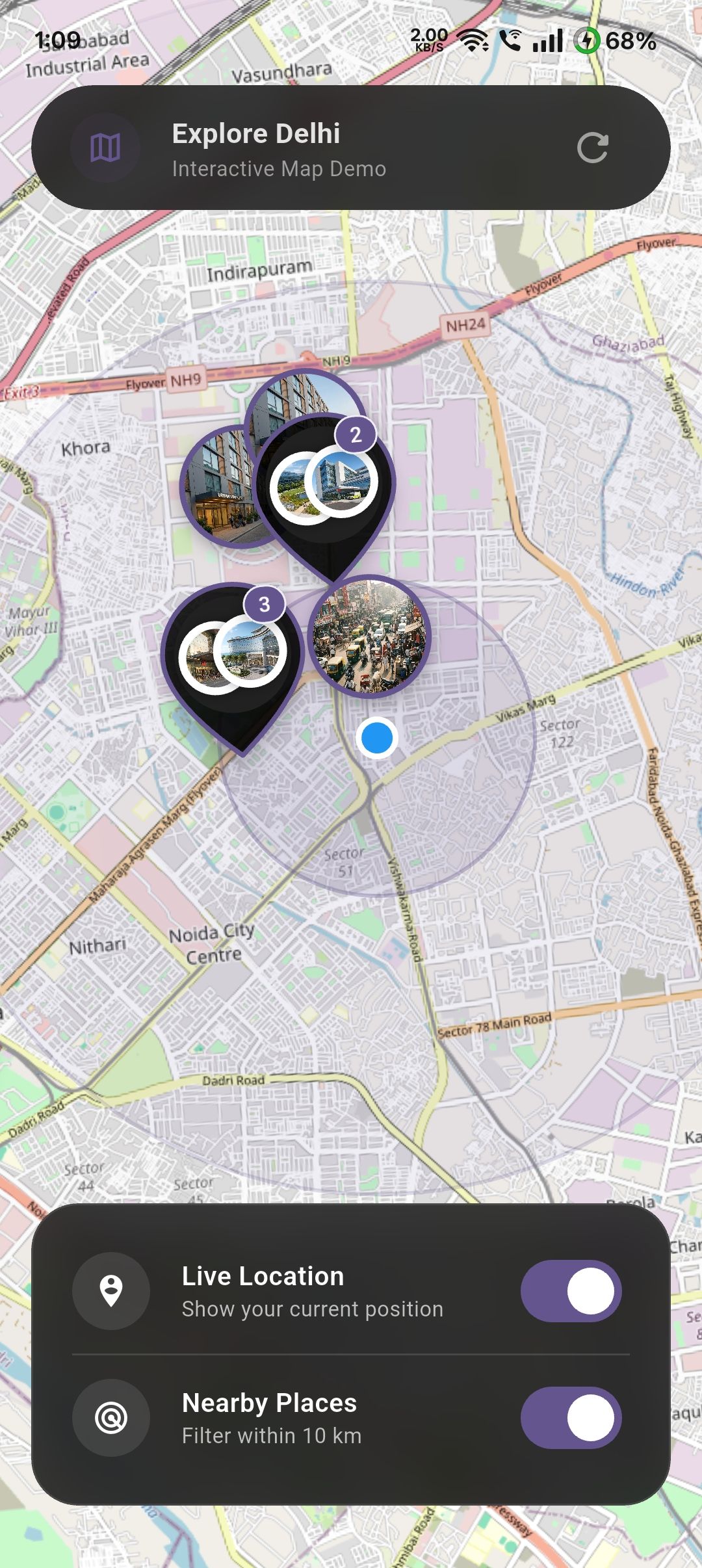 |
Map UI with user location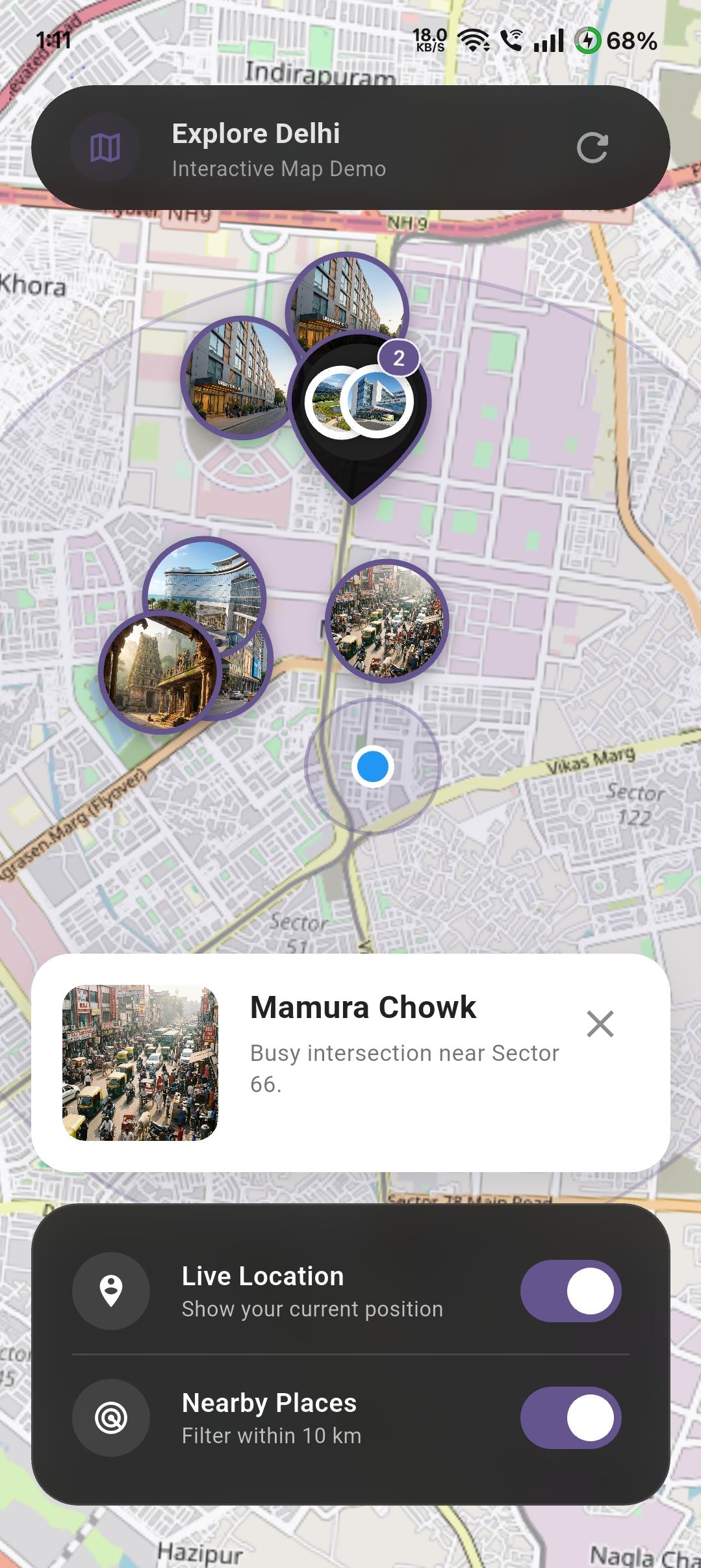 |
Map UI with image markers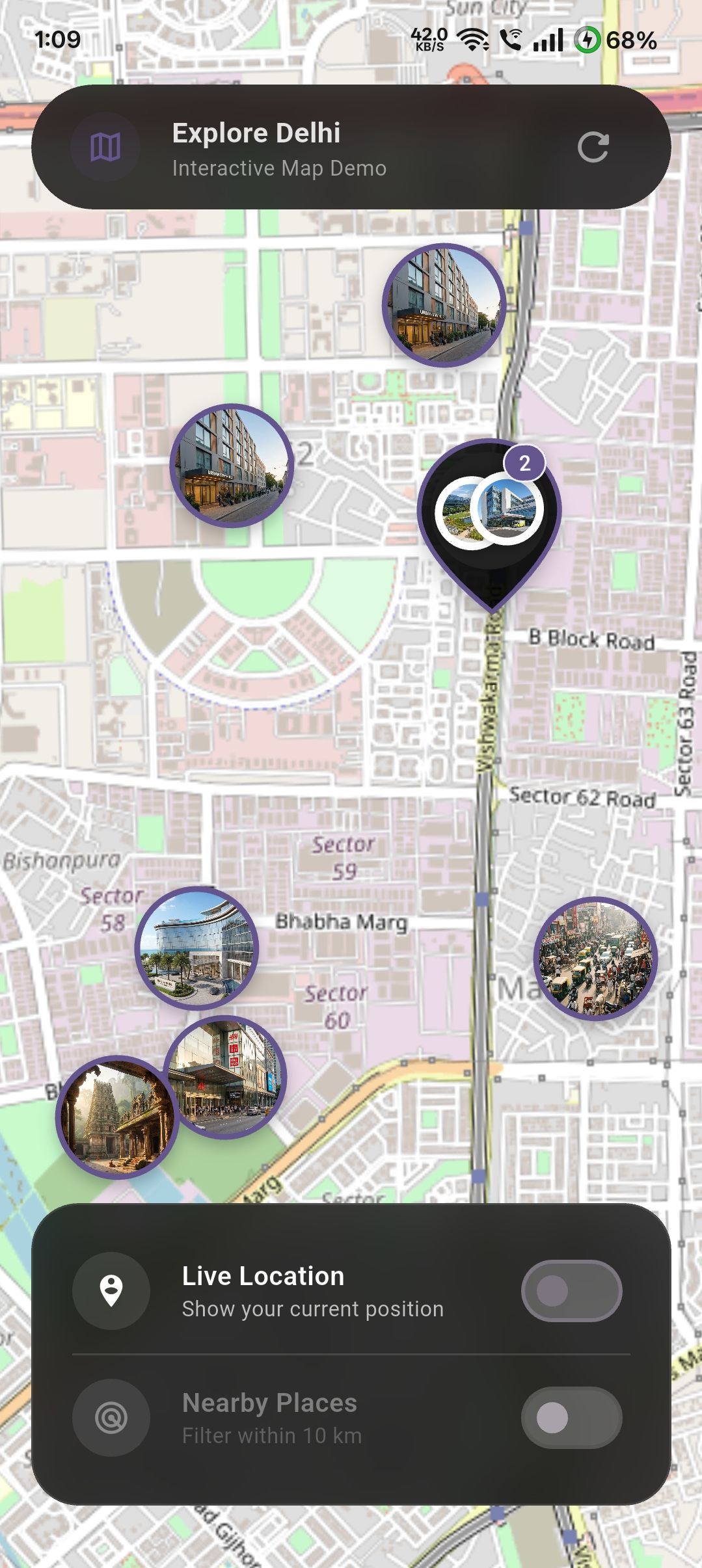 |
Features
- Clustered Markers: Automatically clusters markers to reduce clutter and improve performance. Can be disabled if needed.
- Custom Cluster Styling: Provide your own
clusterBuilderto customize how clustered markers look. - Image Markers: Supports both network images and local asset images for markers.
- User Location: Optional support to show the user's current location with safe permission handling.
- Nearby Filtering: Filter markers within a configurable radius from the user, complete with an animated ripple effect.
- Map Controls: Flexible control over
initialCenter,initialZoom,minZoom,maxZoom, andonMapReadycallbacks. - No API Keys: Uses OpenStreetMap tiles, requiring no API keys for standard usage.
Installation
Add smart_osm_map to your pubspec.yaml:
dependencies:
  smart_osm_map: ^0.3.1
Usage
1. Define Your Data Model
First, define the data you want to display on the map. This can be any Dart class.
class Place {
  final String name;
  final double lat;
  final double lng;
  final String image; // Asset path or network URL

  const Place({
    required this.name,
    required this.lat,
    required this.lng,
    required this.image,
  });
}
2. Basic Implementation
Use the .simple constructor to map your data list to the map.
import 'package:smart_osm_map/smart_osm_map.dart';

class MyMapScreen extends StatelessWidget {
  @override
  Widget build(BuildContext context) {
    // Your list of places
    final List<Place> places = [ /* ... */ ];

    return Scaffold(
      body: SmartOsmMap.simple(
        items: places,
        // Extract location data
        latitude: (place) => place.lat,
        longitude: (place) => place.lng,
        // Extract marker image (optional)
        markerImage: (place) => place.image,
        // Handle taps
        onTap: (place) {
          print('Tapped on ${place.name}');
        },
      ),
    );
  }
}
3. Advanced Features & Customization
The following example demonstrates how to enable user location, toggle "Nearby" filtering, and customize the map style within a StatefulWidget.
class SmartMapPlayground extends StatefulWidget {
  @override
  State<SmartMapPlayground> createState() => _SmartMapPlaygroundState();
}

class _SmartMapPlaygroundState extends State<SmartMapPlayground> {
  bool showUserLocation = false;
  bool enableNearby = false;

  @override
  Widget build(BuildContext context) {
    return SmartOsmMap.simple(
      items: places,
      latitude: (p) => p.lat,
      longitude: (p) => p.lng,
      markerImage: (p) => p.image,

      // --- Feature 1: User Location ---
      // Toggle this boolean to show/hide the user's location.
      // The package handles permission requests automatically.
      showUserLocation: showUserLocation,

      // --- Feature 2: Nearby Filtering ---
      // When enabled, only shows items within `nearbyRadiusKm` of the user.
      enableNearby: enableNearby,
      nearbyRadiusKm: 10,

      // --- Feature 3: Styling ---
      markerSize: 64,
      markerBorderColor: Colors.deepPurple,
      clusterColor: Colors.black87,
      radiusColor: Colors.deepPurple.withOpacity(0.3),

      // --- Feature 4: Interaction ---
      onTap: (place) {
        // Handle marker tap (e.g., show a modal or navigate)
        showModalBottomSheet(
          context: context,
          builder: (_) => Text(place.name),
        );
      },

      // --- Feature 5: Permission Handling ---
      // Optional callbacks to handle permission states in your UI
      onLocationPermissionDenied: () {
        ScaffoldMessenger.of(context).showSnackBar(
          SnackBar(content: Text('Location permission is required.')),
        );
      },
    );
  }
}
Configuration
| Parameter | Type | Default | Description |
|---|---|---|---|
items |
List<T> |
Required | The list of data objects to display on the map. |
latitude |
double Function(T) |
Required | Function to extract latitude from your data object. |
longitude |
double Function(T) |
Required | Function to extract longitude from your data object. |
markerImage |
String? Function(T)? |
null |
Function to extract image URL (http/asset) for the marker. |
onTap |
void Function(T)? |
null |
Callback when a marker is tapped. |
showUserLocation |
bool |
false |
Whether to show the user's location on the map. |
enableNearby |
bool |
false |
Whether to filter items based on distance from user. |
nearbyRadiusKm |
double |
10 |
The radius in kilometers for nearby filtering. |
markerSize |
double |
56 |
Size of the marker icons. |
minZoom |
double |
2.0 |
Minimum zoom level (how far you can zoom out). |
maxZoom |
double |
18.0 |
Maximum zoom level (how far you can zoom in). |
initialZoom |
double |
13.0 |
Starting zoom level. |
initialCenter |
LatLng? |
null |
Starting center coordinates (defaults to first item). |
onMapReady |
VoidCallback? |
null |
Callback when the map is fully loaded. |
useClustering |
bool |
true |
Whether to enable marker clustering. |
clusterBuilder |
Widget Function(BuildContext, List<Marker>)? |
null |
Custom builder for the cluster widget. |
OS Permissions
This package uses geolocator to handle location. You must configure your app for location access.
Android
Add the following to your <project>/android/app/src/main/AndroidManifest.xml:
<uses-permission android:name="android.permission.ACCESS_FINE_LOCATION" />
<uses-permission android:name="android.permission.ACCESS_COARSE_LOCATION" />
iOS
Add the following to your <project>/ios/Runner/Info.plist:
<key>NSLocationWhenInUseUsageDescription</key>
<string>This app needs access to location when open to show nearby places.</string>
Privacy & Safety
- No Tracking:
smart_osm_mapdoes not track user location in the background. - No Data Collection: Location data is processed locally on the device to render the user layer and calculate distances. It is never sent to any external server by this package.
- Store Friendly: Designed to comply with Apple App Store and Google Play Store privacy guidelines regarding location usage.
Best Practices
- Large Datasets: While clustering helps with performance, extremely large datasets (thousands of items) may still impact performance depending on the device.
- Tile Servers: By default, this uses standard OpenStreetMap tiles. Ensure you comply with their Tile Usage Policy for heavy usage, or swap with your own tile provider if needed.