
smart_osm_map 0.3.1  smart_osm_map: ^0.3.1 copied to clipboard
A plug-and-play OpenStreetMap widget with clustering, image markers, user location, and nearby radius support.
Smart OSM Map #





A production-ready Flutter package for OpenStreetMap integration. It provides clustered markers, image support, user location display, and nearby filtering with animated radius effects.
Built on top of flutter_map, this package offers a "plug-and-play" experience with strong UX defaults, privacy-safe location handling, and a clean API.
Showcase #
Map UI with teardrop clusters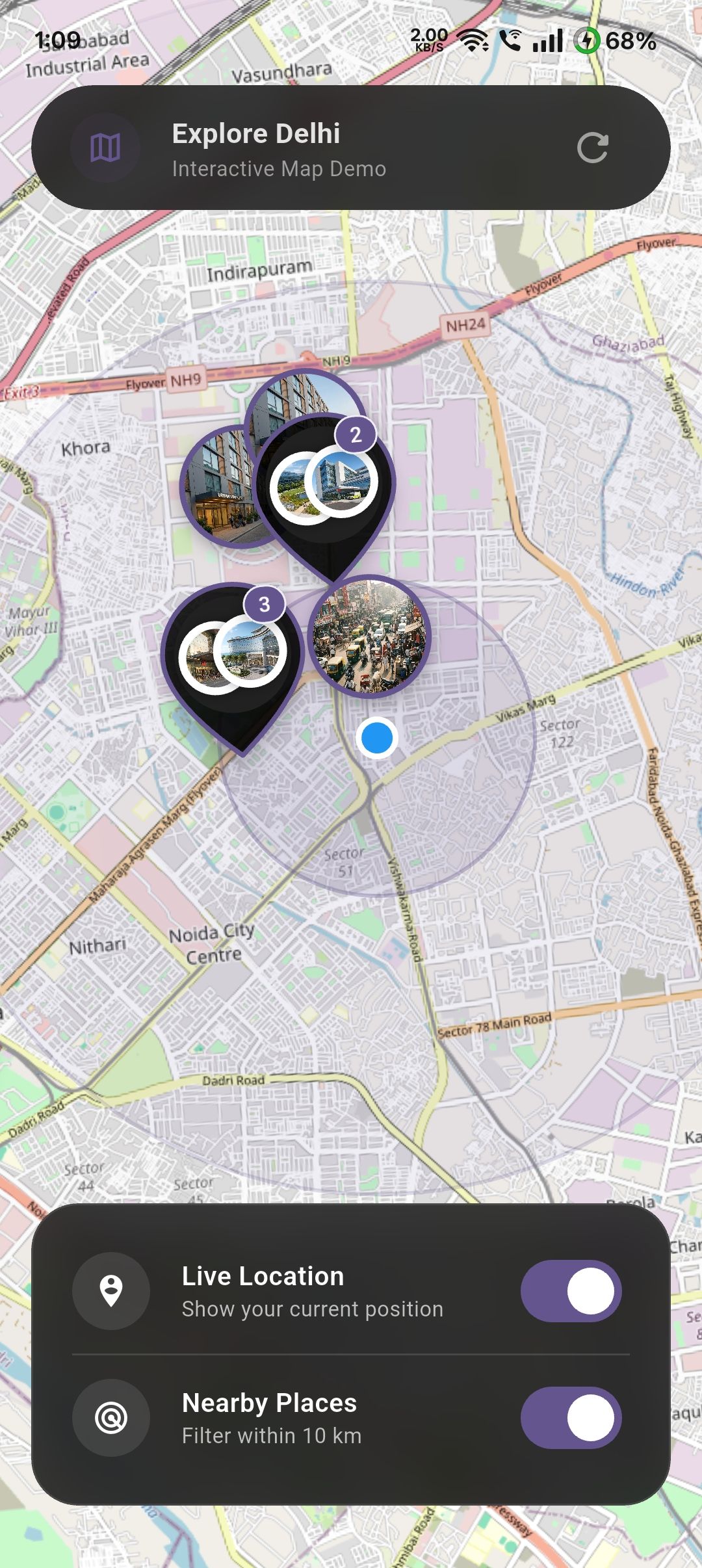 |
Map UI with user location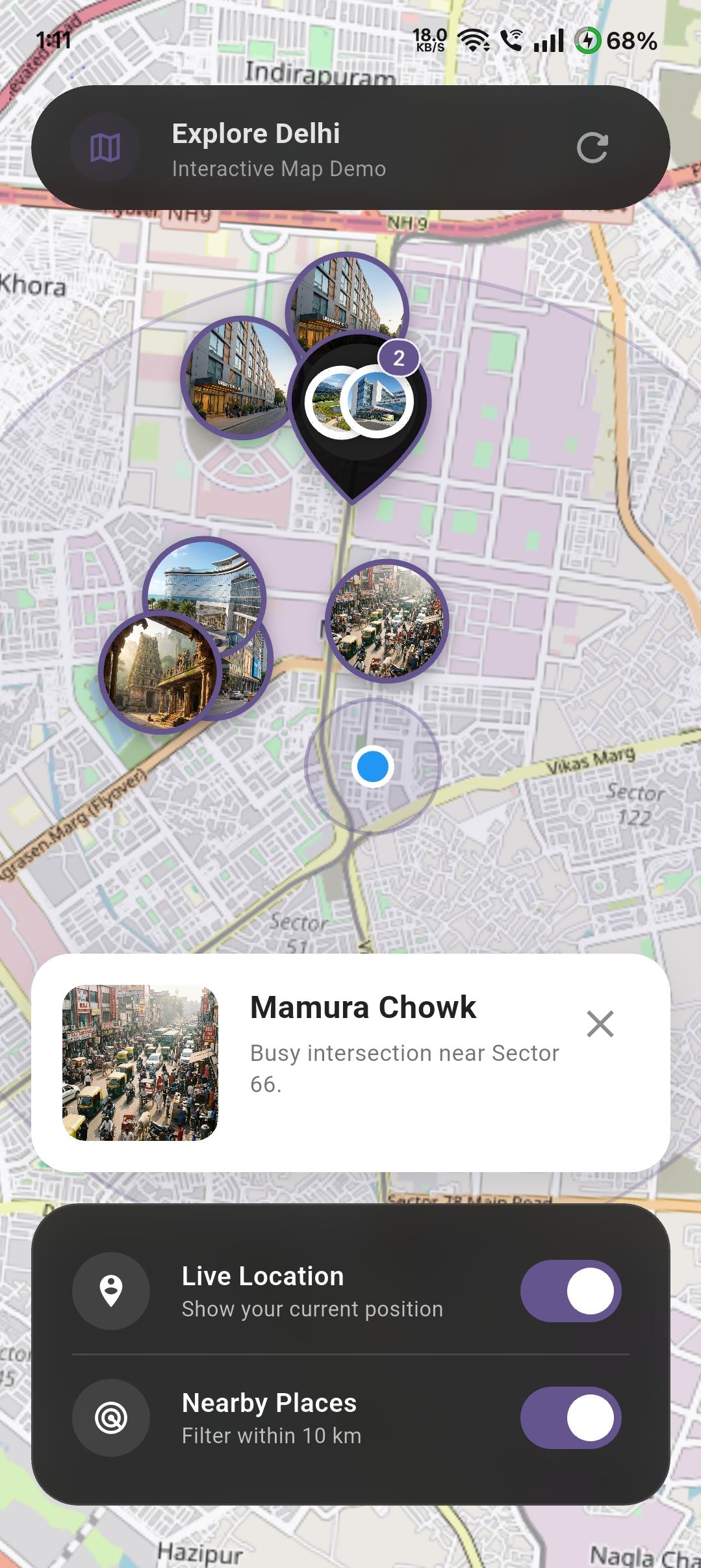 |
Map UI with image markers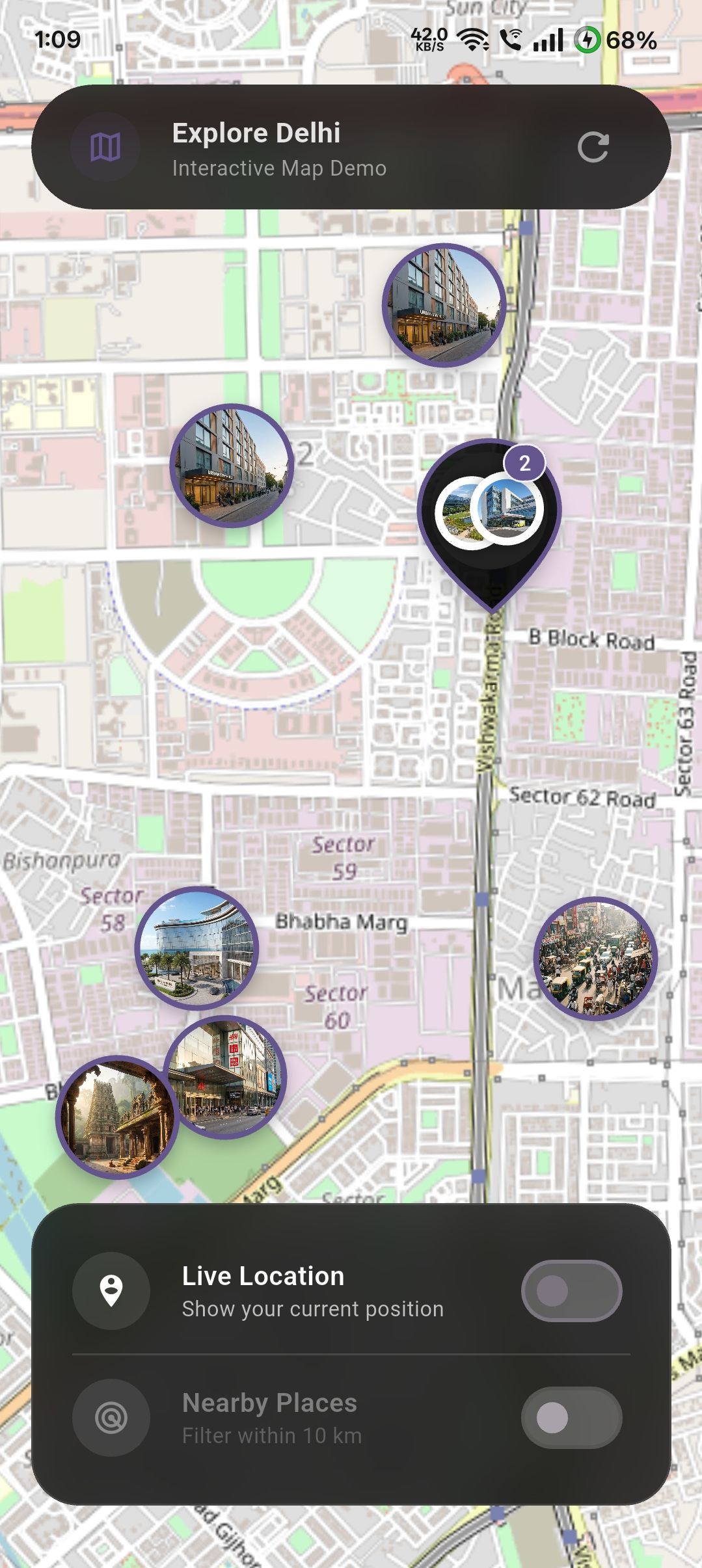 |
Features #
- Clustered Markers: Automatically clusters markers to reduce clutter and improve performance. Can be disabled if needed.
- Custom Cluster Styling: Provide your own
clusterBuilderto customize how clustered markers look. - Image Markers: Supports both network images and local asset images for markers.
- User Location: Optional support to show the user's current location with safe permission handling.
- Nearby Filtering: Filter markers within a configurable radius from the user, complete with an animated ripple effect.
- Map Controls: Flexible control over
initialCenter,initialZoom,minZoom,maxZoom, andonMapReadycallbacks. - No API Keys: Uses OpenStreetMap tiles, requiring no API keys for standard usage.
Installation #
Add smart_osm_map to your pubspec.yaml:
dependencies:
  smart_osm_map: ^0.3.1
Usage #
1. Define Your Data Model #
First, define the data you want to display on the map. This can be any Dart class.
class Place {
  final String name;
  final double lat;
  final double lng;
  final String image; // Asset path or network URL

  const Place({
    required this.name,
    required this.lat,
    required this.lng,
    required this.image,
  });
}
2. Basic Implementation #
Use the .simple constructor to map your data list to the map.
import 'package:smart_osm_map/smart_osm_map.dart';

class MyMapScreen extends StatelessWidget {
  @override
  Widget build(BuildContext context) {
    // Your list of places
    final List<Place> places = [ /* ... */ ];

    return Scaffold(
      body: SmartOsmMap.simple(
        items: places,
        // Extract location data
        latitude: (place) => place.lat,
        longitude: (place) => place.lng,
        // Extract marker image (optional)
        markerImage: (place) => place.image,
        // Handle taps
        onTap: (place) {
          print('Tapped on ${place.name}');
        },
      ),
    );
  }
}
3. Advanced Features & Customization #
The following example demonstrates how to enable user location, toggle "Nearby" filtering, and customize the map style within a StatefulWidget.
class SmartMapPlayground extends StatefulWidget {
  @override
  State<SmartMapPlayground> createState() => _SmartMapPlaygroundState();
}

class _SmartMapPlaygroundState extends State<SmartMapPlayground> {
  bool showUserLocation = false;
  bool enableNearby = false;

  @override
  Widget build(BuildContext context) {
    return SmartOsmMap.simple(
      items: places,
      latitude: (p) => p.lat,
      longitude: (p) => p.lng,
      markerImage: (p) => p.image,

      // --- Feature 1: User Location ---
      // Toggle this boolean to show/hide the user's location.
      // The package handles permission requests automatically.
      showUserLocation: showUserLocation,

      // --- Feature 2: Nearby Filtering ---
      // When enabled, only shows items within `nearbyRadiusKm` of the user.
      enableNearby: enableNearby,
      nearbyRadiusKm: 10,

      // --- Feature 3: Styling ---
      markerSize: 64,
      markerBorderColor: Colors.deepPurple,
      clusterColor: Colors.black87,
      radiusColor: Colors.deepPurple.withOpacity(0.3),

      // --- Feature 4: Interaction ---
      onTap: (place) {
        // Handle marker tap (e.g., show a modal or navigate)
        showModalBottomSheet(
          context: context,
          builder: (_) => Text(place.name),
        );
      },

      // --- Feature 5: Permission Handling ---
      // Optional callbacks to handle permission states in your UI
      onLocationPermissionDenied: () {
        ScaffoldMessenger.of(context).showSnackBar(
          SnackBar(content: Text('Location permission is required.')),
        );
      },
    );
  }
}
Configuration #
| Parameter | Type | Default | Description |
|---|---|---|---|
items |
List<T> |
Required | The list of data objects to display on the map. |
latitude |
double Function(T) |
Required | Function to extract latitude from your data object. |
longitude |
double Function(T) |
Required | Function to extract longitude from your data object. |
markerImage |
String? Function(T)? |
null |
Function to extract image URL (http/asset) for the marker. |
onTap |
void Function(T)? |
null |
Callback when a marker is tapped. |
showUserLocation |
bool |
false |
Whether to show the user's location on the map. |
enableNearby |
bool |
false |
Whether to filter items based on distance from user. |
nearbyRadiusKm |
double |
10 |
The radius in kilometers for nearby filtering. |
markerSize |
double |
56 |
Size of the marker icons. |
minZoom |
double |
2.0 |
Minimum zoom level (how far you can zoom out). |
maxZoom |
double |
18.0 |
Maximum zoom level (how far you can zoom in). |
initialZoom |
double |
13.0 |
Starting zoom level. |
initialCenter |
LatLng? |
null |
Starting center coordinates (defaults to first item). |
onMapReady |
VoidCallback? |
null |
Callback when the map is fully loaded. |
useClustering |
bool |
true |
Whether to enable marker clustering. |
clusterBuilder |
Widget Function(BuildContext, List<Marker>)? |
null |
Custom builder for the cluster widget. |
OS Permissions #
This package uses geolocator to handle location. You must configure your app for location access.
Android #
Add the following to your <project>/android/app/src/main/AndroidManifest.xml:
<uses-permission android:name="android.permission.ACCESS_FINE_LOCATION" />
<uses-permission android:name="android.permission.ACCESS_COARSE_LOCATION" />
iOS #
Add the following to your <project>/ios/Runner/Info.plist:
<key>NSLocationWhenInUseUsageDescription</key>
<string>This app needs access to location when open to show nearby places.</string>
Privacy & Safety #
- No Tracking:
smart_osm_mapdoes not track user location in the background. - No Data Collection: Location data is processed locally on the device to render the user layer and calculate distances. It is never sent to any external server by this package.
- Store Friendly: Designed to comply with Apple App Store and Google Play Store privacy guidelines regarding location usage.
Best Practices #
- Large Datasets: While clustering helps with performance, extremely large datasets (thousands of items) may still impact performance depending on the device.
- Tile Servers: By default, this uses standard OpenStreetMap tiles. Ensure you comply with their Tile Usage Policy for heavy usage, or swap with your own tile provider if needed.
Metadata
Publisher
unverified uploader
Weekly Downloads
Metadata
A plug-and-play OpenStreetMap widget with clustering, image markers, user location, and nearby radius support.
Repository (GitHub)
View/report issues
Documentation
License
 MIT (license)
Dependencies
flutter, flutter_map, flutter_map_marker_cluster, geolocator, latlong2

