
place_pickarte
A Flutter plugin for making pixel-by-pixel customizable map place pickers.
📐 Features
🎨 Fully Customizable: Adapt to any design system
🗺️ Google Maps: Built-in support with more providers coming
🔍 Places Search: Autocomplete and location search
✨ Smooth Animations: Responsive pin interactions
🎭 Multiple Styles: Six pre-built map themes
🚀 Production Ready: Complete example included
📱 Screenshots
| Picker | Style | Search |
|---|---|---|
 |
 |
 |
🩵 Want to say "thanks"?
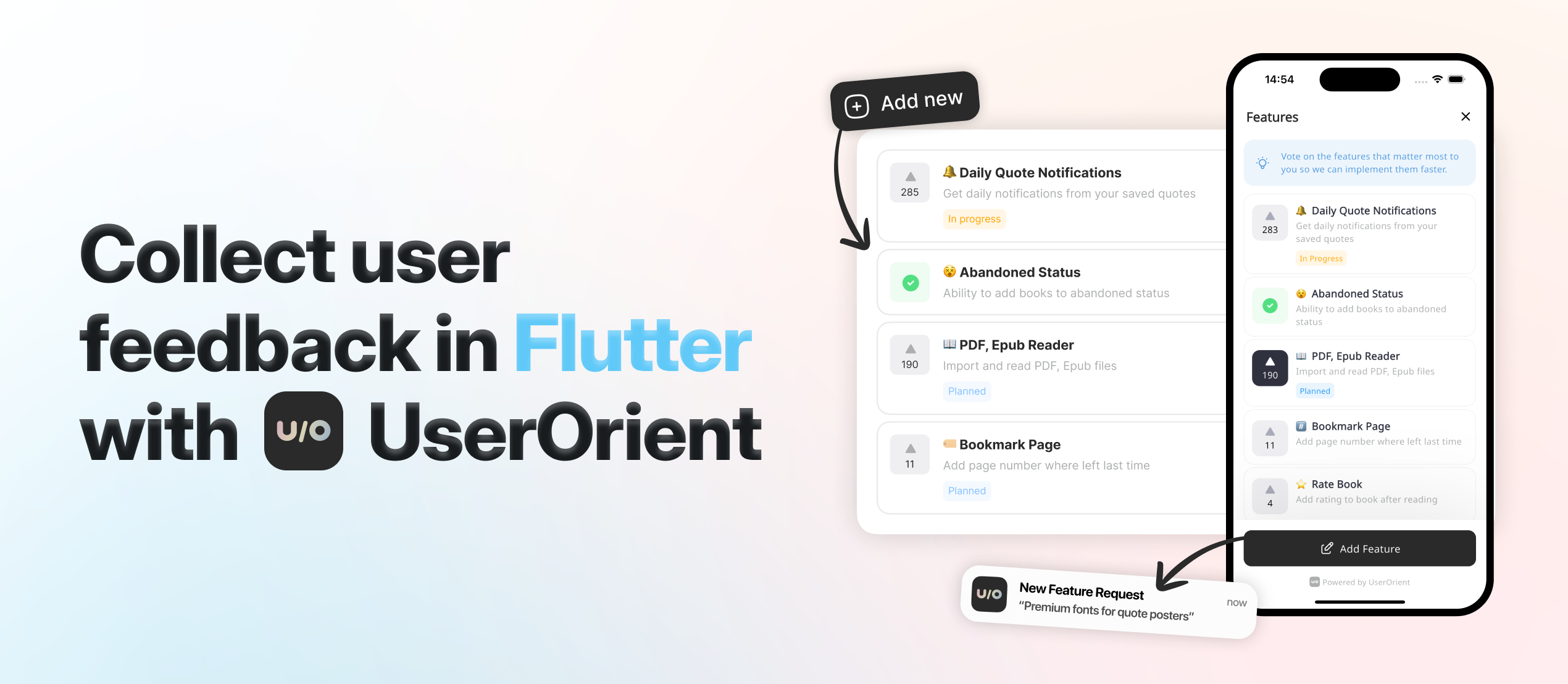
Check UserOrient, my side project for Flutter apps to collect feedback from users.
🕹️ Usage
Setup first: We use Google Maps under the hood. Follow google_maps_flutter setup for API keys and native config.
Complete Place Picker
Copy example/lib/place_picker_page.dart which is a complete map place picker implemented using place_pickarte's plugin APIs. You get everything:
- 🔍 Search bar with autocomplete overlay
- 📍 Animated pin that responds to map movement
- 📱 My location button with permission handling
- 📋 Bottom sheet showing selected address
- ✅ Continue button to confirm selection
- 🎨 Styled components ready for your colors
That's it!, that's the main point: we give you a complete, production-ready place picker that you can customize to your brand. It already has a beautiful and minimal design that can go with any design system, and you can also easily customize it for your own app.
API Reference
Here's how to build your own place picker step by step:
1. Create the Configuration
PlacePickarteConfig(
  // Required - Your Google Maps API keys
  googleMapConfig: GoogleMapConfig(
    iosApiKey: 'YOUR_IOS_KEY',
    androidApiKey: 'YOUR_ANDROID_KEY',
  ),

  // Optional - Where to start the map (if not provided, defaults to Baku, Azerbaijan)
  initialLocation: Location(lat: 40.4093, lng: 49.8671),
  initialZoom: 16.5,

  // Optional - Should we try to get user's location first? (default: true)
  myLocationAsInitial: true,

  // Optional but recommended - Needed to show addresses in your UI
  // Without this, you won't get readable addresses, just coordinates
  googleMapsGeocoding: GoogleMapsGeocoding(apiKey: 'YOUR_KEY'),

  // Optional - Customize search behavior
  placesAutocompleteConfig: PlacesAutocompleteConfig(
    region: 'az',                                    // Bias results to this country
    components: [Component(Component.country, 'az')], // Only show results from this country
    language: 'en',                                  // Language for results
    types: ['establishment'],                        // What types of places to show
  ),

  // Optional - Replace the default pin with your own
  pinBuilder: (context, state) => YourCustomPin(state),
)
2. Create the Controller
final controller = PlacePickarteController(config: yourConfig);

// Don't forget to dispose it
@override
void dispose() {
  controller.close();
  super.dispose();
}
3. Add the Map
PlacePickarteMap(controller) // That's it, you have a working map with pin
4. Listen to Location Changes
// This gives you the selected location with full address
StreamBuilder<GeocodingResult?>(
  stream: controller.currentLocationStream,
  builder: (context, snapshot) {
    if (!snapshot.hasData) return Text('Loading...');

    final location = snapshot.data!;
    return Text(location.formattedAddress ?? 'Unknown location');
  },
)
5. Add Search (Optional)
// Listen to search results
StreamBuilder<List<Prediction>?>(
  stream: controller.autocompleteResultsStream,
  builder: (context, snapshot) {
    final predictions = snapshot.data ?? [];
    return ListView.builder(
      itemCount: predictions.length,
      itemBuilder: (context, index) {
        final prediction = predictions[index];
        return ListTile(
          title: Text(prediction.description ?? ''),
          onTap: () {
            // Jump to this location
            controller.selectAutocompleteItem(prediction);
          },
        );
      },
    );
  },
)

// Trigger search
controller.searchAutocomplete('pizza'); // Search for pizza places
6. Add My Location Button (Optional)
ElevatedButton(
  onPressed: () async {
    final result = await controller.goToMyLocation();

    // Handle different results
    switch (result) {
      case MyLocationResult.success:
        // All good, map moved to user location
        break;
      case MyLocationResult.permissionDenied:
        // Show dialog asking for permission
        break;
      case MyLocationResult.serviceNotEnabled:
        // Ask user to enable GPS
        break;
    }
  },
  child: Text('My Location'),
)
7. Customize Pin Animation (Optional)
// The pin has two states: idle and dragging
pinBuilder: (context, state) {
  return AnimatedContainer(
    duration: Duration(milliseconds: 200),
    // Move pin up when dragging
    transform: Matrix4.translationValues(0, state == PinState.dragging ? -8 : 0, 0),
    child: Icon(
      state == PinState.dragging ? Icons.location_searching : Icons.location_on,
      size: 72,
      color: state == PinState.dragging ? Colors.grey : Colors.red,
    ),
  );
}
8. Style the Map (Optional)
GoogleMapConfig(
  googleMapStyle: GoogleMapStyles.dark,      // Dark theme
  googleMapStyle: GoogleMapStyles.night,     // Night mode
  googleMapStyle: GoogleMapStyles.retro,     // Vintage look
  googleMapStyle: GoogleMapStyles.silver,    // Minimal gray
  googleMapStyle: GoogleMapStyles.aubergine, // Purple theme
  // Leave null for standard Google Maps
)
That's everything you need to know. The example file shows all of this working together in a real app.
💡 Inspired from/by
- Forked and modified google_maps_webservice according to this package's needs, specifically for not supporting null-safety.