
place_pickarte 1.0.1  place_pickarte: ^1.0.1 copied to clipboard
 kamranbekirov.com
Pixel-by-pixel customizable map place picker for Flutter.
place_pickarte #
A Flutter plugin for making pixel-by-pixel customizable map place pickers.
📐 Features #
🎨 Fully Customizable: Adapt to any design system
🗺️ Google Maps: Built-in support with more providers coming
🔍 Places Search: Autocomplete and location search
✨ Smooth Animations: Responsive pin interactions
🎭 Multiple Styles: Six pre-built map themes
🚀 Production Ready: Complete example included
📱 Screenshots #
| Picker | Style | Search |
|---|---|---|
 |
 |
 |
🩵 Want to say "thanks"? #
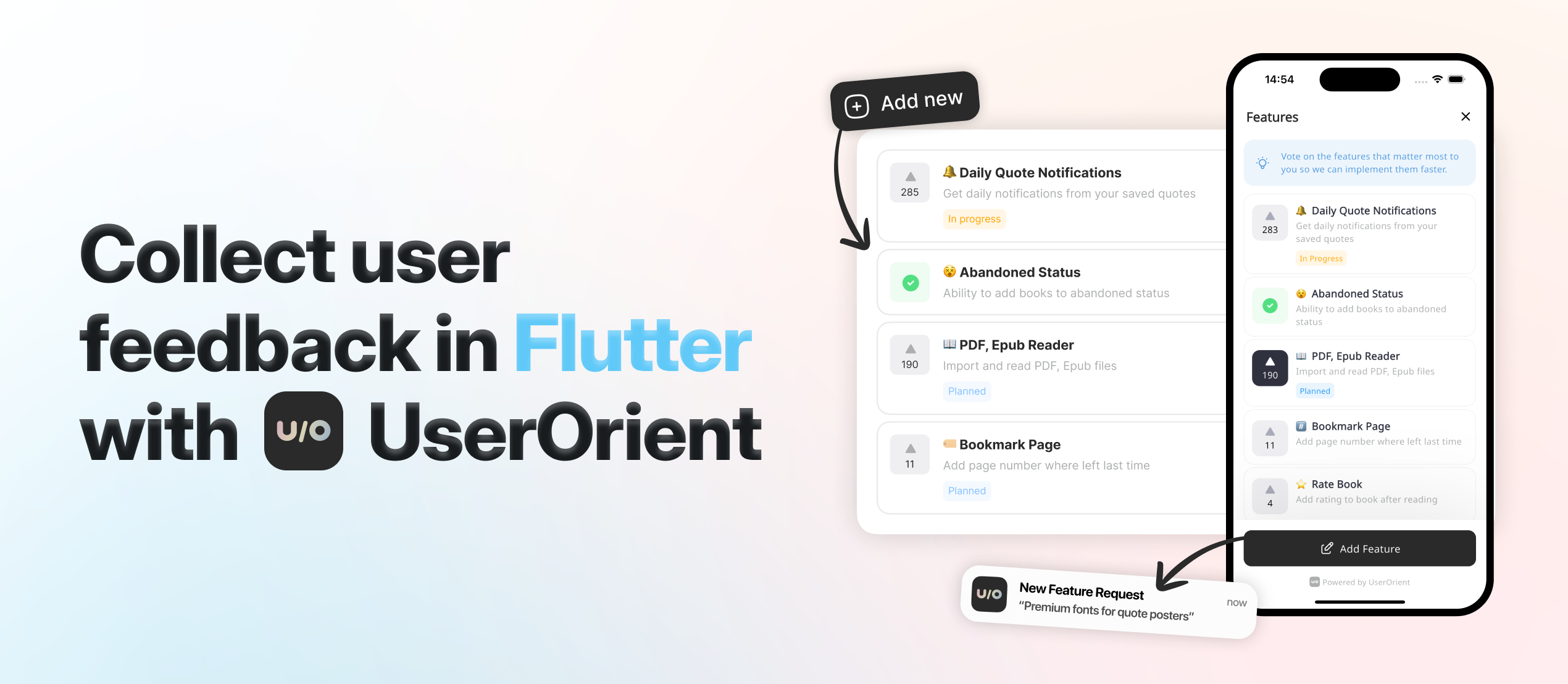
Check UserOrient, my side project for Flutter apps to collect feedback from users.
🕹️ Usage #
Setup first: We use Google Maps under the hood. Follow google_maps_flutter setup for API keys and native config.
Complete Place Picker #
Copy example/lib/place_picker_page.dart which is a complete map place picker implemented using place_pickarte's plugin APIs. You get everything:
- 🔍 Search bar with autocomplete overlay
- 📍 Animated pin that responds to map movement
- 📱 My location button with permission handling
- 📋 Bottom sheet showing selected address
- ✅ Continue button to confirm selection
- 🎨 Styled components ready for your colors
That's it!, that's the main point: we give you a complete, production-ready place picker that you can customize to your brand. It already has a beautiful and minimal design that can go with any design system, and you can also easily customize it for your own app.
API Reference #
Here's how to build your own place picker step by step:
1. Create the Configuration
PlacePickarteConfig(
  // Required - Your Google Maps API keys
  googleMapConfig: GoogleMapConfig(
    iosApiKey: 'YOUR_IOS_KEY',
    androidApiKey: 'YOUR_ANDROID_KEY',
  ),

  // Optional - Where to start the map (if not provided, defaults to Baku, Azerbaijan)
  initialLocation: Location(lat: 40.4093, lng: 49.8671),
  initialZoom: 16.5,

  // Optional - Should we try to get user's location first? (default: true)
  myLocationAsInitial: true,

  // Optional but recommended - Needed to show addresses in your UI
  // Without this, you won't get readable addresses, just coordinates
  googleMapsGeocoding: GoogleMapsGeocoding(apiKey: 'YOUR_KEY'),

  // Optional - Customize search behavior
  placesAutocompleteConfig: PlacesAutocompleteConfig(
    region: 'az',                                    // Bias results to this country
    components: [Component(Component.country, 'az')], // Only show results from this country
    language: 'en',                                  // Language for results
    types: ['establishment'],                        // What types of places to show
  ),

  // Optional - Replace the default pin with your own
  pinBuilder: (context, state) => YourCustomPin(state),
)
2. Create the Controller
final controller = PlacePickarteController(config: yourConfig);

// Don't forget to dispose it
@override
void dispose() {
  controller.close();
  super.dispose();
}
3. Add the Map
PlacePickarteMap(controller) // That's it, you have a working map with pin
4. Listen to Location Changes
// This gives you the selected location with full address
StreamBuilder<GeocodingResult?>(
  stream: controller.currentLocationStream,
  builder: (context, snapshot) {
    if (!snapshot.hasData) return Text('Loading...');

    final location = snapshot.data!;
    return Text(location.formattedAddress ?? 'Unknown location');
  },
)
5. Add Search (Optional)
// Listen to search results
StreamBuilder<List<Prediction>?>(
  stream: controller.autocompleteResultsStream,
  builder: (context, snapshot) {
    final predictions = snapshot.data ?? [];
    return ListView.builder(
      itemCount: predictions.length,
      itemBuilder: (context, index) {
        final prediction = predictions[index];
        return ListTile(
          title: Text(prediction.description ?? ''),
          onTap: () {
            // Jump to this location
            controller.selectAutocompleteItem(prediction);
          },
        );
      },
    );
  },
)

// Trigger search
controller.searchAutocomplete('pizza'); // Search for pizza places
6. Add My Location Button (Optional)
ElevatedButton(
  onPressed: () async {
    final result = await controller.goToMyLocation();

    // Handle different results
    switch (result) {
      case MyLocationResult.success:
        // All good, map moved to user location
        break;
      case MyLocationResult.permissionDenied:
        // Show dialog asking for permission
        break;
      case MyLocationResult.serviceNotEnabled:
        // Ask user to enable GPS
        break;
    }
  },
  child: Text('My Location'),
)
7. Customize Pin Animation (Optional)
// The pin has two states: idle and dragging
pinBuilder: (context, state) {
  return AnimatedContainer(
    duration: Duration(milliseconds: 200),
    // Move pin up when dragging
    transform: Matrix4.translationValues(0, state == PinState.dragging ? -8 : 0, 0),
    child: Icon(
      state == PinState.dragging ? Icons.location_searching : Icons.location_on,
      size: 72,
      color: state == PinState.dragging ? Colors.grey : Colors.red,
    ),
  );
}
8. Style the Map (Optional)
GoogleMapConfig(
  googleMapStyle: GoogleMapStyles.dark,      // Dark theme
  googleMapStyle: GoogleMapStyles.night,     // Night mode
  googleMapStyle: GoogleMapStyles.retro,     // Vintage look
  googleMapStyle: GoogleMapStyles.silver,    // Minimal gray
  googleMapStyle: GoogleMapStyles.aubergine, // Purple theme
  // Leave null for standard Google Maps
)
That's everything you need to know. The example file shows all of this working together in a real app.
💡 Inspired from/by #
- Forked and modified google_maps_webservice according to this package's needs, specifically for not supporting null-safety.
📃 License #
Metadata
Publisher
Weekly Downloads
Metadata
Pixel-by-pixel customizable map place picker for Flutter.
Homepage
Repository (GitHub)
View/report issues
Documentation
License
 MIT (license)
Dependencies
flutter, geolocator, google_maps_flutter, http, json_annotation, latlong2, meta, rxdart

