
xeno_flutter 0.0.2  xeno_flutter: ^0.0.2 copied to clipboard
Flutter Plugin for Xeno Ecosystem
xeno_flutter #
Flutter Plugin for Xeno Ecosystem
How to use #
- Add this in your
pubspec.yml
xeno_flutter: $latest_version
Platform wise configuration #
Android #
1- Add This in application's manifest.xml
<uses-permission android:name="android.permission.POST_NOTIFICATIONS" />
2- Configure Xeno in application class
- If you dont have Apliaction class , create one
YourAwesomeApp : Application() - Add below line in onCreate method
import android.app.Application
import com.getxeno.xeno_flutter_android.XenoFlutterInitializer
import com.getxeno.xeno_flutter_android.model.XenoConfigFlutter

class XenoExampleApp : Application() {
    override fun onCreate() {
        super.onCreate()

      // Configure Xeno SDK here
      XenoFlutterInitializer.configure(
           application = this,
           config = XenoConfigFlutter(
                apiKey = "your_api_key",
                isDebug = true
			 )
        )
    }
}
- Then Add this
XenoExampleAppapplication class inmanifest.xml
<application
  android:name=".XenoExampleApp"
  android:icon="@mipmap/ic_launcher"
  android:label="Xeno Example ">
  <activity
  android:name=".MainActivity"/>
</application>
#
IOS #
1- Configure Xeno in AppDelegate
- Sample code for xeno configuration
import UIKit
import xeno_flutter_ios

@main
@objc class AppDelegate: FlutterAppDelegate {
  override func application(
    _ application: UIApplication,
    didFinishLaunchingWithOptions launchOptions: [UIApplication.LaunchOptionsKey: Any]?
  ) -> Bool {
      GeneratedPluginRegistrant.register(with: self)

      // Configure Xeno SDK here
      let config = XenoConfigFlutter(apiKey: "your_api_key",isDebug: true)
      XenoFlutterInitializer.configure(config: config, launchOptions: launchOptions)

    return super.application(application, didFinishLaunchingWithOptions: launchOptions)
  }
}
2- Enable Push Notification
- Open Project is xcode
- Select
Runnerfrom left tile - Then select
Signing & Capabilitiestab - Then click on
+ Capabilities - Then search for
Push Notificationsand click on thePush Notificationsfrom search to add.
Note : This (step 1) can be skipped in case already completed
3- Add this in application's info.plist
<key>UIBackgroundModes</key>
<array>
    <string>fetch</string>
    <string>remote-notification</string>
</array>
Note : This (step2) can be skipped in case already completed
4- Enable IOS to receive Image in Notifications - Visit here for more details
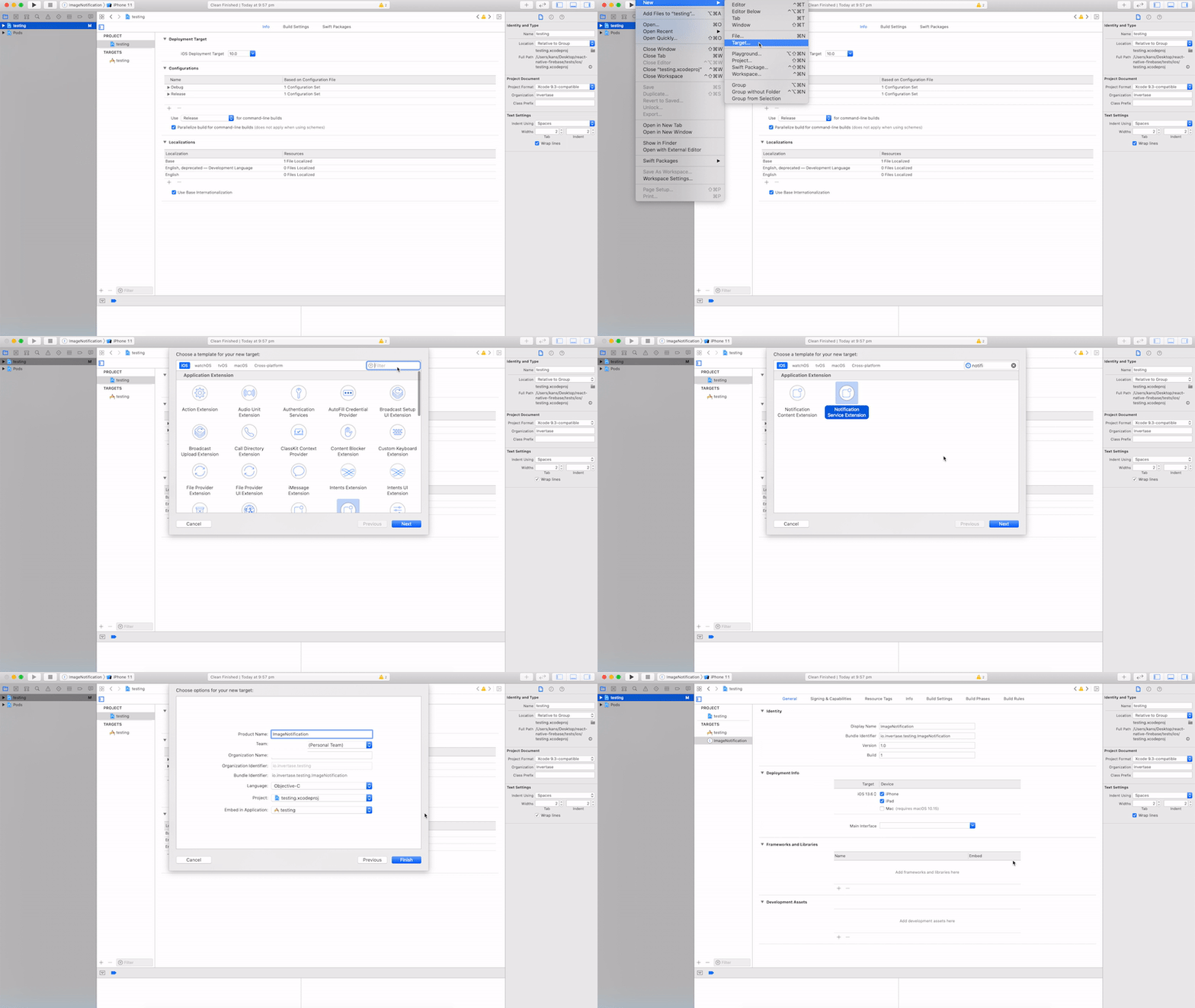
- Add a notification service extension
- From Xcode top menu go to: File > New > Target...
- A modal will present a list of possible targets, scroll down or use the filter to select
Notification Service Extension. Press Next. - Add a product name (use
ImageNotificationto follow along) and click Finish - Enable the scheme by clicking Activate
-
Add target to the Podfile Ensure that your new extension has access to Firebase/Messaging pod by adding it in the Podfile:
- From the Navigator open the Podfile: Pods > Podfile
- Scroll down to the bottom of the file and add
target 'ImageNotification' do
use_frameworks! :linkage => :static
pod 'Firebase/Messaging'
end
- Install or update your pods using `pod install` from the `ios` folder 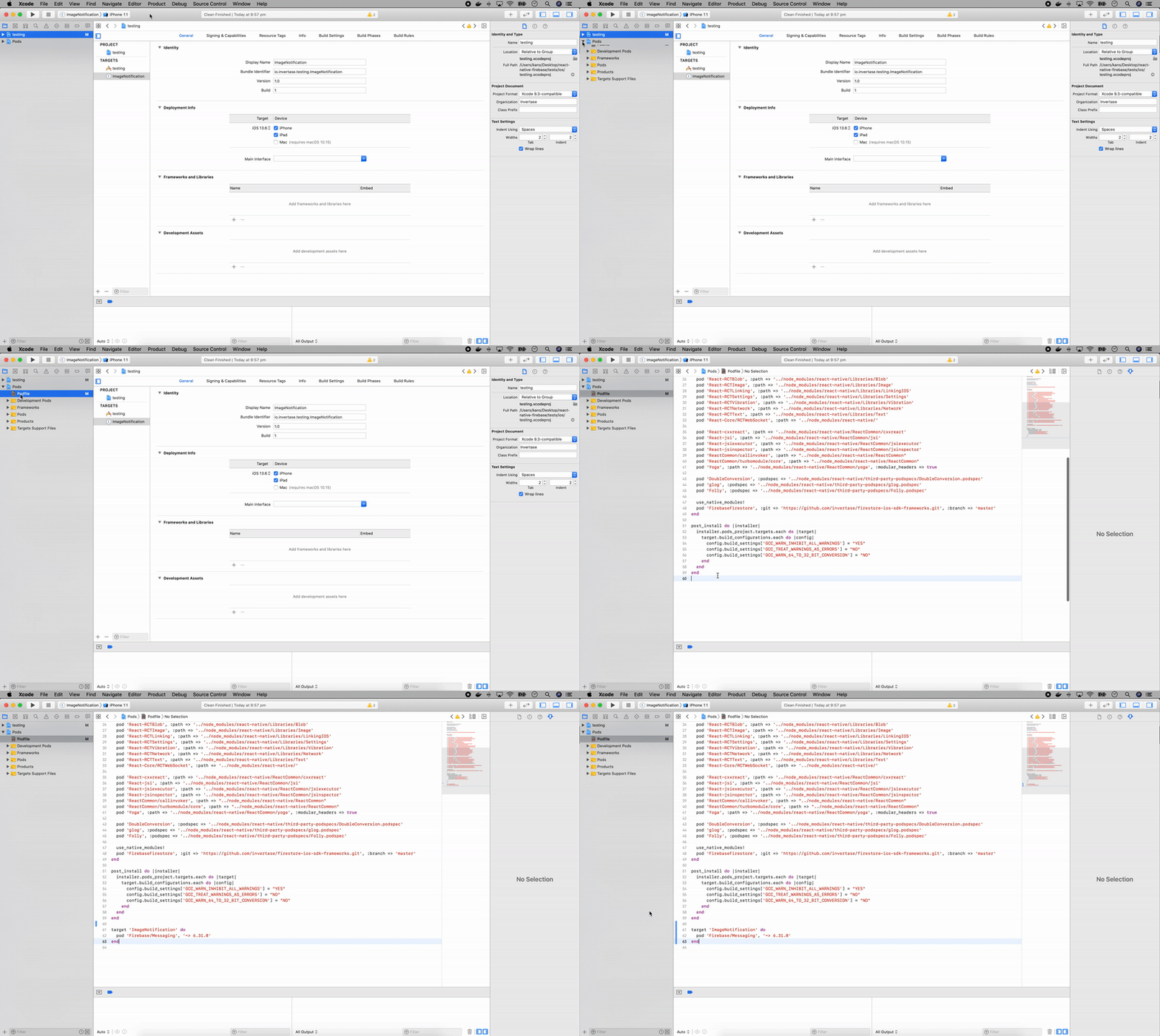 -
Use the extension helper (Objective-C) At this point everything should still be running normally. This is the final step which is invoking the extension helper.
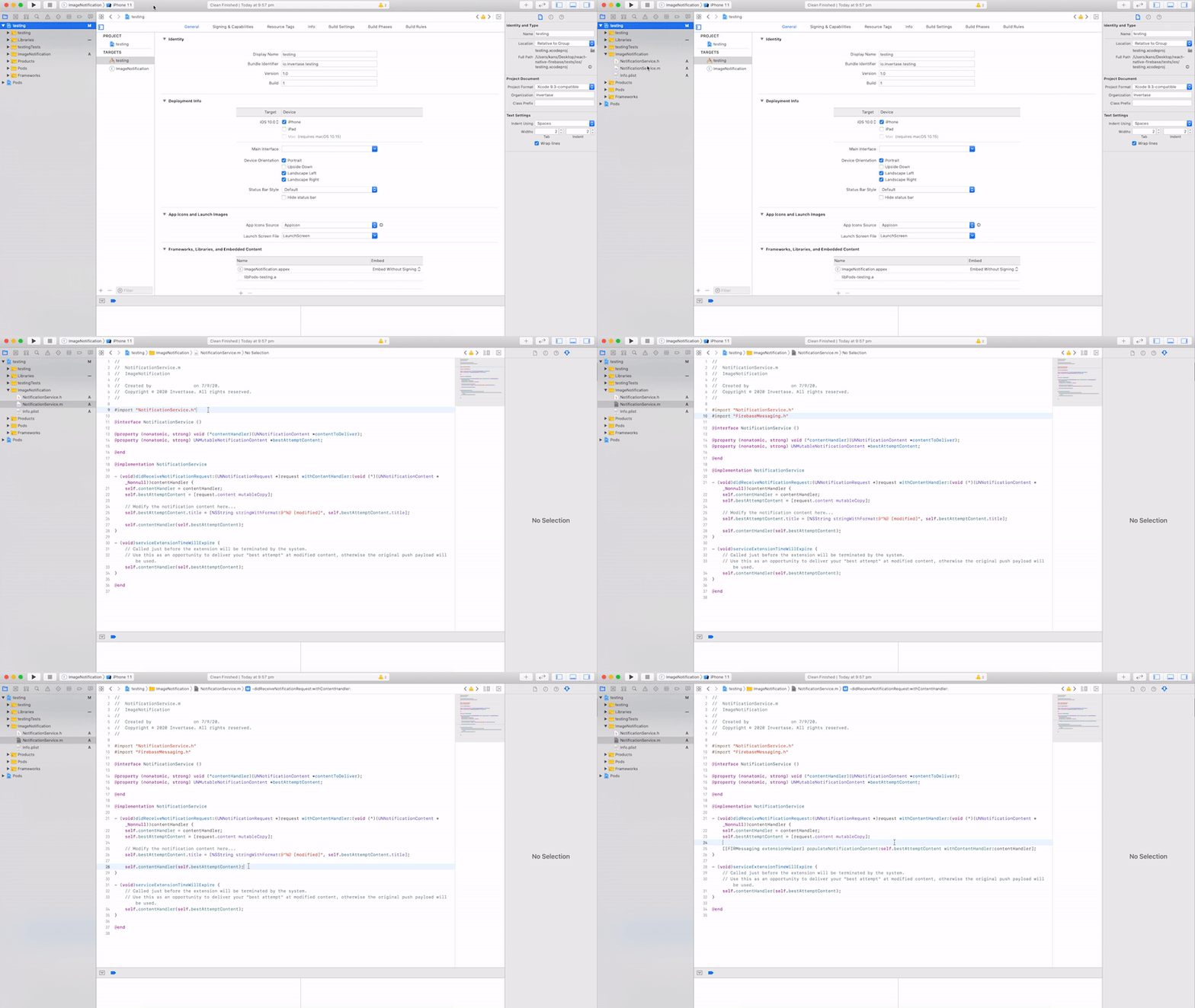
- From the navigator select your
ImageNotificationextension - Open the
NotificationService.mfile - At the top of the file import
FirebaseMessaging.hright after theNotificationService.has shown below
#import "NotificationService.h" #import "FirebaseMessaging.h"- Then replace everything from line 25 to 28 with the extension helper
- From the navigator select your
	// Modify the notification content here...
	- self.bestAttemptContent.title = [NSString stringWithFormat:@"%@ [modified]", self.bestAttemptContent.title];
	- self.contentHandler(self.bestAttemptContent);

	+ [[FIRMessaging extensionHelper] populateNotificationContent:self.bestAttemptContent withContentHandler:contentHandler];
Note : This (step 3) can be skipped in case already completed
#
Initialize the SDK: Sample code for initializing the SDK #
import 'package:flutter/material.dart';
import 'package:xeno_flutter/xeno_flutter.dart';

void main() {
 runApp(const YourApp());
 initFirebaseAndXeno();}

Future<void> initFirebaseAndXeno() async {
 /// Initialize Firebase
 await Firebase.initializeApp();

 /// Setting User in Xeno-Communication
 /// This will set the user in Xeno-Communication and will be used to send notifications to the user.
 /// All of these fields are optional and can be set later.
 /// Make sure to setUser before calling other SDK methods like `onTokenReceived`,`onMessageReceived`,`requestNotificationPermission`

	 await XenoFlutter().setUser(
		 countryCode: "user_country_code",
		 phone: "user_phone",
		 email: "user_email",
		 name: "user_name",
	 );


 /// Getting FCM device token from FCM
	String fcmToken = await FirebaseMessaging.instance.getToken() ?? "";

 /// Sending FCM device token to Xeno-Communication
	if (fcmToken.isNotEmpty) {
		await XenoFlutter().onTokenReceived(fcmToken);
	}

 FirebaseMessaging.onMessage.listen((RemoteMessage remoteMessage){
    XenoFlutter().onMessageReceived(message, true);
});
#
Requesting Notification Permission on your application's main screen. #
- This will show a popup to the user asking for permission to send notifications.
- This will handle the user's response and update the user's notification permission status in Xeno-Communication.
- If you will not pass
contextandconfigthen it will show the default popup and will handle the user's response and update the user's notification permission status in Xeno-Communication.
 @override
void initState() {

  WidgetsBinding.instance.addPostFrameCallback((_) async {
    XenoFlutter().requestNotificationPermission(
      config: PopupConfig(
		  title: 'Stay in the know!',
		  body: 'Enable push notifications and never miss a thing.',
		  primaryButtonText: 'Enable Notifications',
		  primaryButtonRadius: 6,
		  secondaryButtonText: 'Not Now',
		  decoration: PopupDecoration(
			 radius: 12,
			 backgroundColor: Colors.white,
			 primaryColor: Colors.blue,
	        secondaryColor: Colors.grey,
		  ),
		);
	 });

    super.initState();
}
#
Handling Deep Links #
   @override
   void initState() {

      XenoFlutter().getInitialDeeplink().then((deeplink) {
        // handle this case when app is launched on tapping on notification
        // redirect to some screen based on deeplink
      });

      XenoFlutter().listenDeeplink().listen((deeplink) {
        // handle this case when app is in foreground and notification is tapped
        // redirect to some screen based on deeplink
      });

    super.initState();
}
Metadata
Publisher
unverified uploader
Weekly Downloads
Metadata
Flutter Plugin for Xeno Ecosystem
License
 unknown (license)
Dependencies
flutter, plugin_platform_interface, xeno_flutter_android, xeno_flutter_ios, xeno_flutter_platform_interface
More
Packages that depend on xeno_flutter
Packages that implement xeno_flutter

