
tencent_conference_uikit 4.0.1  tencent_conference_uikit: ^4.0.1 copied to clipboard
 trtc.io
tencent_conference_uikit is a UIKit about audio&video room launched by Tencent Cloud.
English | 简体中文
Tencent Cloud UIKit for Video Conference #
 TUIRoomKit (tencent_conference_uikit) is Tencent Cloud launched a positioning enterprise meeting, online class, network salon and other scenes of the UI component, through the integration of the component, you only need to write a few lines of code can add similar video conference functions for your App, and support screen sharing, member management, ban the ban painting, chat and other functions. TUIRoomKit supports Windows, Mac, Android, iOS, Flutter, Web, Electron and other development platforms.



Features #
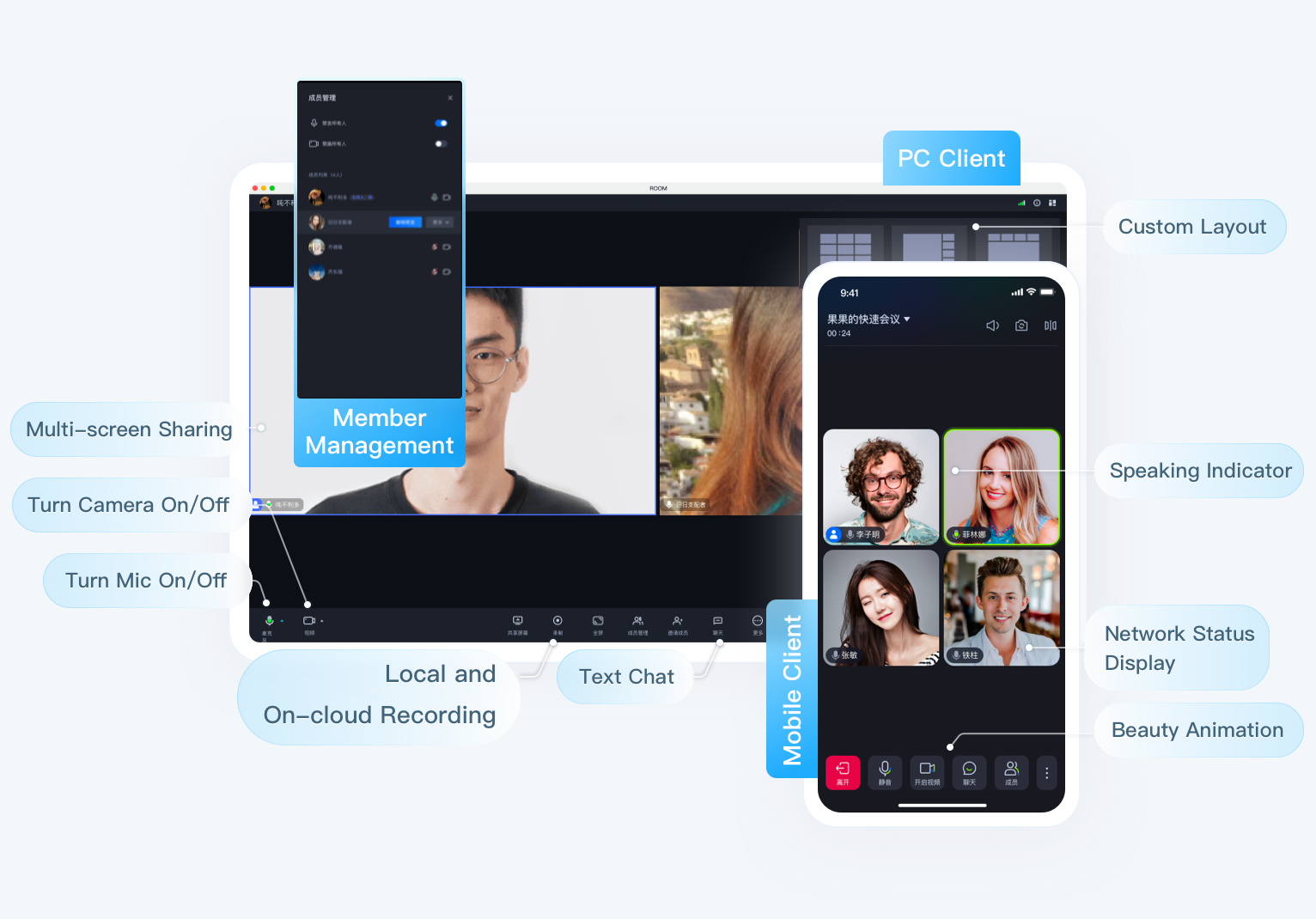
- Easy access: Provide open source components with UI, save 90% development time, fast online video conference function.
- Platform connectivity: TUIRoomKit components of all platforms are interconnected and accessible.
- Screen sharing: Based on the screen acquisition capability of each platform jointly polished by 3000+ market applications, with exclusive AI coding algorithm, lower bit rate and clearer picture.
- Member management: It supports multiple standard room management functions such as all mute, single member gag, drawing, inviting to speak, kicking out of the room, etc.
- Other features: Support room members chat screen, sound Settings and other features, welcome to use.
Make a first video Conference #
Environment preparation #
| Platform | Version |
| Flutter | 3.29.3 and above versions. |
| Android | Android 5.0 (SDK API level 21) or later. |
| iOS | iOS 14.0 and higher. |
Active the service #
You can follow the steps below to activate the TRTC Conference product service and receive a free 14-day trial version.
Note:
If you wish to purchase the paid version, please refer to TRTC Conference Monthly Packages, follow the Purchasing Guide to complete the purchase.
-
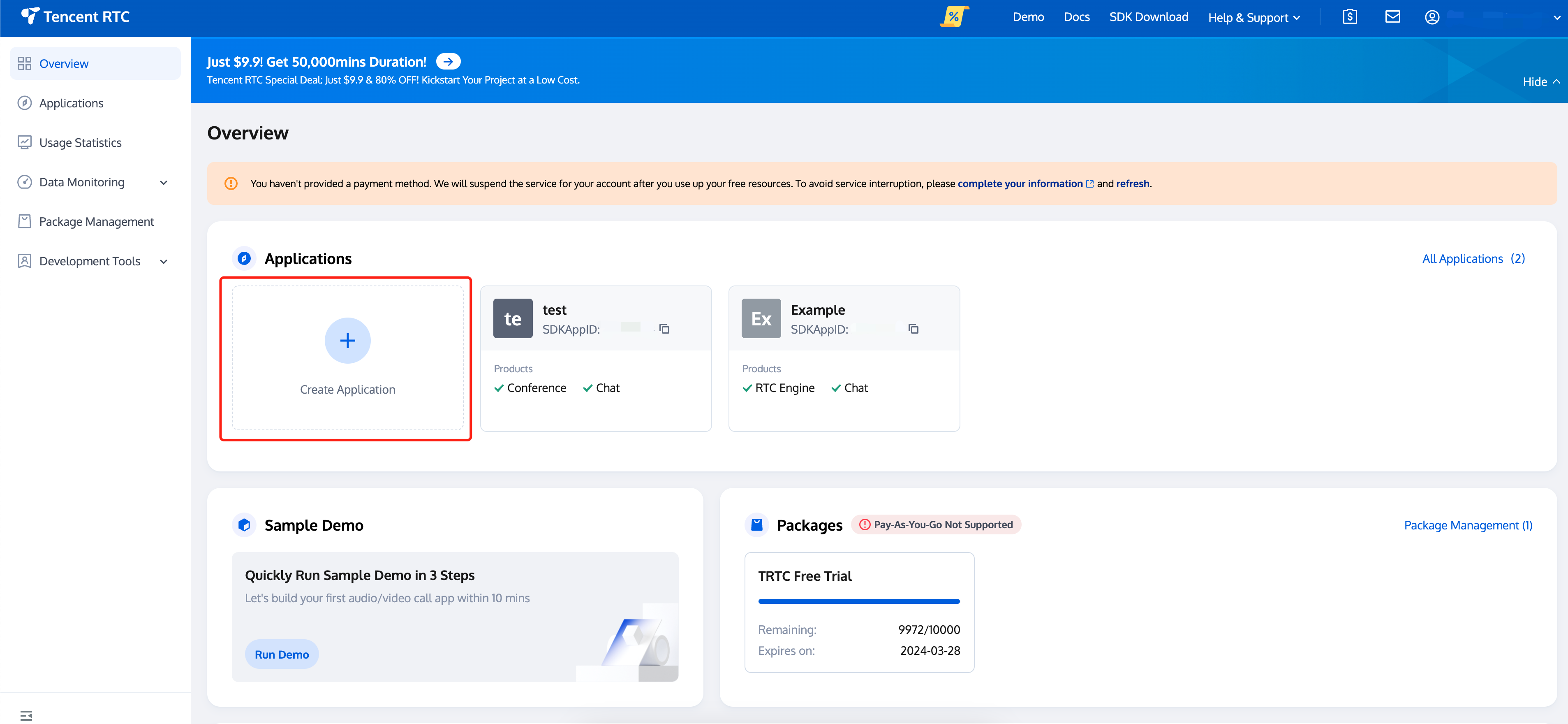
Visit TRTC Console > Applications, select Create application.
-
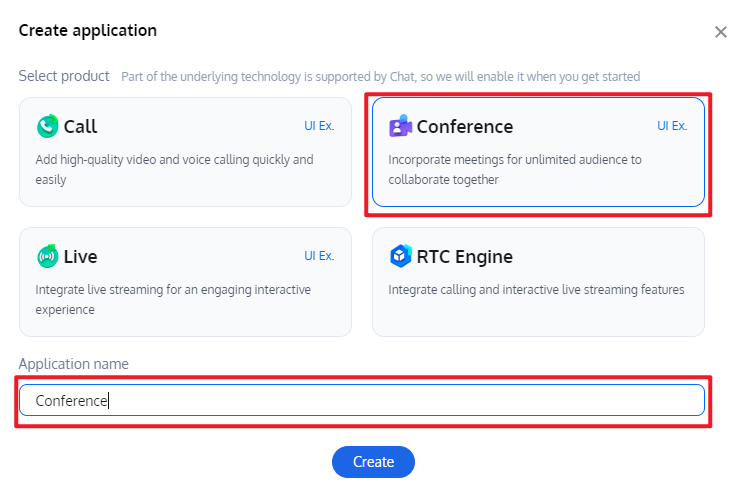
In the Create application pop-up, select Conference and enter the application name, click Create.
-
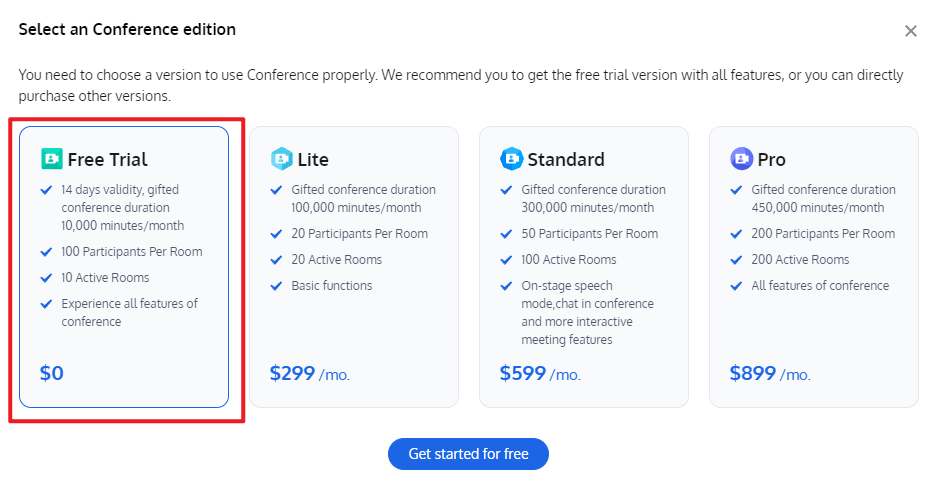
After completing the application creation, you will default entry to the application details page, select the Free Trail in the floating window, and click to** Get started for free**.
-
After the activation is completed, you can view the edition information on the current page. The
SDKAppIDandSDKSecretKeyhere will be used in the integration guide.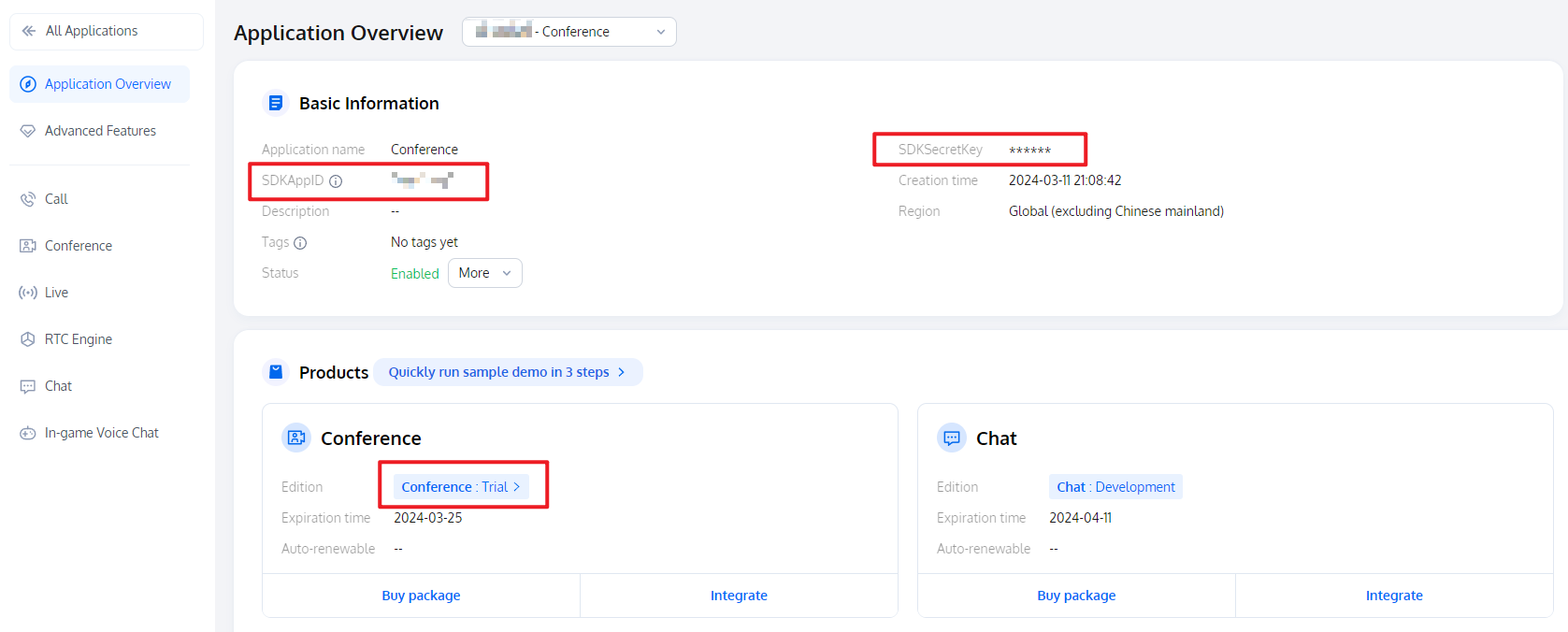
Access and use #
-
Step 1: Add the dependency
Add the tencent_conference_uikit plugin dependency in
pubspec.yamlfile in your project.dependencies: tencent_conference_uikit: latest release versionExecute the following command to install the plugin.
flutter pub get -
Step 2: Complete Project Configuration
-
Use
Xcodeto open your project, select [Project] -> [Building Settings] -> [Deployment], and set the [Strip Style] to Non-Global Symbols to retain all global symbol information. -
To use the audio and video functions on iOS, you need to authorize the use of the mic and camera (For Android, the relevant permissions have been declared in the SDK, so you do not need to manually configure them).
Add the following two items to the
Info.plistof the App, which correspond to the prompt messages of the mic and camera when the system pops up the authorization dialog box.<key>NSCameraUsageDescription</key> <string>TUIRoom needs access to your Camera permission</string> <key>NSMicrophoneUsageDescription</key> <string>TUIRoom needs access to your Mic permission</string>After completing the above additions, add the following preprocessor definitions in your
ios/Podfileto enable camera and microphone permissions.post_install do |installer| installer.pods_project.targets.each do |target| flutter_additional_ios_build_settings(target) target.build_configurations.each do |config| config.build_settings['GCC_PREPROCESSOR_DEFINITIONS'] ||= [ '$(inherited)', 'PERMISSION_MICROPHONE=1', 'PERMISSION_CAMERA=1', ] end end end
-
-
Step 3: Login
tencent_conference_uikitpluginAdd the following code to your project, which serves to log in to the component by calling the relevant APIs in TUIRoomKit. This step is extremely critical, as only after logging in can you use the various functions of TUIRoomKit, so please be patient and check if the relevant parameters are configured correctly:
import 'package:rtc_room_engine/rtc_room_engine.dart';


var loginResult = await LoginStore.shared.login(
  SDKAPPID, // Please replace with your SDKAPPID
  'userId', // Please replace with your user ID
  'userSig',// Please replace with your userSig
);

if (loginResult.isSuccess) {
  // login success
} else {
  // login error
}
Parameter Description
Here is a detailed introduction to the key parameters used in the login function:
-
SDKAppID:Obtained it in Active the service.
-
UserID:The ID of the current user, which is a string that can only contain English letters (a-z and A-Z), numbers (0-9), hyphens (-), and underscores (_).
-
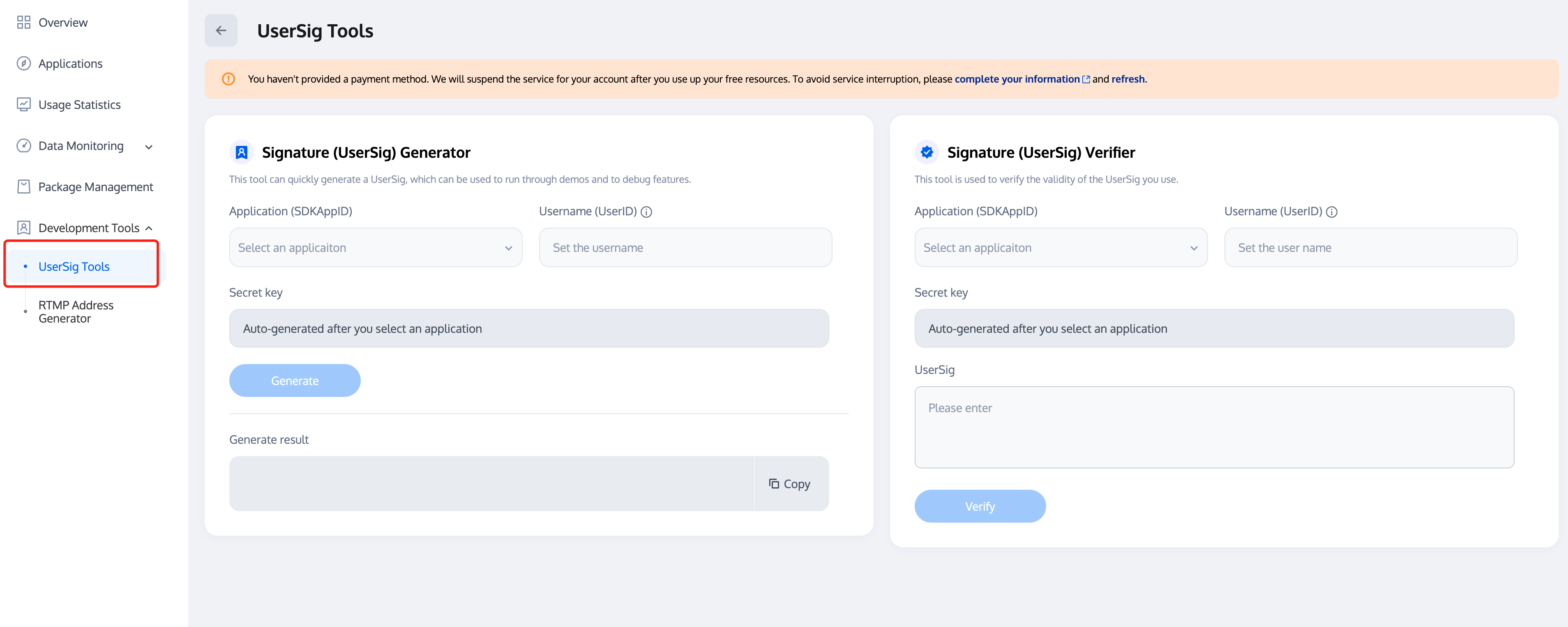
UserSig:The authentication credential used by Tencent Cloud to verify whether the current user is allowed to use the TRTC service. You can get it by using the SDKSecretKey to encrypt information such as SDKAppID and UserID. You can generate a temporary UserSig on the UserSig Tools page in the TRTC console.
-
For more information, please refer to the UserSig.
Note:
- Many developers have contacted us with questions regarding this step. Below are some of the frequently encountered problems:
- The
SDKAppIDis set incorrectly. UserSigis set to the value ofSDKSecretKeymistakenly. TheUserSigis generated by using theSDKSecretKeyfor the purpose of encrypting information such asSDKAppID,UserID, and the expiration time. But the value of theUserSigcannot be directly substituted with the value of theSDKSecretKey.- The
UserIDis set to a simple string such as 1, 123, or 111, and your colleague may be using the same UserID while working on a project simultaneously. In this case, login will fail as TUIRoomKit doesn't support login on multiple terminals with the same UserID. Therefore, we recommend you use some distinguishable UserID values during debugging.
- The
- The sample code on GitHub uses the
genTestUserSigfunction to calculateUserSiglocally, so as to help you complete the current integration process more quickly. However, this scheme exposes yourSDKSecretKeyin the application code, which makes it difficult for you to upgrade and protect yourSDKSecretKeysubsequently. Therefore, we strongly recommend you run theUserSigcalculation logic on the server and make the application request theUserSigcalculated in real time every time the application uses the TUIRoomKit component from the server.
-
-
Step 4: User
tencent_conference_uikitplugin- Configure Routing and Internationalization
Wrap your app with
ComponentThemeand set up routing and internationalization. Refer to the following code:
import 'package:tuikit_atomic_x/atomicx.dart'; import 'package:tencent_conference_uikit/tencent_conference_uikit.dart'; class MyApp extends StatelessWidget { const MyApp({super.key}); @override Widget build(BuildContext context) { return ComponentTheme( child: MaterialApp( navigatorObservers: [RoomNavigatorObserver.instance], localizationsDelegates: const [ ...RoomLocalizations.localizationsDelegates, ], supportedLocales: const [Locale('en'), Locale('zh')], // ... ), ); } }-
Set self username and profile photo (optional)
import 'package:atomic_x_core/atomicxcore.dart'; LoginStore.shared.setSelfInfo( userInfo: UserProfile(userID: 'userID', nickname: 'userName', avatarURL: 'avatarURL'), ); -
Create a Room
import 'package:tencent_conference_uikit/tencent_conference_uikit.dart'; import 'package:atomic_x_core/atomicxcore.dart'; final options = CreateRoomOptions( roomName: 'Your Room Name', // Room name ); final behavior = RoomBehavior.create(options); final config = ConnectConfig( autoEnableCamera: true, // Whether to automatically enable the camera autoEnableMicrophone: true, // Whether to automatically enable the microphone autoEnableSpeaker: true, // Whether to automatically use the speaker ); Navigator.push( context, MaterialPageRoute( builder: (context) => RoomMainWidget( roomID: 'roomId', // Your room id behavior: behavior, config: config, ), ), ); -
Enter a Room
import 'package:tencent_conference_uikit/tencent_conference_uikit.dart';

final behavior = RoomBehavior.enter();
final config = ConnectConfig(
  autoEnableCamera: true,       // Whether to automatically enable the camera
  autoEnableMicrophone: true,   // Whether to automatically enable the microphone
  autoEnableSpeaker: true,      // Whether to automatically use the speaker
);

Navigator.push(
  context,
  MaterialPageRoute(
    builder: (context) => RoomMainWidget(
      roomID: 'roomId',  // Your room id
      behavior: behavior,
      config: config,
    ),
  ),
);
- Configure Routing and Internationalization
Wrap your app with
Metadata
Documentation
Publisher
Weekly Downloads
Metadata
tencent_conference_uikit is a UIKit about audio&video room launched by Tencent Cloud.
Homepage
Repository (GitHub)
View/report issues
License
 MIT (license)
Dependencies
atomic_x_core, flutter, flutter_localizations, intl, live_uikit_barrage, plugin_platform_interface, rtc_room_engine, tuikit_atomic_x
More
Packages that depend on tencent_conference_uikit
Packages that implement tencent_conference_uikit

