
iterable_dropdown 2.0.8  iterable_dropdown: ^2.0.8 copied to clipboard
A Flutter dropdown that works on iterable instead of lists. It also has multi select functionality
A dropdown that works with all iterables instead of just lists. It has multiselect features for selecting multiple items as well.
This dropdown stays performant because it consumes any Iterable instead of forcing you to copy the data into Lists, and it uses ListView.builder so only the options currently visible on screen are ever built and kept in memory.
Screenshots #

| Single Select | Single Select with Search | Multi Select | Multi Select with Search |
|---|---|---|---|
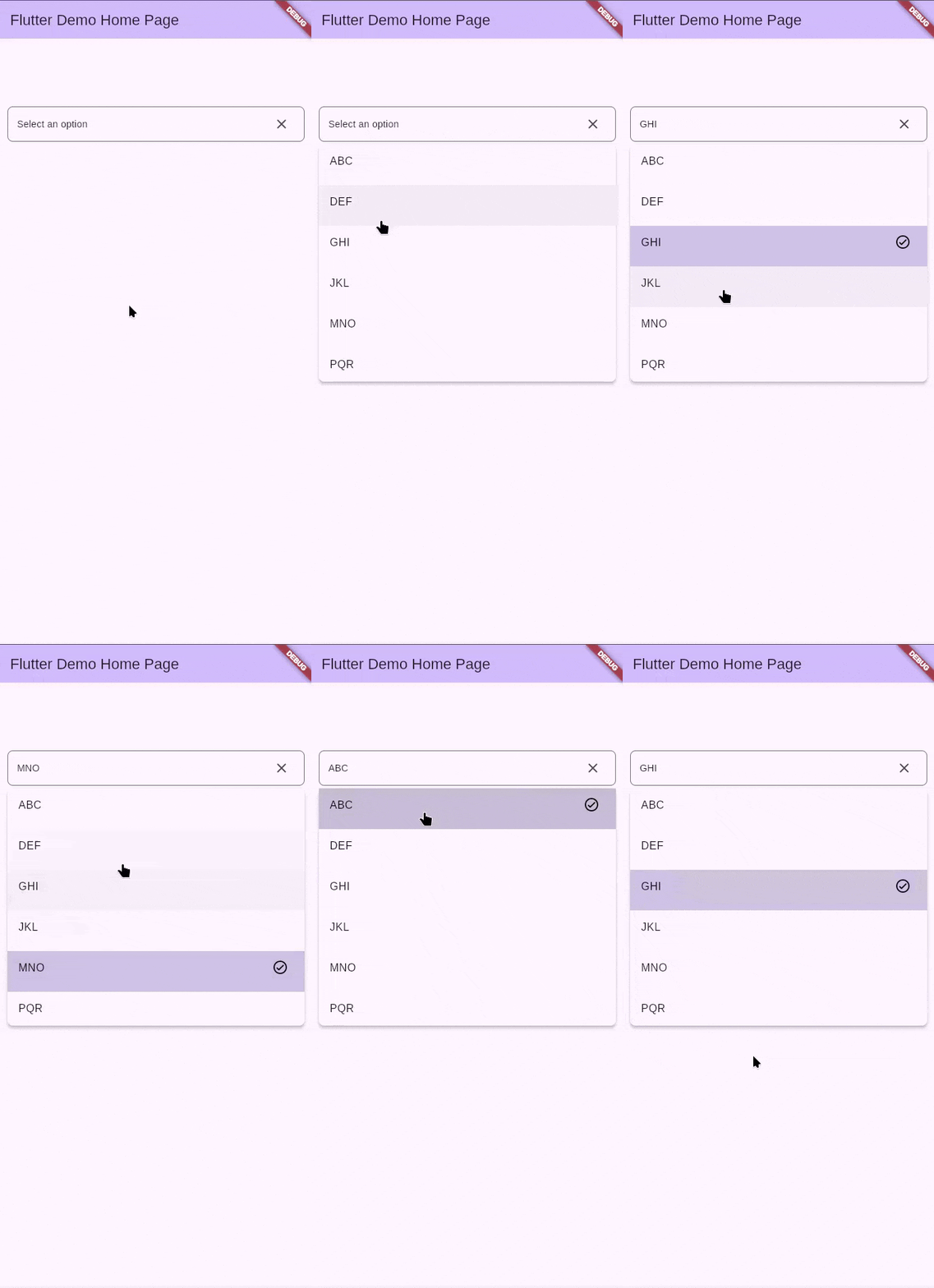 |
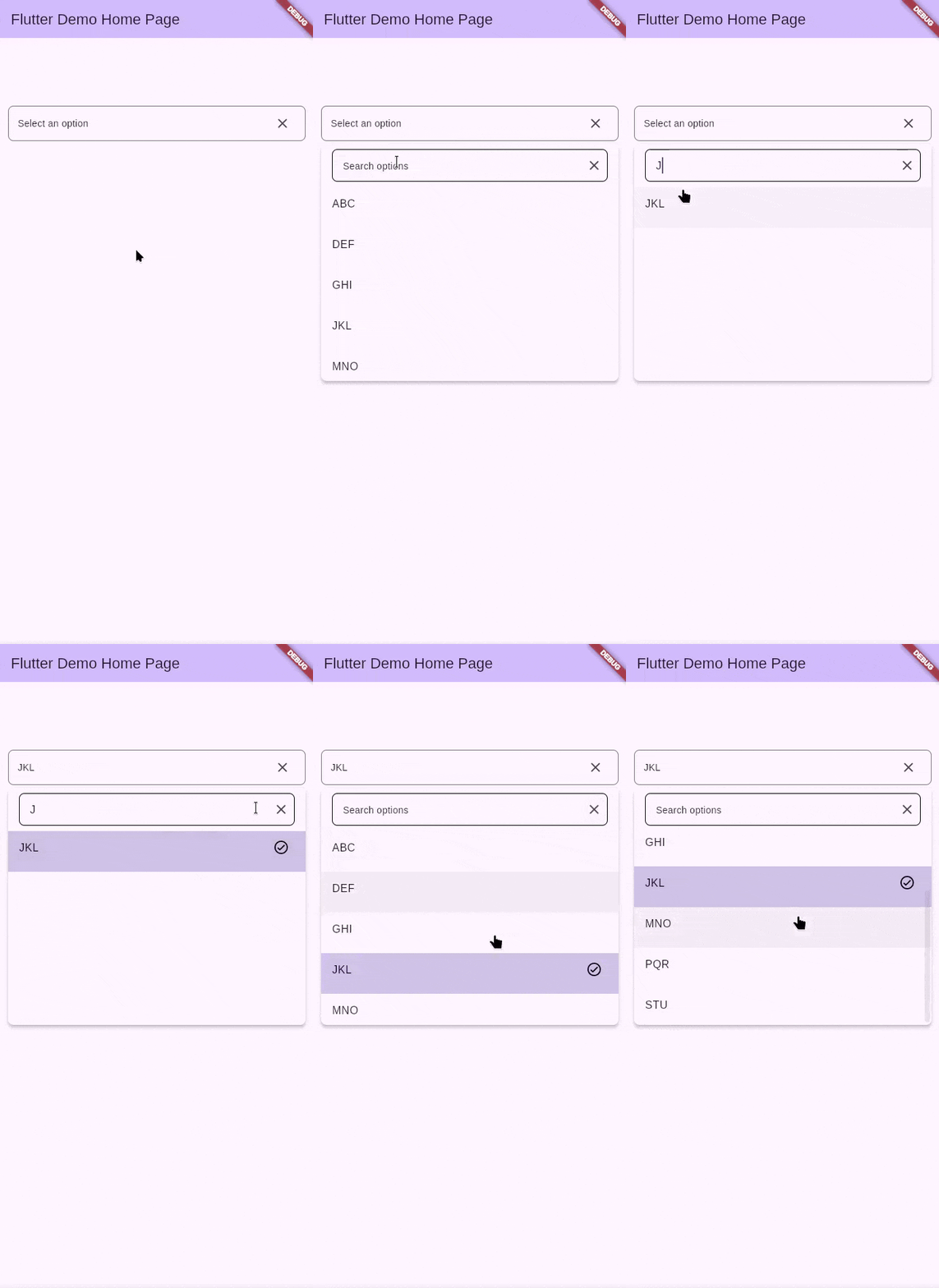 |
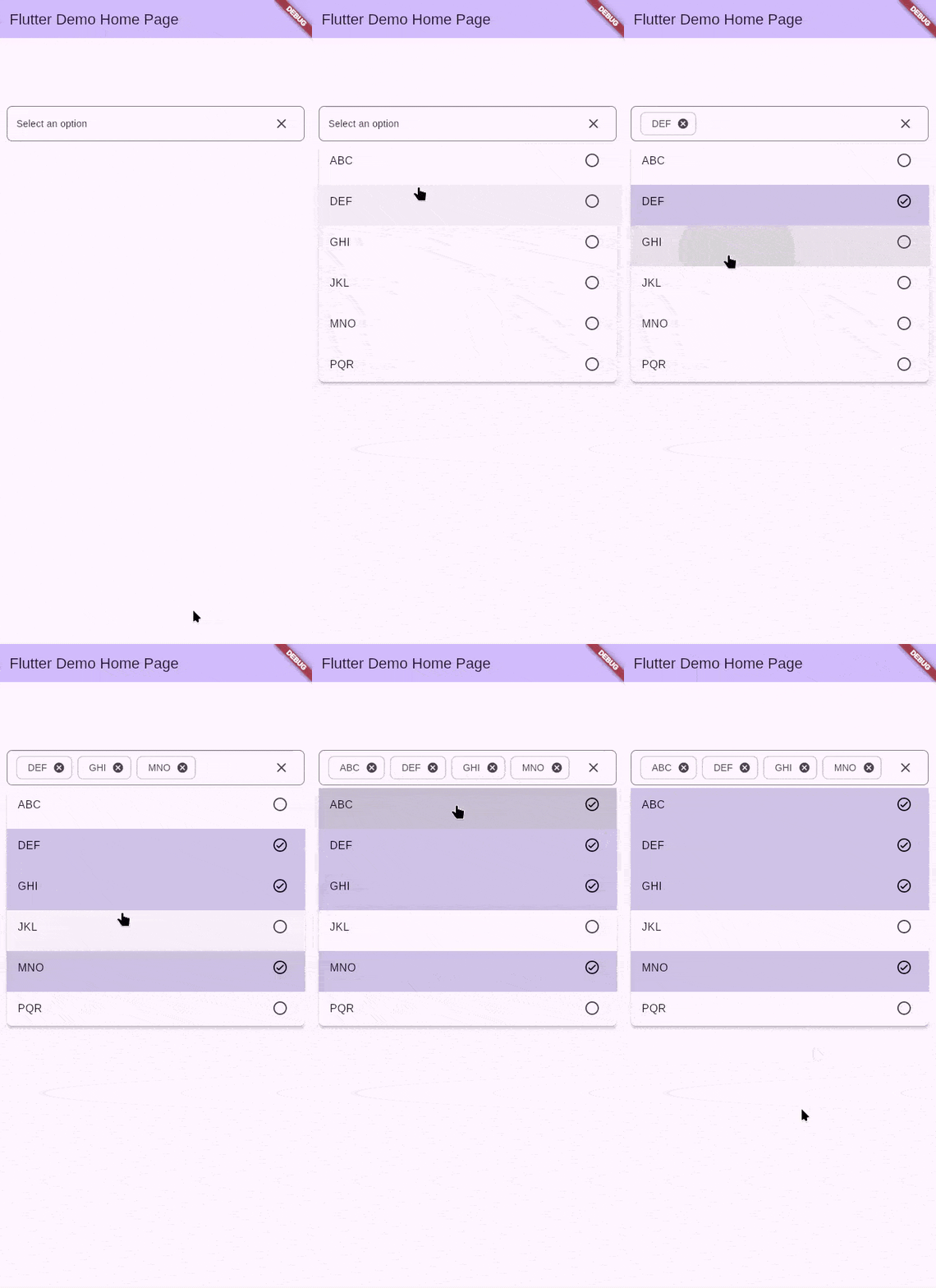 |
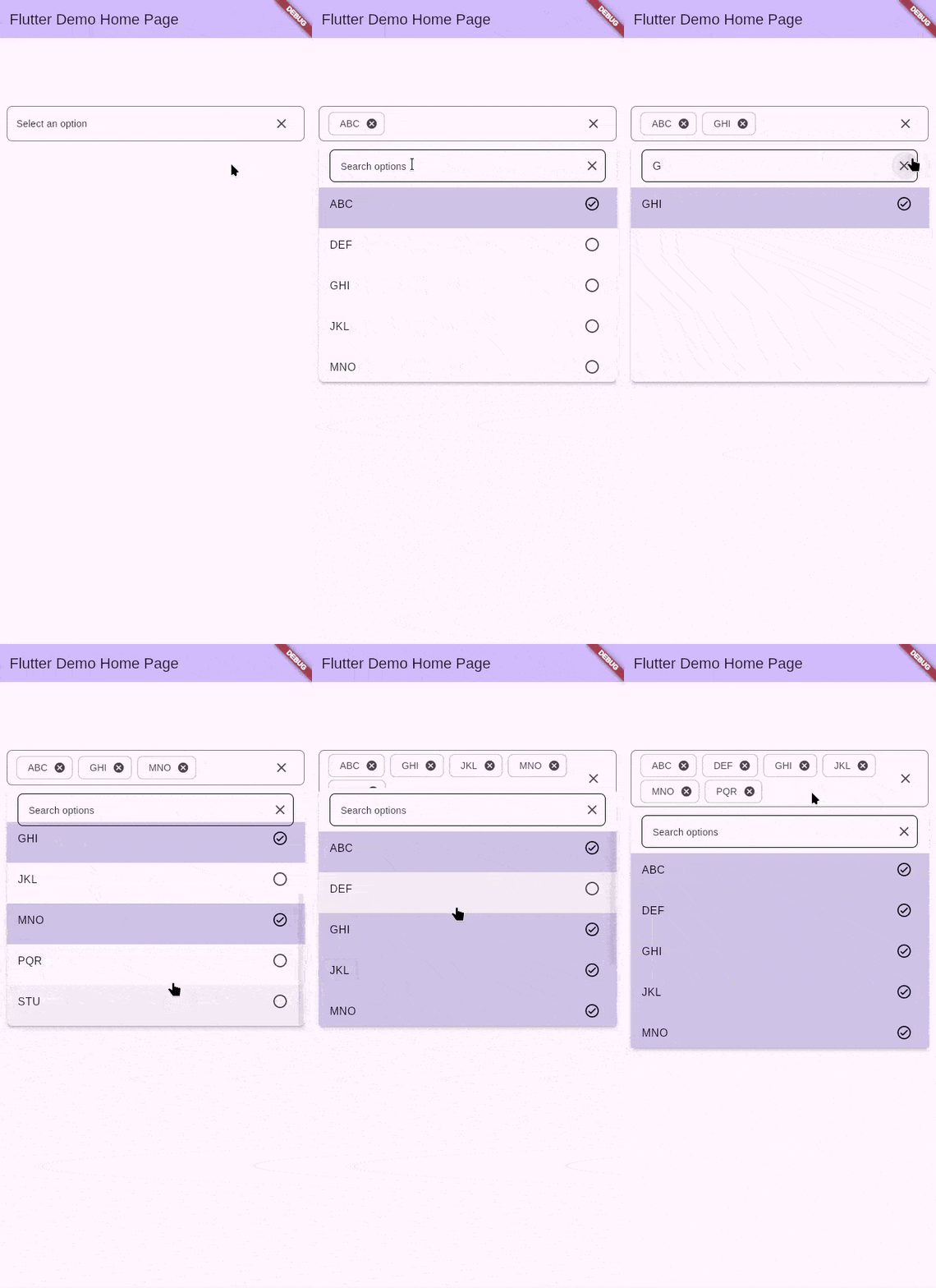 |
Features #
Use this package in your Flutter app to:
- select multiple items in dropdowns
- use iterables in a dropdown
- Keep huge data sources responsive by only building the visible options through
ListView.builder - Provide custom first/last options via
CustomItemsthat can act as headers or buttons - Has a future constructor for building from APIs
- Package size <= 40KB
Platform Support #
| Platform | Supported |
|---|---|
| Android | ✅ |
| iOS | ✅ |
| Web | ✅ |
| Windows | ✅ |
| MacOS | ✅ |
| Linux | ✅ |
Getting started #
Add the package to your Flutter app
flutter pub add iterable_dropdown
Import the package where you want to use it
import 'package:iterable_dropdown/iterable_dropdown.dart';
Usage #
Directly use the component
@override
Widget build(BuildContext context) {
  return IterableDropdown<String>.builder(
    controller: _dropdownController,
    items: items,
    itemBuilder: (_, _, item, selected, toggleSelection) {
      return ListTile(
        key: ValueKey(item.key),
        title: Text(item.label),
        trailing: selected ? const Icon(Icons.check_circle_outline) : null,
        selected: selected,
        onTap: toggleSelection,
      );
    },
    selectionMode: SelectionMode.multi,
  );
}
You can also open or close the dropdown programmatically by interacting with the controller.
_dropdownController.openDropdown() // show dropdown overlay
_dropdownController.closeDropdown() // hide dropdown overlay

// getters to check if dropdown is open or close
_dropdownController.isOpen
_dropdownController.isClose
Fetch items from a Future #
When your data comes from an async source, use the .future constructor. The future runs only once per controller lifecycle unless you explicitly refresh it.
@override
Widget build(BuildContext context) {
  return IterableDropdown<String>.future(
    controller: _dropdownController,
    future: _loadCities, // returns Future<Iterable<IterableDropdownItem<String>>>
    loaderColor: Colors.indigo,
    itemBuilder: (_, __, item, selected, toggleSelection) => ListTile(
      key: ValueKey(item.key),
      title: Text(item.label),
      trailing: selected ? const Icon(Icons.check_circle_outline) : null,
      selected: selected,
      onTap: toggleSelection,
    ),
  );
}

Future<Iterable<IterableDropdownItem<String>>> _loadCities() async {
  final cities = await cityRepository.fetchCities();
  return cities.map((city) => IterableDropdownItem(key: city.id, label: city.name, value: city));
}
You can also refresh the dropdown using the _dropdownController.refresh() method.
Custom Items (Pinned Rows) #
Use the customItems parameter when you need pinned widgets before or after the generated options. These widgets never get filtered or selected, which makes them perfect for headers, dividers, or persistent actions. For instance, a customer selector can expose an Add new customer row at the top that launches a creation flow.
@override
Widget build(BuildContext context) {
  return IterableDropdown<Customer>.builder(
    controller: _customerController,
    items: customers,
    itemBuilder: (context, index, item, selected, toggleSelection) => ListTile(
      key: ValueKey(item.key),
      title: Text(item.label),
      trailing: selected ? const Icon(Icons.check_circle_outline) : null,
      selected: selected,
      onTap: toggleSelection,
    ),
    customItems: CustomItems(
      start: ListTile(
        leading: const Icon(Icons.add),
        title: const Text('Add new customer'),
        onTap: _createCustomer,
      ),
      end: TextButton(
        onPressed: _showAdvancedFilters,
        child: const Text('Show all customers'),
      ),
    ),
  );
}
Those boundary widgets stay visible regardless of what the user types into the search box and cannot be selected, so they are ideal for headers or CTA rows.
Custom Trigger (MenuAnchor-style) #
When you want full control over the dropdown button, provide a builder and an optional child.
The builder receives the controller and the child widget so you can recreate a MenuAnchor-like
experience while keeping the overlay and selection logic intact.
@override
Widget build(BuildContext context) {
  return IterableDropdown<String>.builder(
    controller: _dropdownController,
    items: items,
    itemBuilder: (_, _, item, selected, toggleSelection) => ListTile(
      key: ValueKey(item.key),
      title: Text(item.label),
      trailing: selected ? const Icon(Icons.check_circle_outline) : null,
      selected: selected,
      onTap: toggleSelection,
    ),
    builder: (context, controller, child) {
      return FilledButton(
        onPressed: controller.toggleDropdown,
        child: child ?? const Text('Choose items'),
      );
    },
    child: Row(
      spacing: 8,
      mainAxisSize: MainAxisSize.min,
      children: [
        const Icon(Icons.list_alt),
        Text(_dropdownController.selectedItems.isEmpty
            ? 'Choose items'
            : '${_dropdownController.selectedItems.length} selected'),
      ],
    ),
  );
}
Additional information #
You can contribute to this package via the Github Repo. Check out the Contribution Page for reference.
Metadata


Publisher
unverified uploader
Weekly Downloads
Metadata
A Flutter dropdown that works on iterable instead of lists. It also has multi select functionality
Repository (GitHub)
View/report issues
Contributing
Topics
#dropdown #multiselect #iterable #multiple
Documentation
License
 MIT (license)

