
flutter_sliding_box 1.1.0  flutter_sliding_box: ^1.1.0 copied to clipboard
 shirvanie.ir
A draggable flutter widget that makes it easier to use a SlidingBox panel for all platform. Boxes can be customized with your content and placed in your app.
Sliding Box for Flutter #
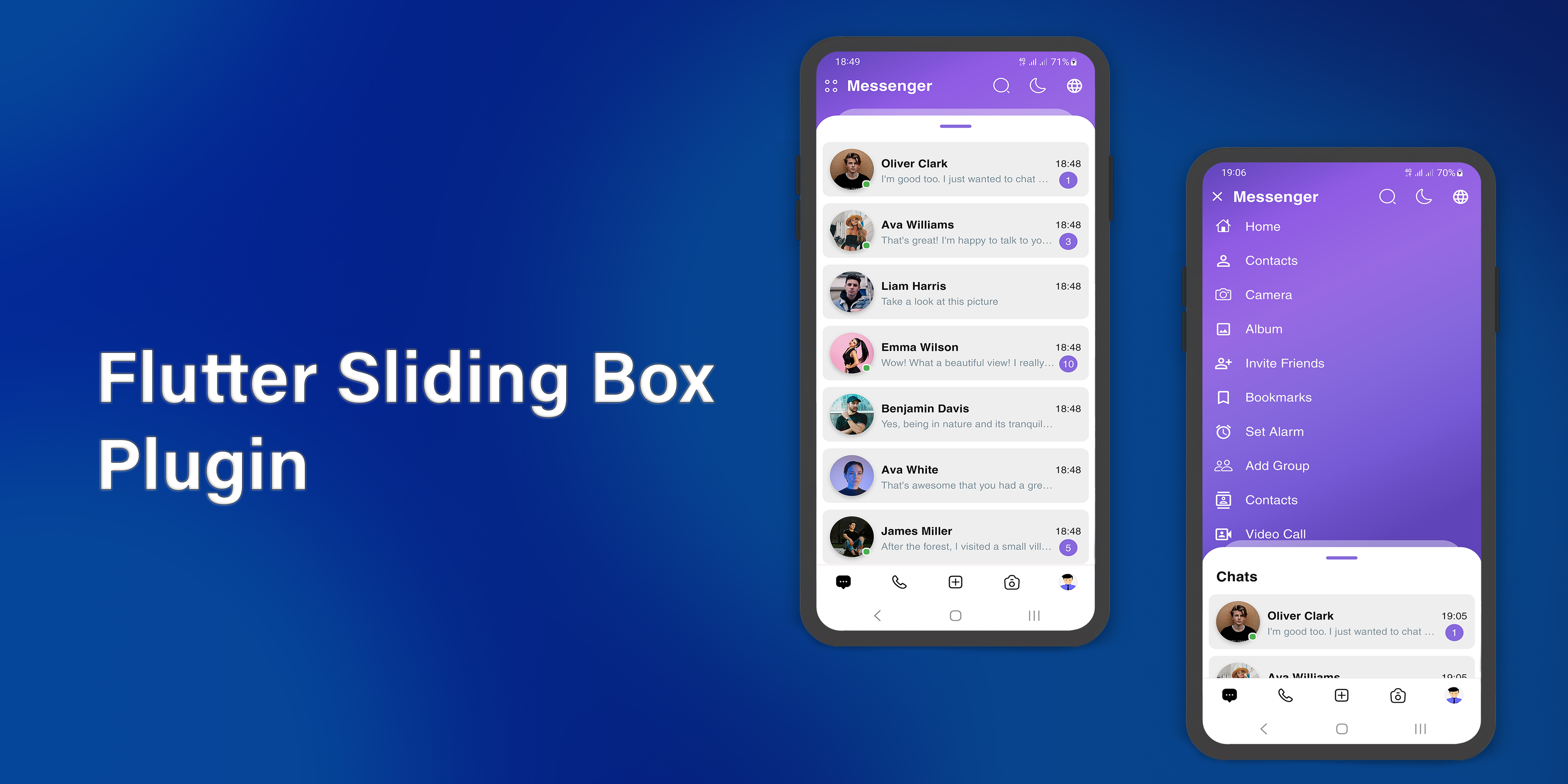





A draggable flutter widget that makes it easier to use a SlidingBox panel for all platform. Boxes can be customized with your content and placed in your app.
To see examples of the following SlidingBoxes on the device or simulator:
cd example/
flutter run --release
Demo #


| Source link | Light | Dark |
|---|---|---|
| example/lib/main.dart | 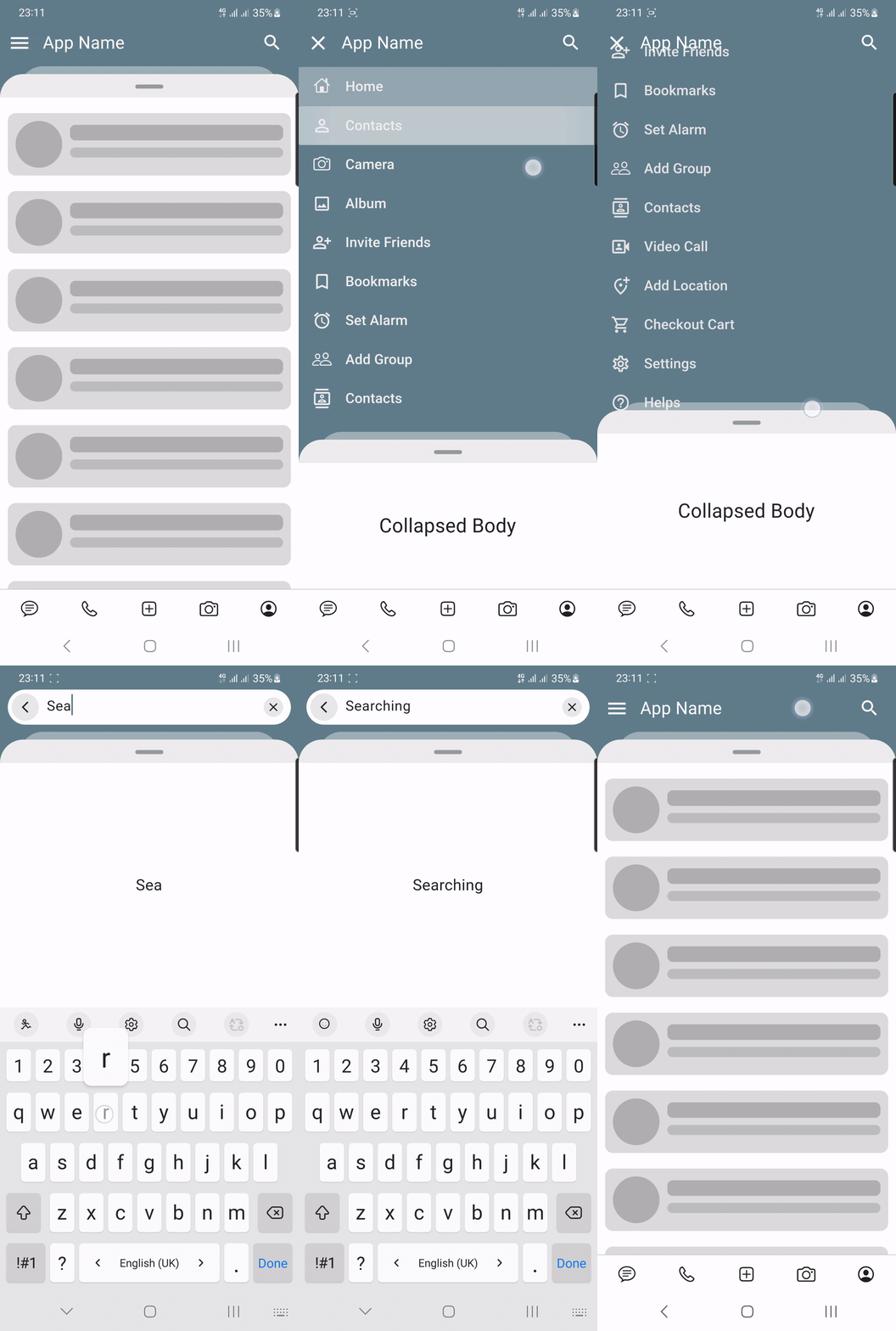 |
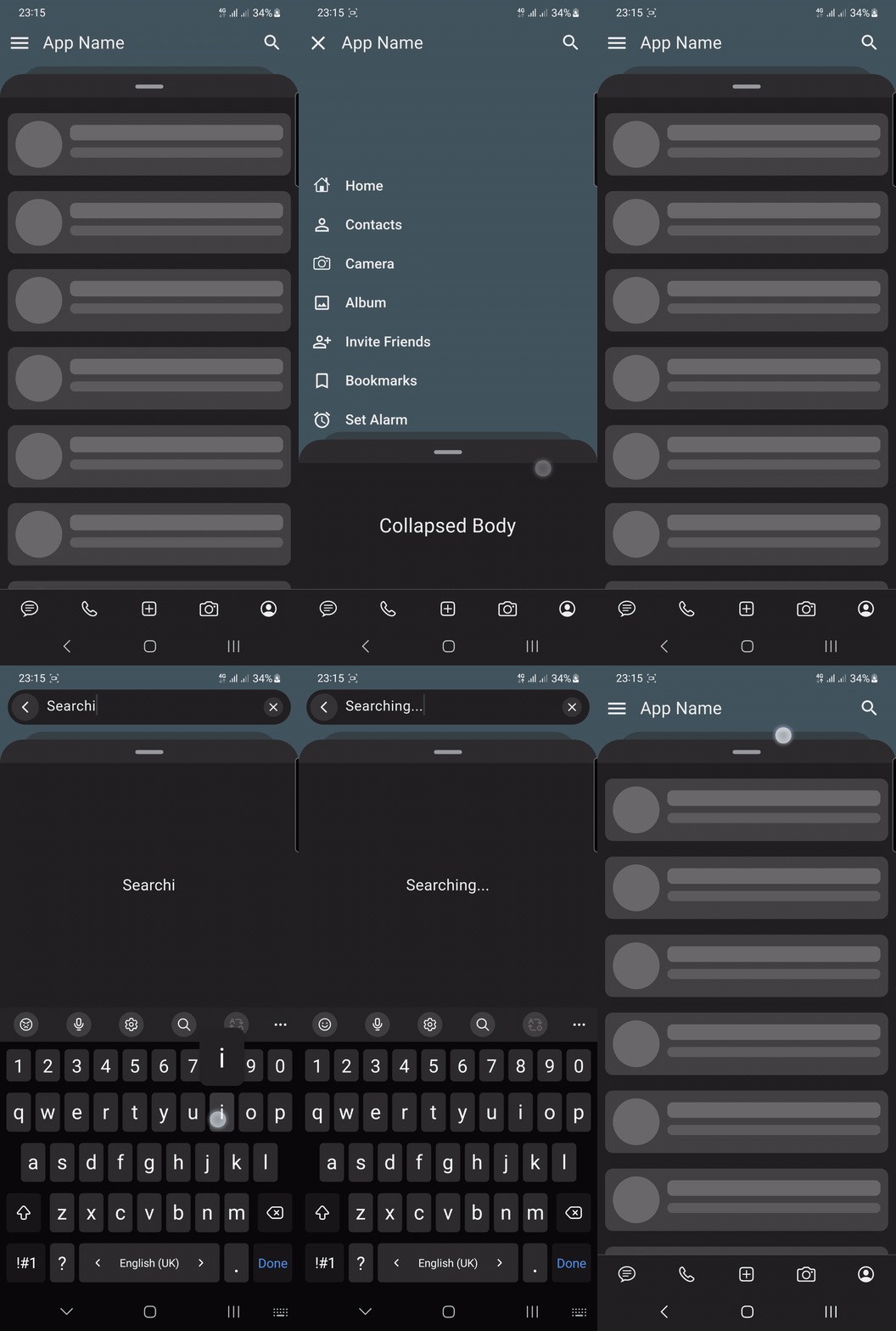 |
| Source link | Light | Dark |
|---|---|---|
| example/lib/map_screen.dart | 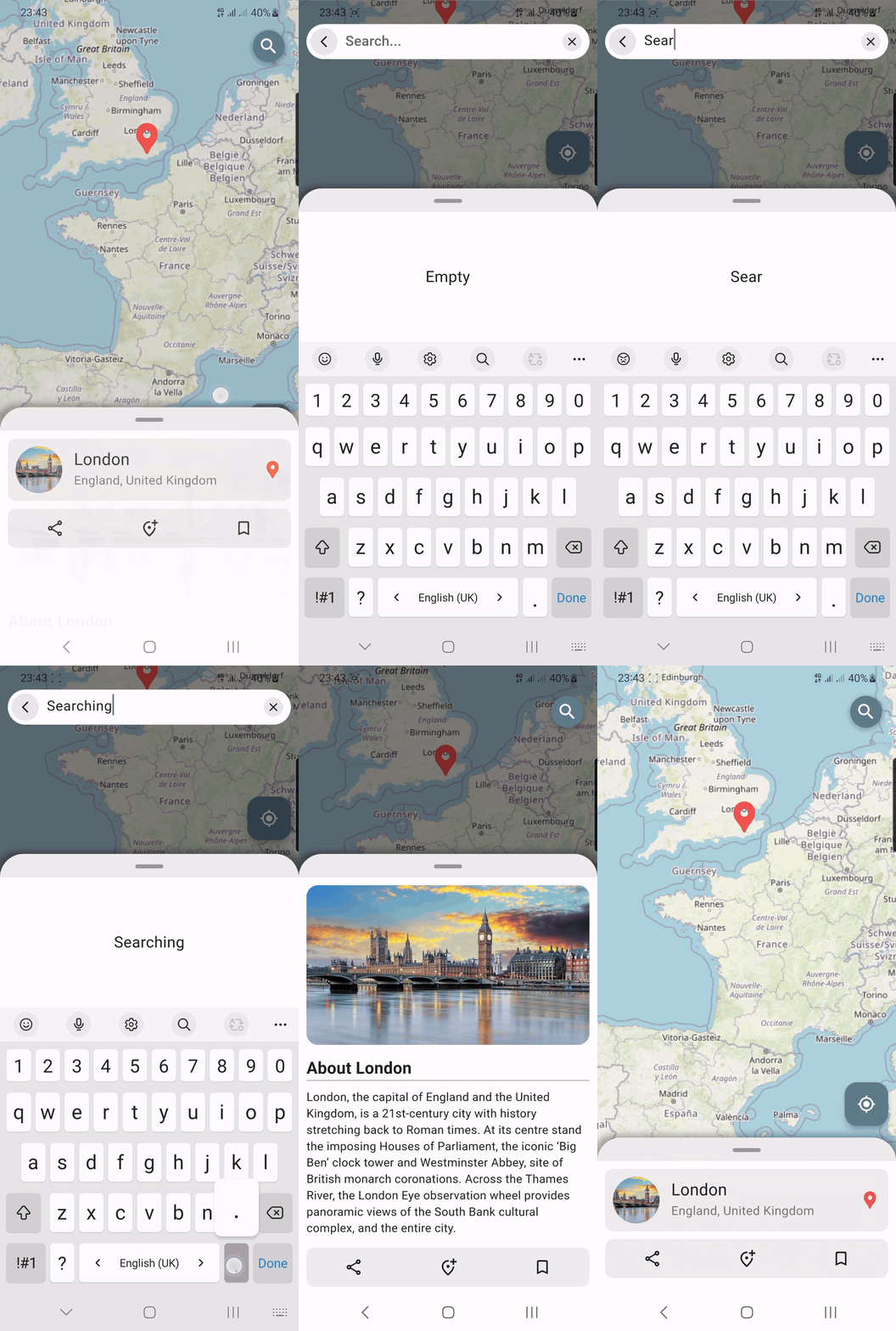 |
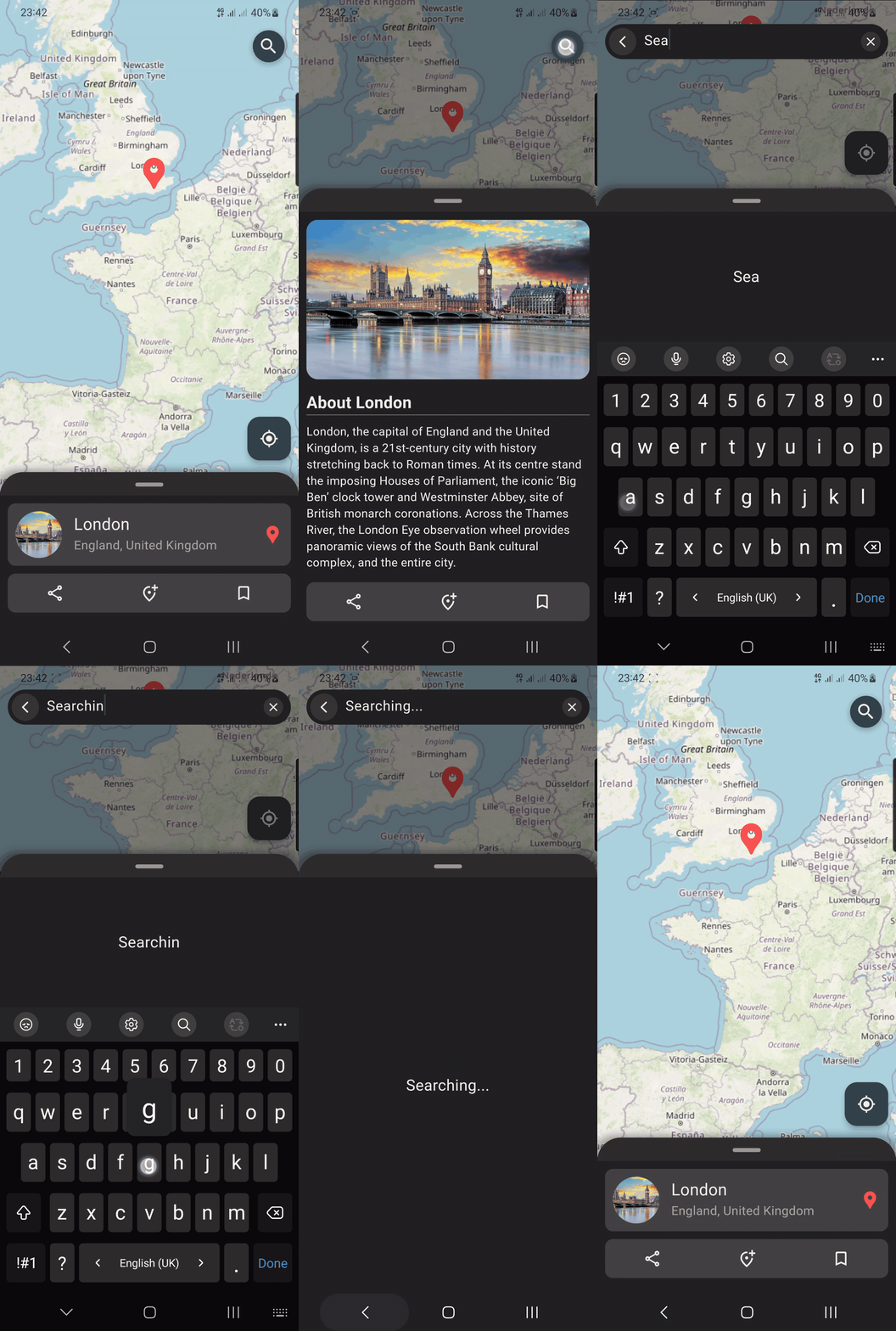 |
| Source link | Light | Dark |
|---|---|---|
| example/lib/music_player_screen.dart | 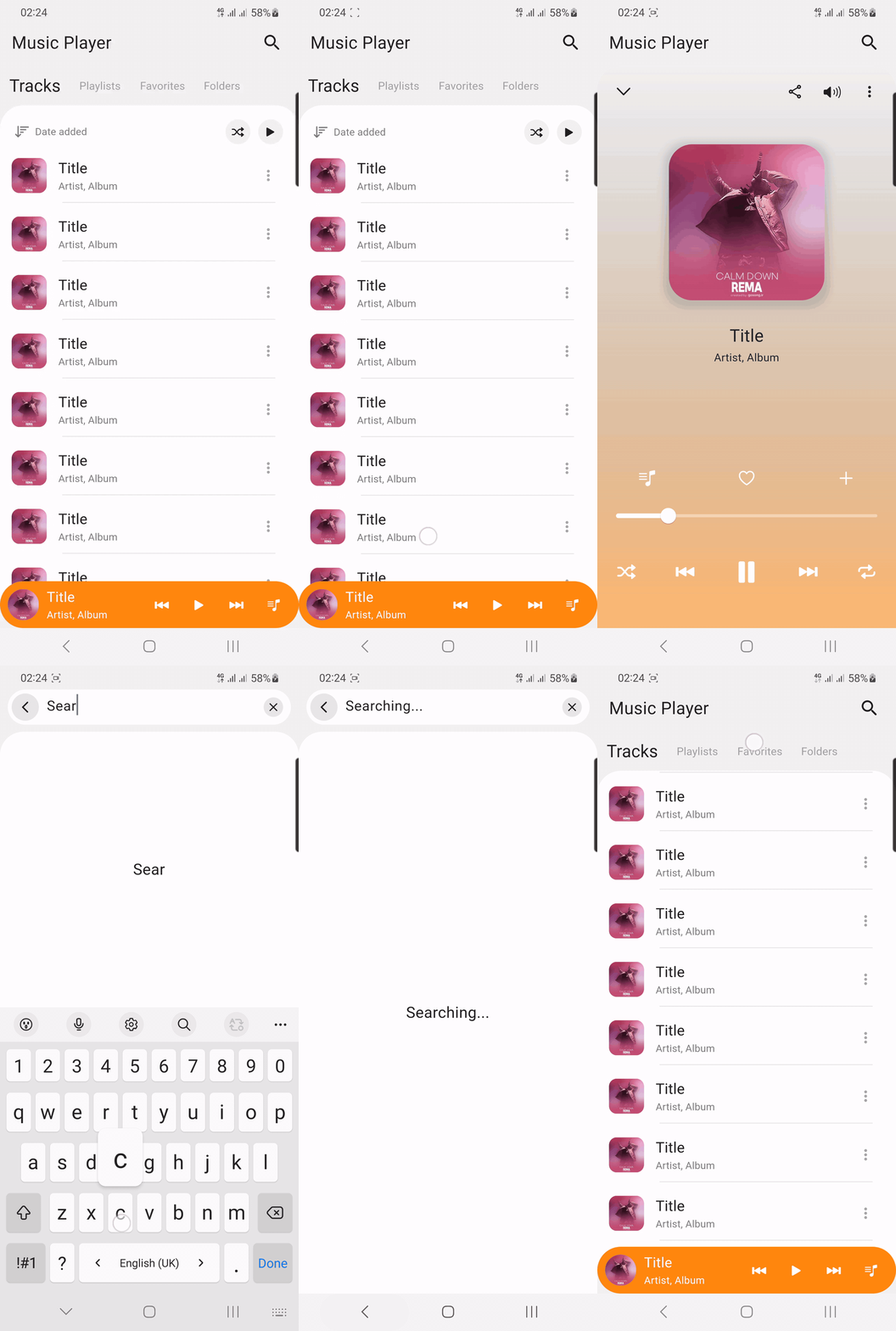 |
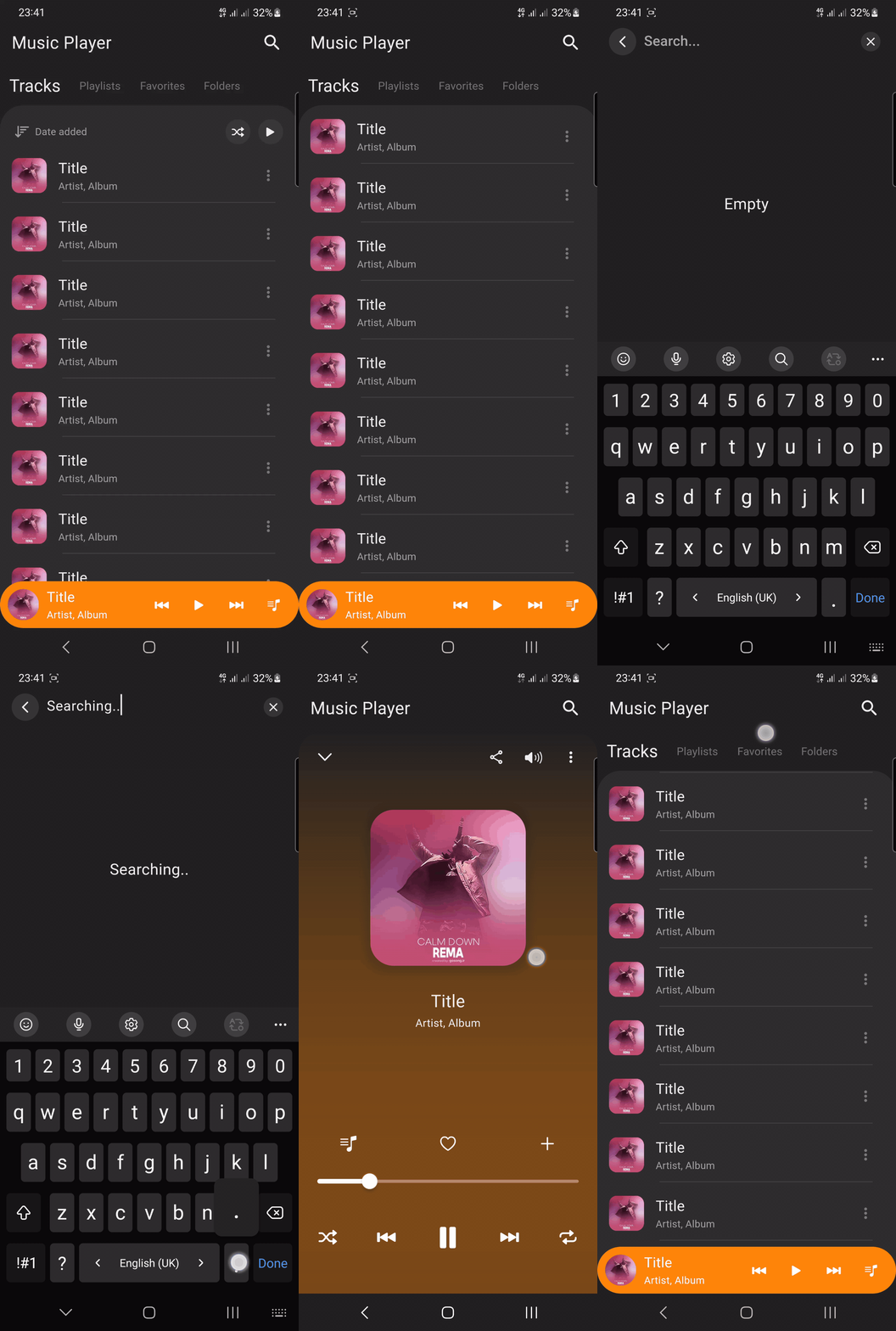 |
| Source link | Light |
|---|---|
| example/lib/share_screen.dart | 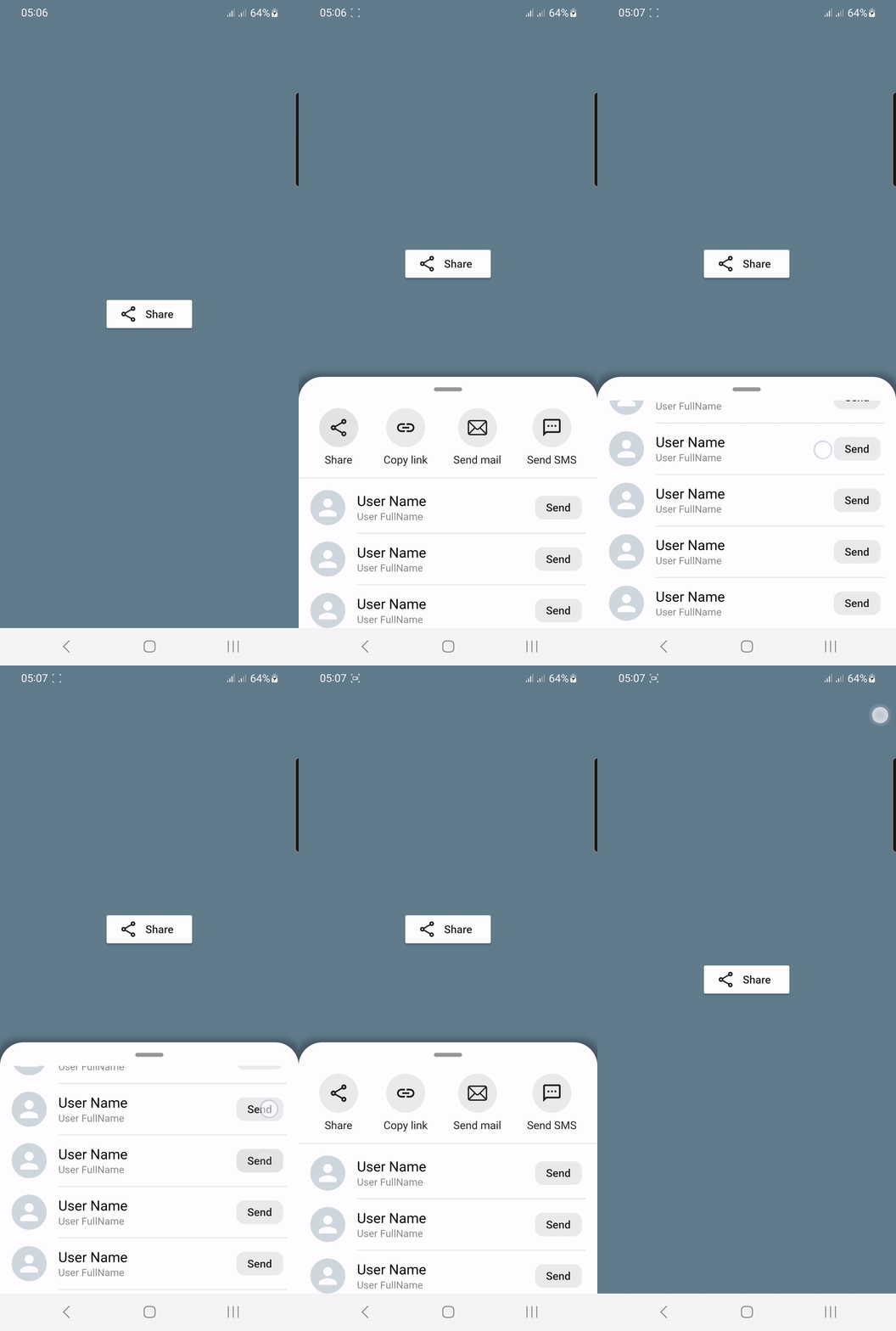 |
Getting Started #
- Installation
- Usage
- Custom Usage
- Backdrop Usage
- Backdrop AppBar Usage
- SearchBox Usage
- Box Controller
- Body Builder
- showSlidingBox Method
Installation #
Add flutter_sliding_box as a dependency in your pubspec.yaml file:
dependencies:
  flutter_sliding_box: ^1.1.0
import the plugin package to your dart code
import 'package:flutter_sliding_box/flutter_sliding_box.dart';
Usage #
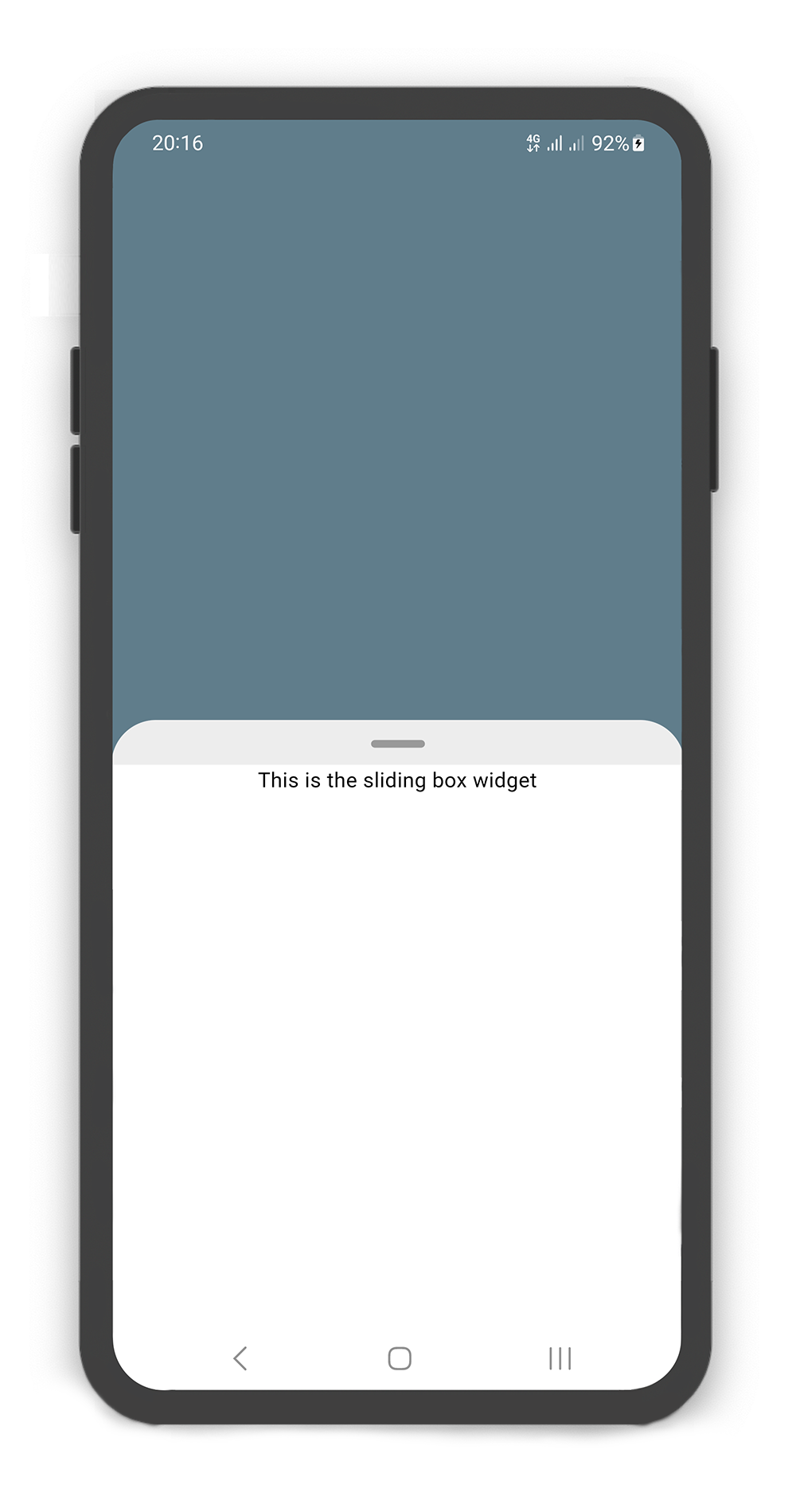
by default use SlidingBox as root widget for body (recommended)
  @override
  Widget build(BuildContext context) {
    return Scaffold(
      body: SlidingBox(
        context: context,
        body: const Center(
          child: Text("This is the sliding box widget",
            style: TextStyle(color: Colors.black),),
        ),
        backdrop: Backdrop(
          color: Colors.blueGrey,
        ),
      ),
    );
  }
Custom Usage #
There are several options that allow for more control:
| Properties | Description |
|---|---|
body |
A widget that slides from minHeight to maxHeight and is placed on the backdrop |
bodyBuilder |
Provides a ScrollController to attach to a scrollable widget in the box and current box position. If body and bodyBuilder are both non-null, body will be used |
context |
required context property |
controller |
It can be used to control the state of sliding box and search box |
collapsed |
If set to true, the state of the box is collapsed |
collapsedBody |
The Widget displayed overtop the box when collapsed. This fades out as the sliding box is opened |
width |
The width of the sliding box |
minHeight |
The height of the sliding box when fully collapsed |
maxHeight |
The height of the sliding box when fully opened |
color |
The color to fill the background of the sliding box |
borderRadius |
The corners of the sliding box are rounded by this |
style |
The styles of the sliding box that includes shadow and sheet and none |
physics |
Gets a ScrollPhysic, the physics determines how the scroll view continues to animate after the user stops dragging the scroll view |
draggable |
Allows toggling of draggability of the sliding box. If set this to false, the sliding box cannot be dragged up or down |
draggableIcon |
A Icon Widget that is placed in top of the box. Gets a IconData |
draggableIconColor |
The color of the draggableIcon. |
draggableIconVisible |
If set to false, the draggableIcon hides. Use the controller to open and close sliding box by taps |
draggableIconBackColor |
The color to fill the background of the draggableIcon icon. The position of the icon is top of the box |
onBoxSlide |
This callback is called when the sliding box slides around with position of the box. The position is a double value between 0.0 and 1.0, where 0.0 is fully collapsed and 1.0 is fully opened |
onBoxOpen |
This callback is called when the sliding box is fully opened |
onBoxClose |
This callback is called when the sliding box is fully closed |
onBoxShow |
This callback is called when the sliding box is visible |
onBoxHide |
This callback is called when the sliding box is invisible |
onSearchBoxShow |
This callback is called when the search box is visible |
onSearchBoxHide |
This callback is called when the search box is invisible |
animationCurve |
The animationCurve defines the easier behavior of the box animation |
animationDuration |
The animationDuration defines the time for the box animation to complete |
backdrop |
A Widget that is placed under the box, the value should be filled with the Backdrop object |
Backdrop Usage #
Using the Backdrop
Manually changing the properties of the Backdrop
| Properties | Description |
|---|---|
color |
The color to fill the background of the backdrop |
width |
The width of the backdrop body |
fading |
If set to true, the backdrop body fades out when the sliding box opened |
moving |
If set to true, the backdrop body moving up when the sliding box opened |
overlay |
If set to true, a dark layer displayed overtop the backdrop when sliding box is opened |
overlayOpacity |
The value of the dark layer overtop the backdrop. a double value between 0.0 and 1.0 |
backgroundGradient |
The gradient color to fill the background of the backdrop. if color and backgroundGradient are both non-null, color will be used |
body |
A Widget that is placed in the backdrop and behind the sliding box |
appBar |
An app bar to display at the top of the backdrop |
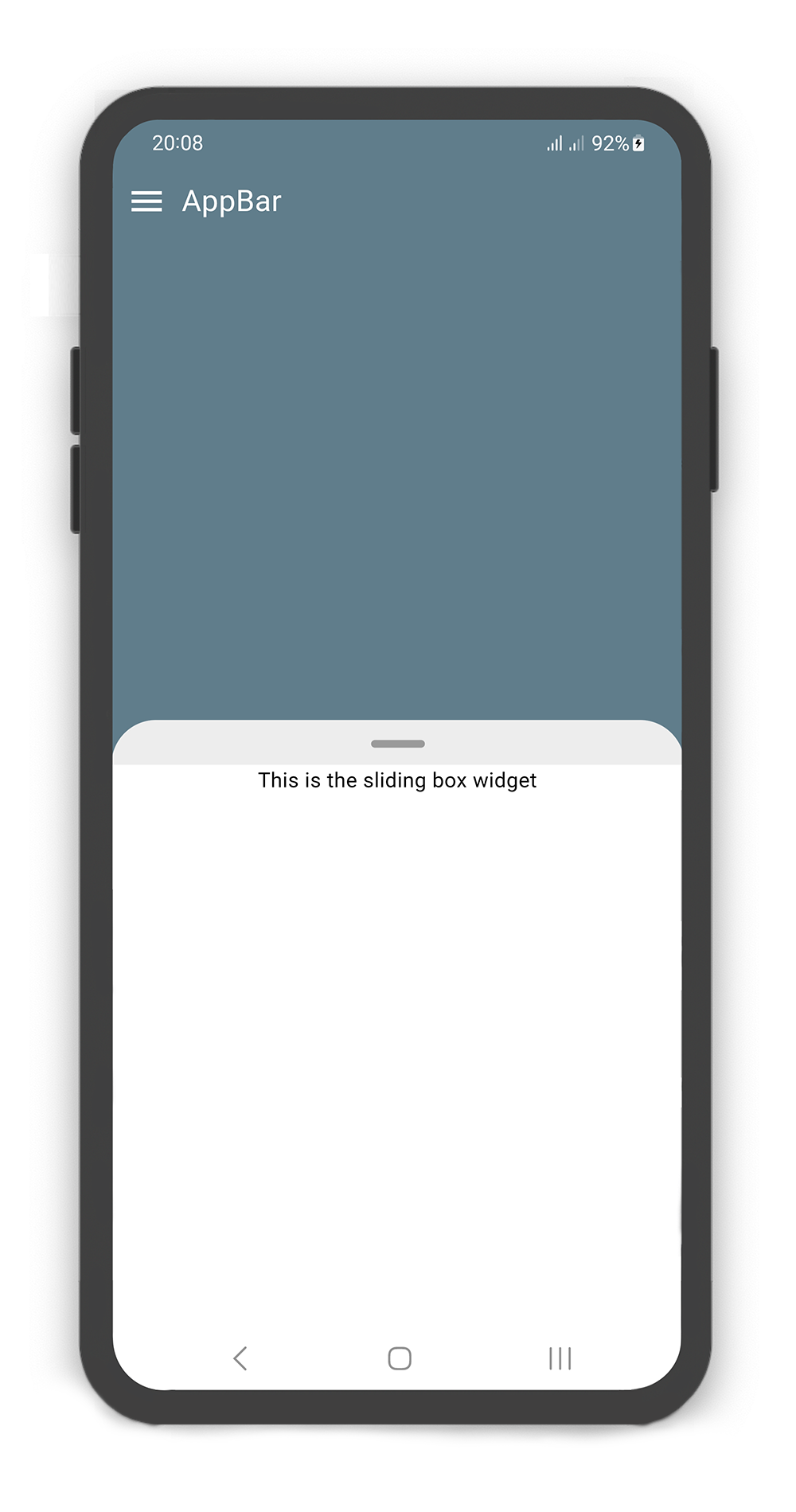
SlidingBox includes appBar: BackdropAppBar
  BoxController boxController = BoxController();

  @override
  Widget build(BuildContext context) {
    return Scaffold(
      body: SlidingBox(
        context: context,
        controller: boxController,
        minHeight: 200,
        maxHeight: 400,
        body: Center(
          child: Text("This is the sliding box widget",
            style: TextStyle(color: Colors.black),),
        ),
        backdrop: Backdrop(
          color: Colors.blueGrey,
          appBar: BackdropAppBar(
            title: Padding(
                padding: EdgeInsets.all(10),
                child: Text("AppBar", style: TextStyle(fontSize: 20),)
            ),
            leading: Icon(Icons.menu, color: Colors.white, size: 27,),
          ),
        ),
      ),
    );
  }
Backdrop AppBar Usage #
Using the BackdropAppBar
Manually changing the properties of the BackdropAppBar
| Properties | Description |
|---|---|
title |
A Widget that is placed on the topLeft of the backdrop |
leading |
A Icon Widget that is placed in left of the BackdropAppBar title |
decoration |
The decoration of the child |
searchBox |
An search box to display at the top of the backdrop. add an IconButton to actions and call boxController.showSearchBox() in onPressed method. see example |
actions |
A list of Widgets that is placed on the topRight of the backdrop |
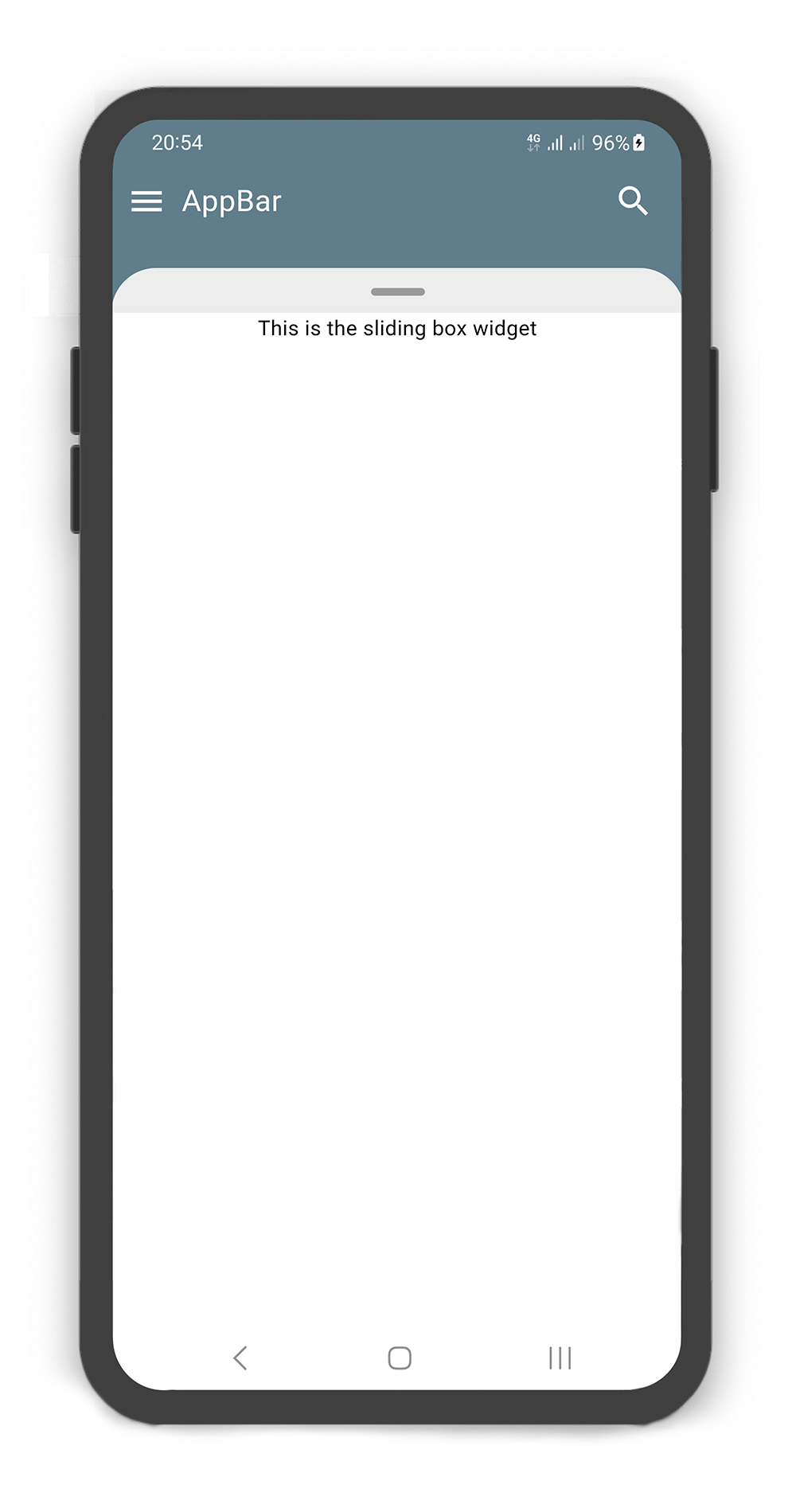
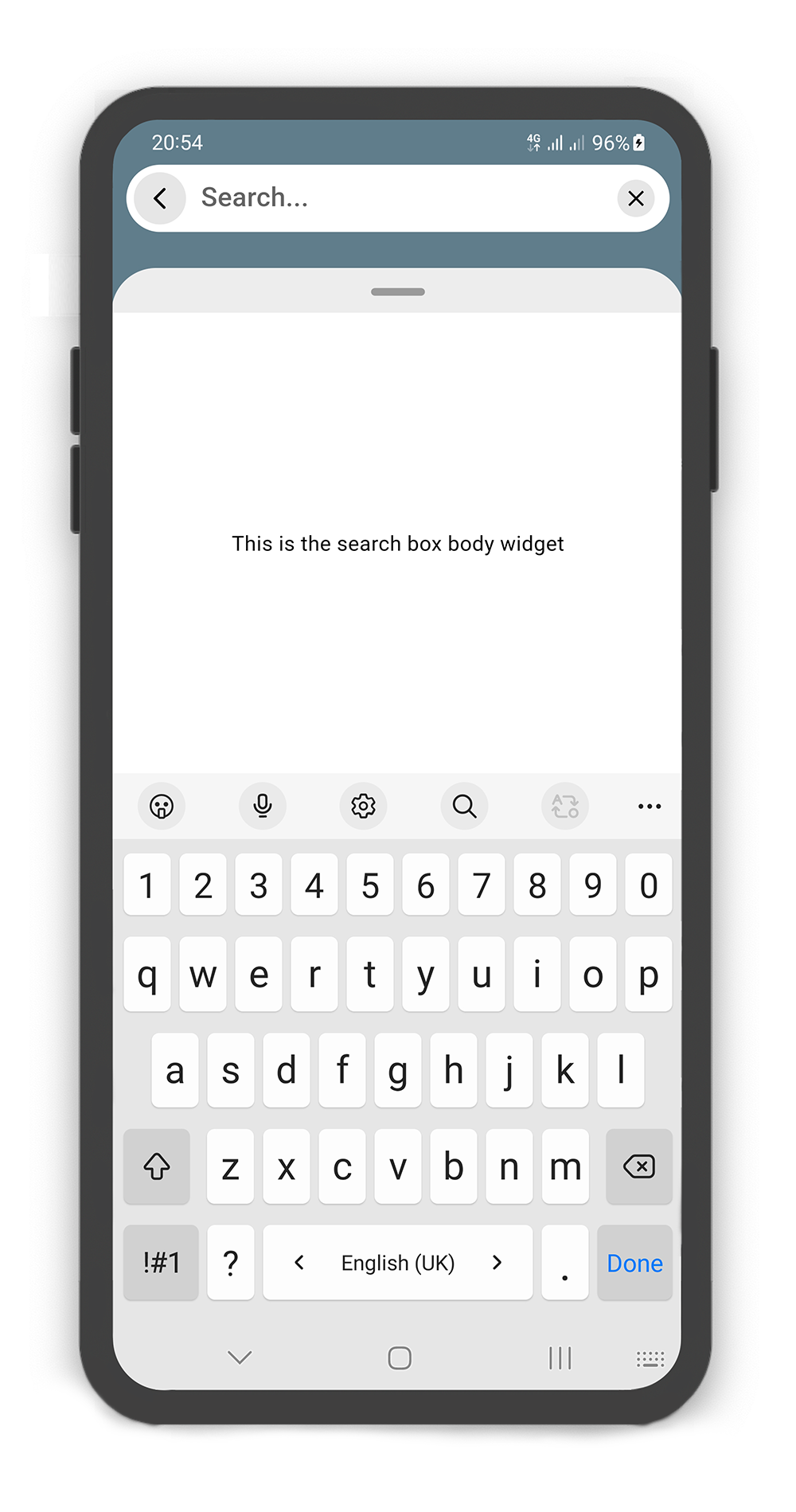
SlidingBox appBar includes searchBox: SearchBox
  BoxController boxController = BoxController();
  TextEditingController textEditingController = TextEditingController();

  @override
  Widget build(BuildContext context) {
    return Scaffold(
      body: SlidingBox(
        context: context,
        controller: boxController,
        minHeight: 200,
        maxHeight: MediaQuery.of(context).size.height - 100,
        body: Center(
          child: Text("This is the sliding box widget",
            style: TextStyle(color: Colors.black),),
        ),
        backdrop: Backdrop(
          color: Colors.blueGrey,
          appBar: BackdropAppBar(
            title: Padding(
                padding: EdgeInsets.all(10),
                child: Text("AppBar", style: TextStyle(fontSize: 20),)
            ),
            leading: Icon(Icons.menu, color: Colors.white, size: 27,),
            searchBox: SearchBox(
              controller: textEditingController,
              body: Center(
                child: Text("This is the search box body widget",
                  style: TextStyle(color: Colors.black),
                ),
              ),
            ),
            actions: [
              Container(
                margin: const EdgeInsets.fromLTRB(0, 0, 10, 0),
                child: SizedBox.fromSize(
                  size: const Size.fromRadius(25),
                  child: IconButton(
                    iconSize: 25,
                    icon: Icon(Icons.search, color: Colors.white, size: 27,),
                    onPressed: () {
                      textEditingController.text = "";
                      boxController.showSearchBox();
                    },
                  ),
                ),
              ),
            ]
          ),
        ),
      ),
    );
  }
SearchBox Usage #
Using the SearchBox
Manually changing the properties of the SearchBox
| Properties | Description |
|---|---|
controller |
It can be used to control the state of search box text field. Gets a TextEditingController |
leading |
A Icon Widget that is placed in left of the search box text field |
color |
The color to fill the background of the SearchBox |
inputDecoration |
The decoration to show around the search box text field |
borderRadius |
The corners of the search box are rounded by this |
style |
The style to use for the text being edited |
body |
A Widget that is placed in the sliding box (in search mode display the result of search). |
draggableBody |
Allows toggling of draggability of the sliding box. If set this to false, the sliding box cannot be dragged up or down when search box visible. If set this to true, search box invisible when dragging |
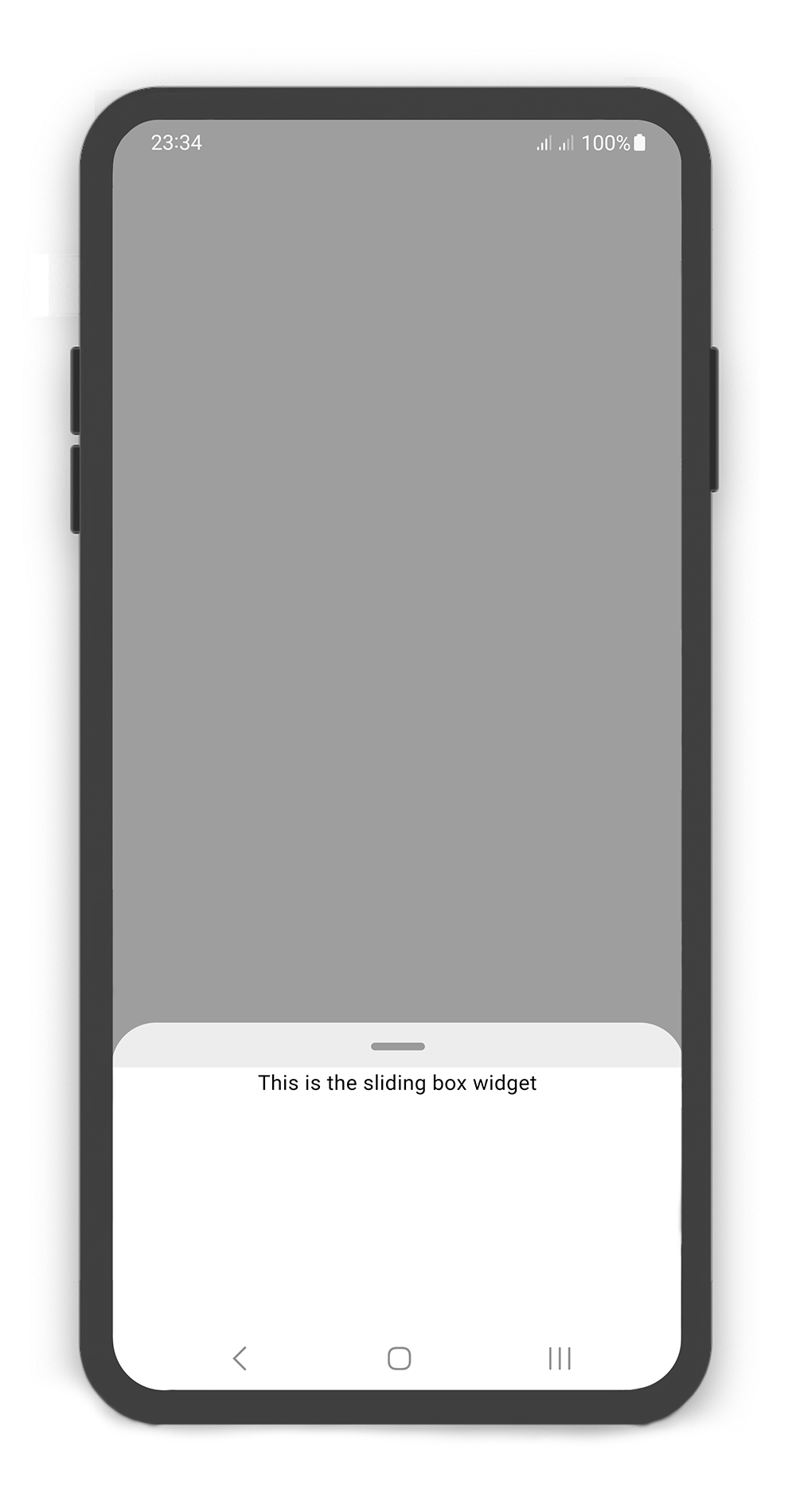
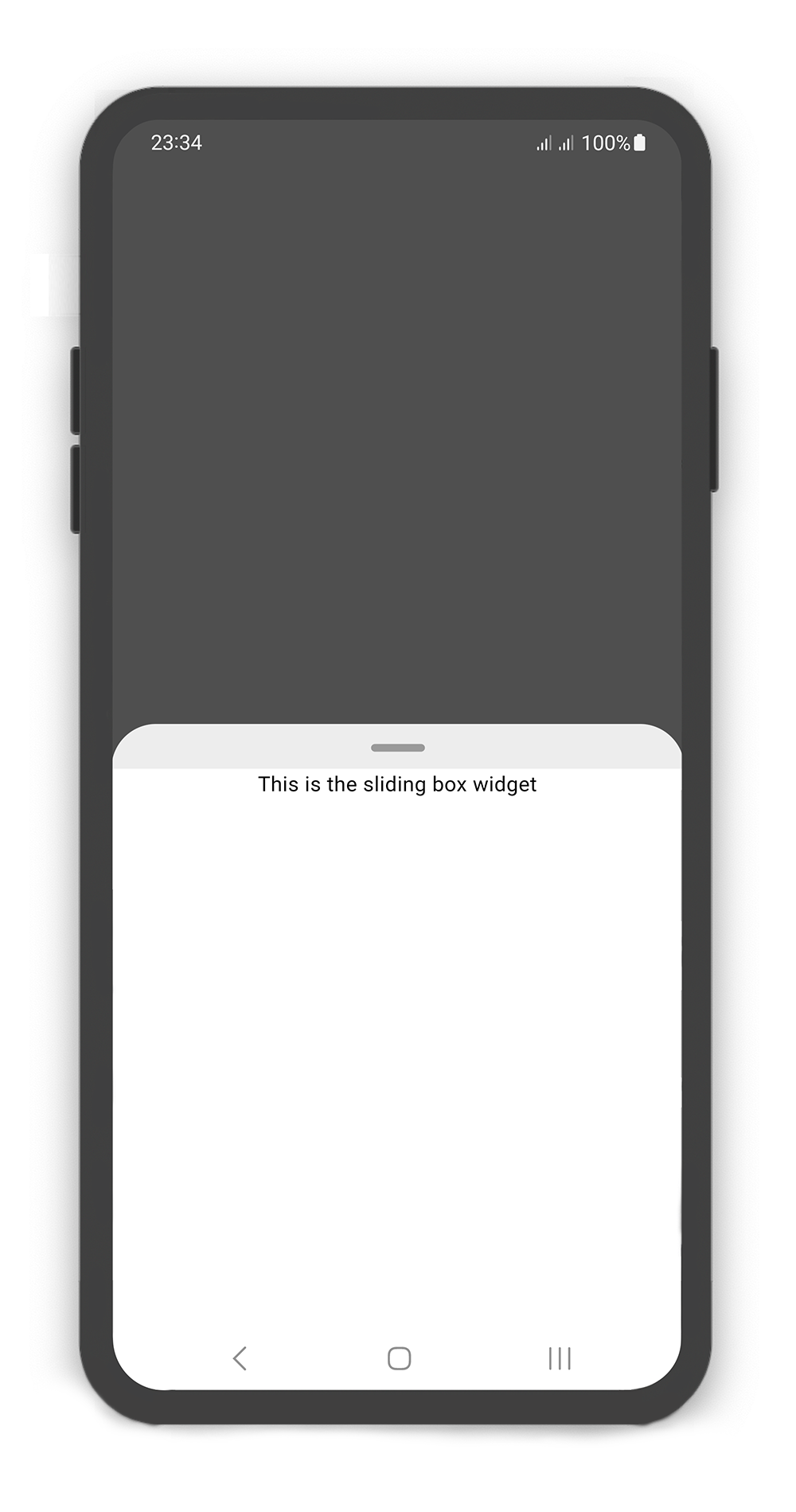
SlidingBox backdrop includes overlay: true
you can customize overlayOpacity (a value between 0.0 and 1.0), default value is 0.5
  @override
  Widget build(BuildContext context) {
    return Scaffold(
      body: SlidingBox(
        context: context,
        body: const Center(
          child: Text("This is the sliding box widget",
            style: TextStyle(color: Colors.black),
          ),
        ),
        backdrop: Backdrop(
          overlay: true,
          overlayOpacity: 0.5,
          color: Colors.grey,
        ),
      ),
    );
  }
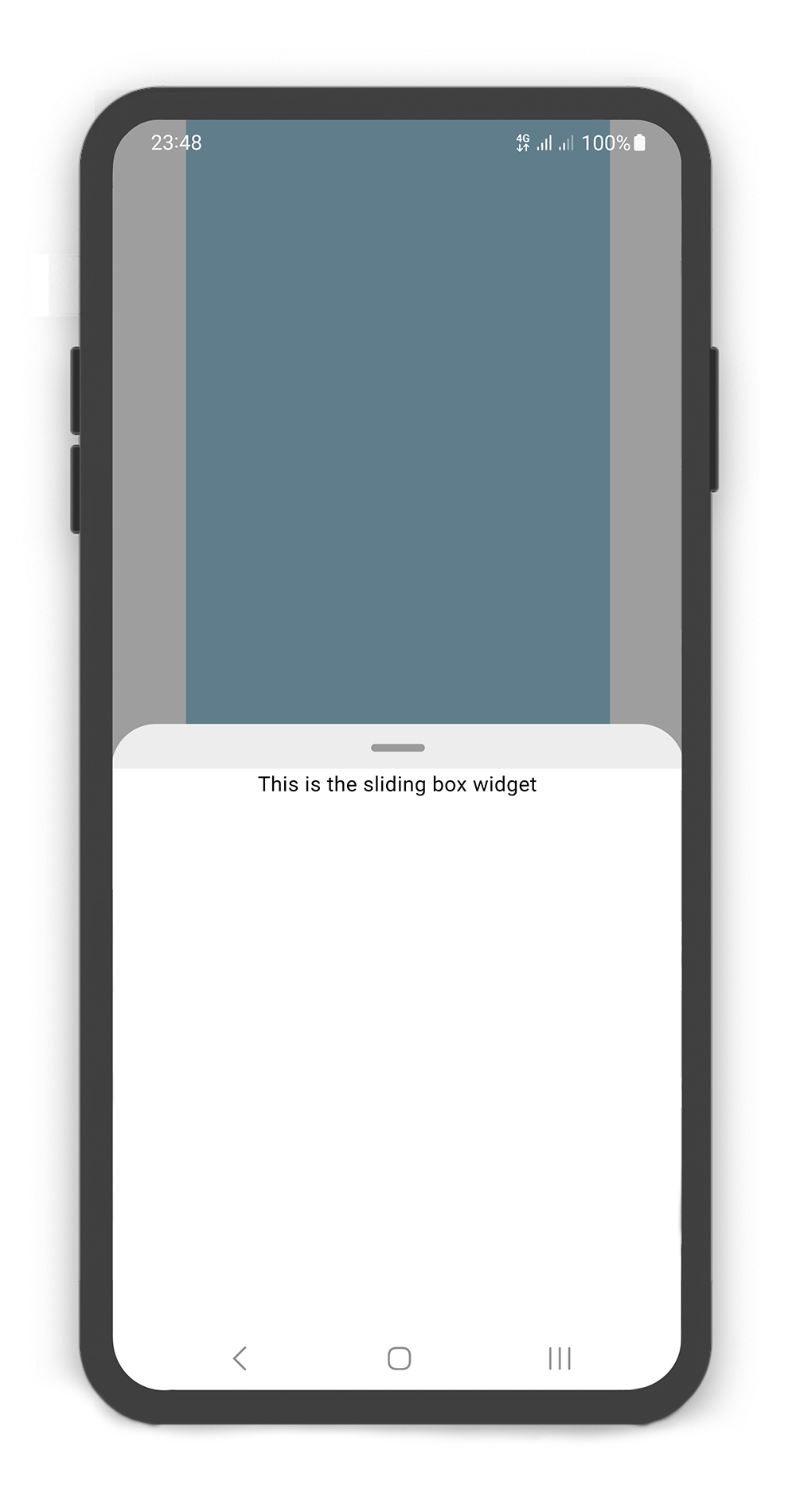
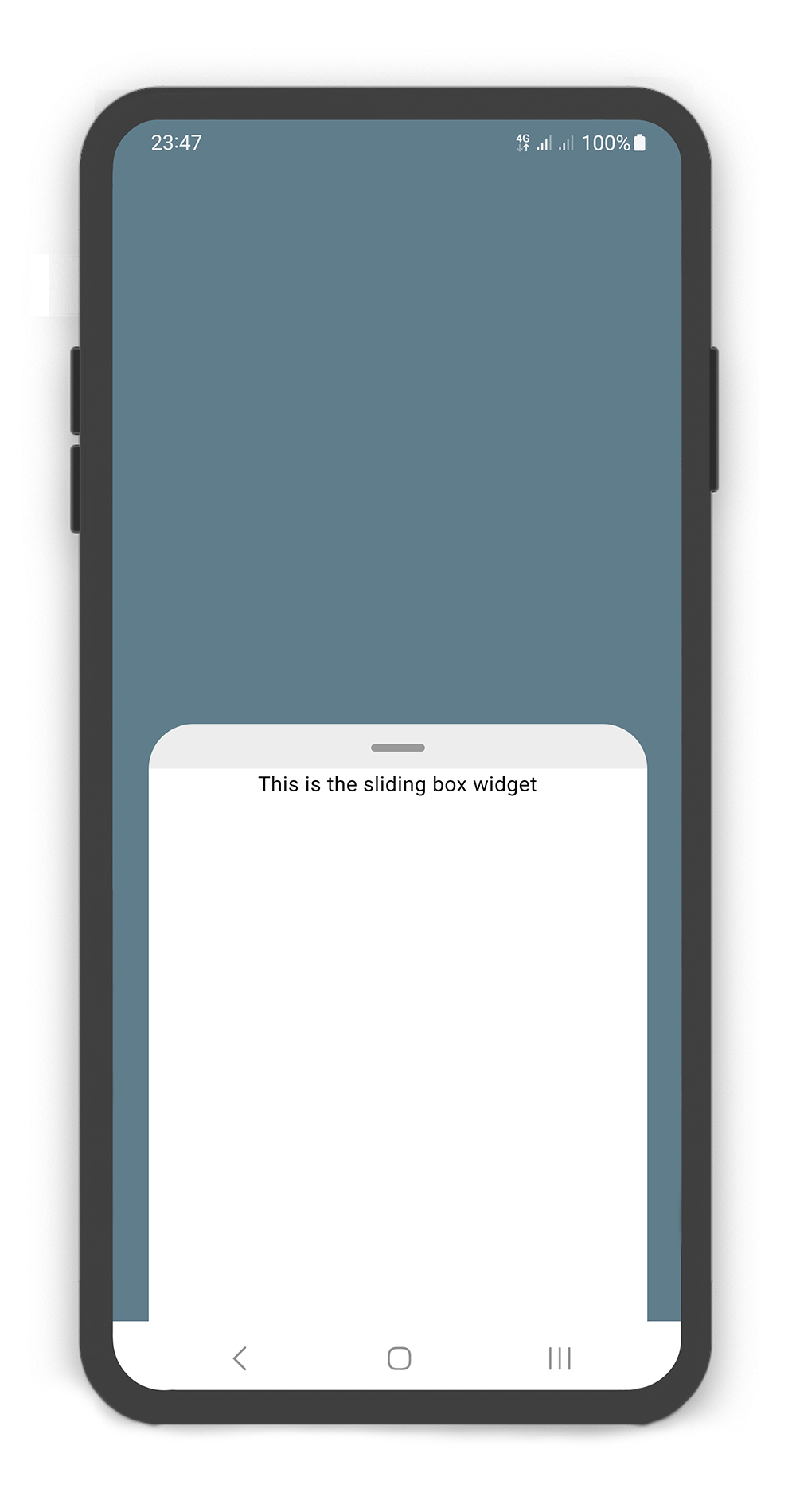
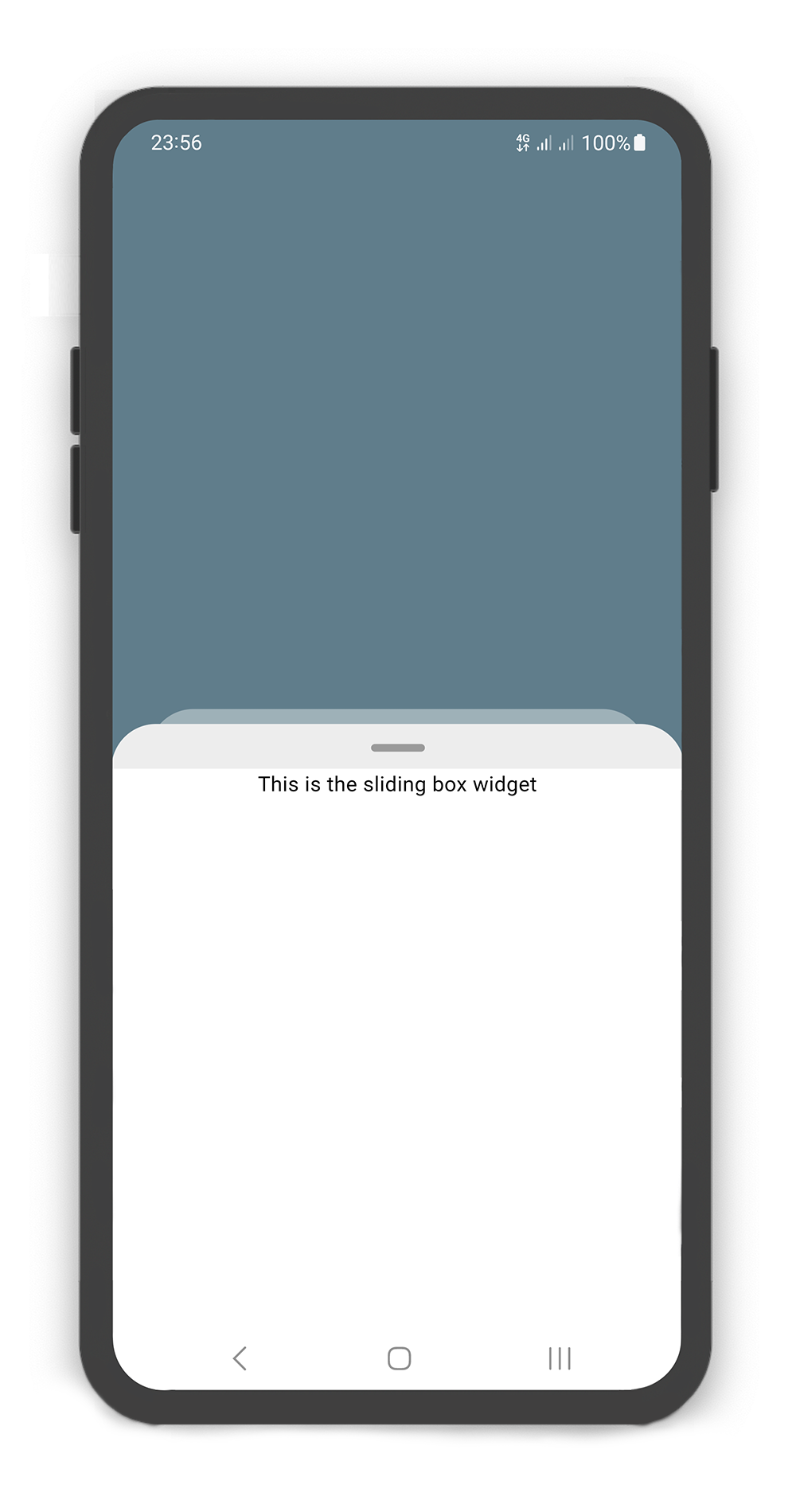
SlidingBox backdrop width and body width
  @override
  Widget build(BuildContext context) {
    return Scaffold(
      body: SlidingBox(
        context: context,
        width: MediaQuery.of(context).size.width - 50,
        minHeight: 200,
        maxHeight: 400,
        body: Center(
          child: Text("This is the sliding box widget",
           style: TextStyle(color: Colors.black),),
        ),
        backdrop: Backdrop(
          width: MediaQuery.of(context).size.width - 100,
          color: Colors.blueGrey,
        ),
      ),
    );
  }
SlidingBox includes style: sheet or shadow
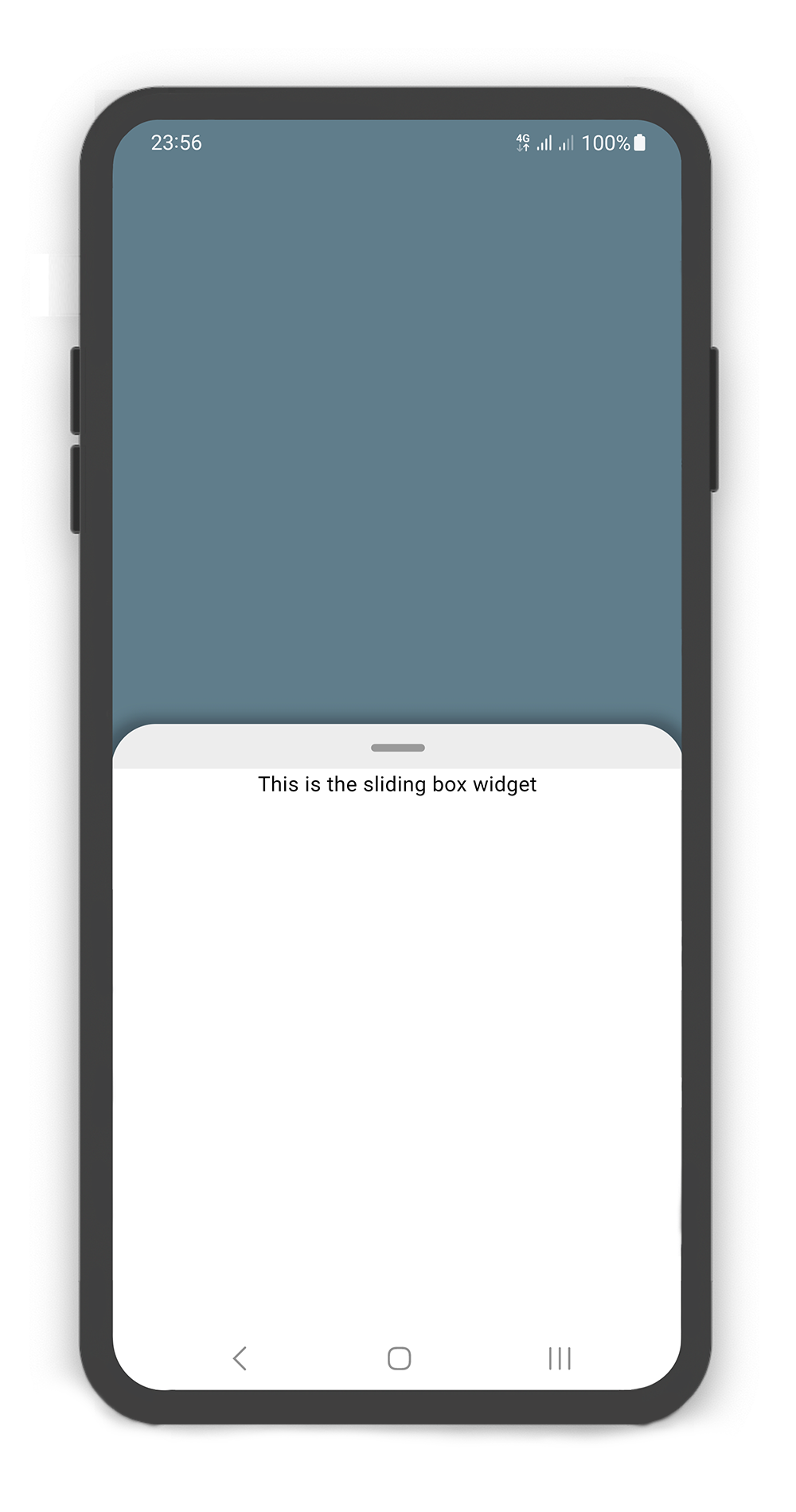
  @override
  Widget build(BuildContext context) {
    return Scaffold(
      body: SlidingBox(
        context: context,
        minHeight: 200,
        maxHeight: 400,
        style: BehindBoxStyle.sheet, // or BehindBoxStyle.shadow
        body: Center(
          child: Text("This is the sliding box widget",
            style: TextStyle(color: Colors.black),),
        ),
        backdrop: Backdrop(
          color: Colors.blueGrey,
        ),
      ),
    );
  }
Box Controller #
Using the BoxController
Manually changing the state of the SlidingBox. For better performance, use a BoxController as controller (recommended).
| Properties | Data Type | Description |
|---|---|---|
isAttached |
bool |
Determine if the boxController is attached to an instance of the SlidingBox (this property must be true before any other BoxController functions can be used) |
isBoxOpen |
bool |
Returns whether or not the box is open |
isBoxClosed |
bool |
Returns whether or not the box is close |
isBoxVisible |
bool |
Returns whether or not the box is visible |
isSearchBoxVisible |
bool |
Returns whether or not the search box is visible |
getPosition |
bool |
Returns current box position (a value between 0.0 and 1.0) |
minHeight |
double |
Returns current box minHeight |
maxHeight |
double |
Returns current box maxHeight |
boxWidth |
double |
Returns current box width |
backdropWidth |
double |
Returns current backdrop width |
| Methods | Return Type | Description |
|---|---|---|
openBox() |
Future<void> |
Opens the sliding box with animation (i.e. to the maxHeight) |
closeBox() |
Future<void> |
Closes the sliding box with animation (i.e. to the minHeight) |
showBox() |
Future<void> |
Shows the sliding box (i.e. is visible) |
hideBox() |
Future<void> |
Hides the sliding box (i.e. is invisible) |
showSearchBox() |
Future<void> |
Shows the search box (i.e. is visible) |
hideSearchBox() |
Future<void> |
Hides the search box (i.e. is invisible) |
setPosition() |
Future<void> |
Sets the sliding box position with animation (a value between 0.0 and 1.0) |
setSearchBody() |
Future<void> |
Sets the search box body content |
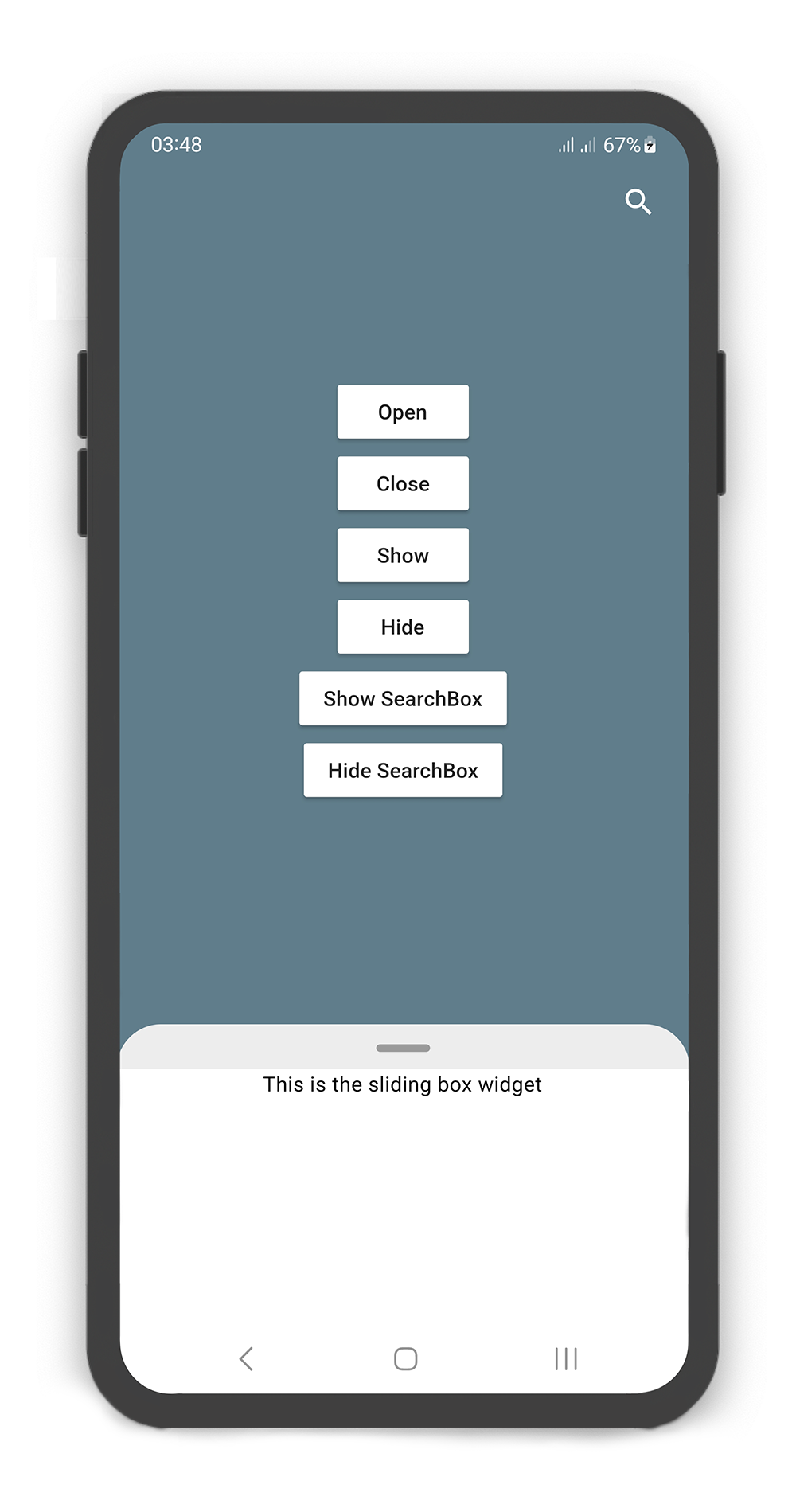
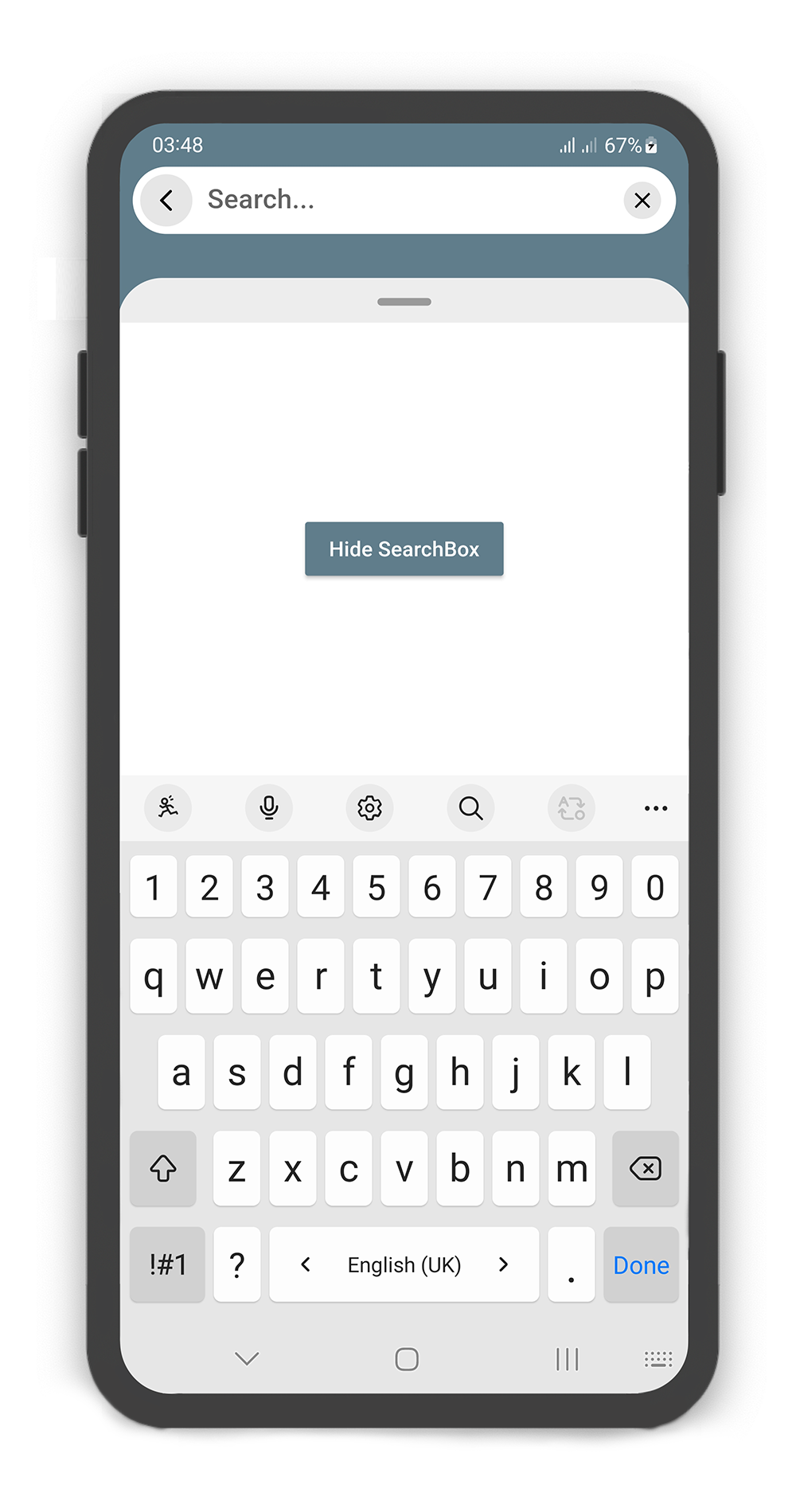
  BoxController boxController = BoxController();
  TextEditingController textEditingController = TextEditingController();

  @override
  Widget build(BuildContext context) {
    return Scaffold(
      body: SlidingBox(
        context: context,
        controller: boxController,
        minHeight: 200,
        maxHeight: MediaQuery.of(context).size.height - 100,
        body: const Center(
          child: Text("This is the sliding box widget",
            style: TextStyle(color: Colors.black),),
        ),
        collapsed: true,
        backdrop: Backdrop(
          color: Colors.blueGrey,
          appBar: BackdropAppBar(
              searchBox: SearchBox(
                controller: textEditingController,
                body: Center(
                  child: MaterialButton(
                    child: Text("Hide SearchBox"),
                    onPressed: () {
                      boxController.hideSearchBox();
                      boxController.closeBox();
                    },
                    color: Colors.blueGrey,
                    textColor: Colors.white,
                  ),
                ),
                draggableBody: true,
              ),
              actions: [
                Container(
                  margin: const EdgeInsets.fromLTRB(0, 0, 10, 0),
                  child: SizedBox.fromSize(
                    size: const Size.fromRadius(25),
                    child: IconButton(
                      iconSize: 25,
                      icon: Icon(Icons.search, color: Colors.white, size: 27,),
                      onPressed: () {
                        textEditingController.text = "";
                        boxController.showSearchBox();
                      },
                    ),
                  ),
                ),
              ]
          ),
          body: SingleChildScrollView(
            child: SizedBox(
              width: MediaQuery.of(context).size.width,
              height: MediaQuery.of(context).size.height,
              child: Column(
                mainAxisAlignment: MainAxisAlignment.center,
                children: [
                  MaterialButton(
                    child: Text("Open"),
                    onPressed: () => boxController.openBox(),
                    color: Colors.white,
                  ),
                  MaterialButton(
                    child: Text("Close"),
                    onPressed: () => boxController.closeBox(),
                    color: Colors.white,
                  ),
                  MaterialButton(
                    child: Text("Show"),
                    onPressed: () => boxController.showBox(),
                    color: Colors.white,
                  ),
                  MaterialButton(
                    child: Text("Hide"),
                    onPressed: () => boxController.hideBox(),
                    color: Colors.white,
                  ),
                  MaterialButton(
                    child: Text("Show SearchBox"),
                    onPressed: () => boxController.showSearchBox(),
                    color: Colors.white,
                  ),
                  MaterialButton(
                    child: Text("Hide SearchBox"),
                    onPressed: () => boxController.hideSearchBox(),
                    color: Colors.white,
                  ),
                ],
              ),
            ),
          ),
        ),
      ),
    );
  }
Body Builder #
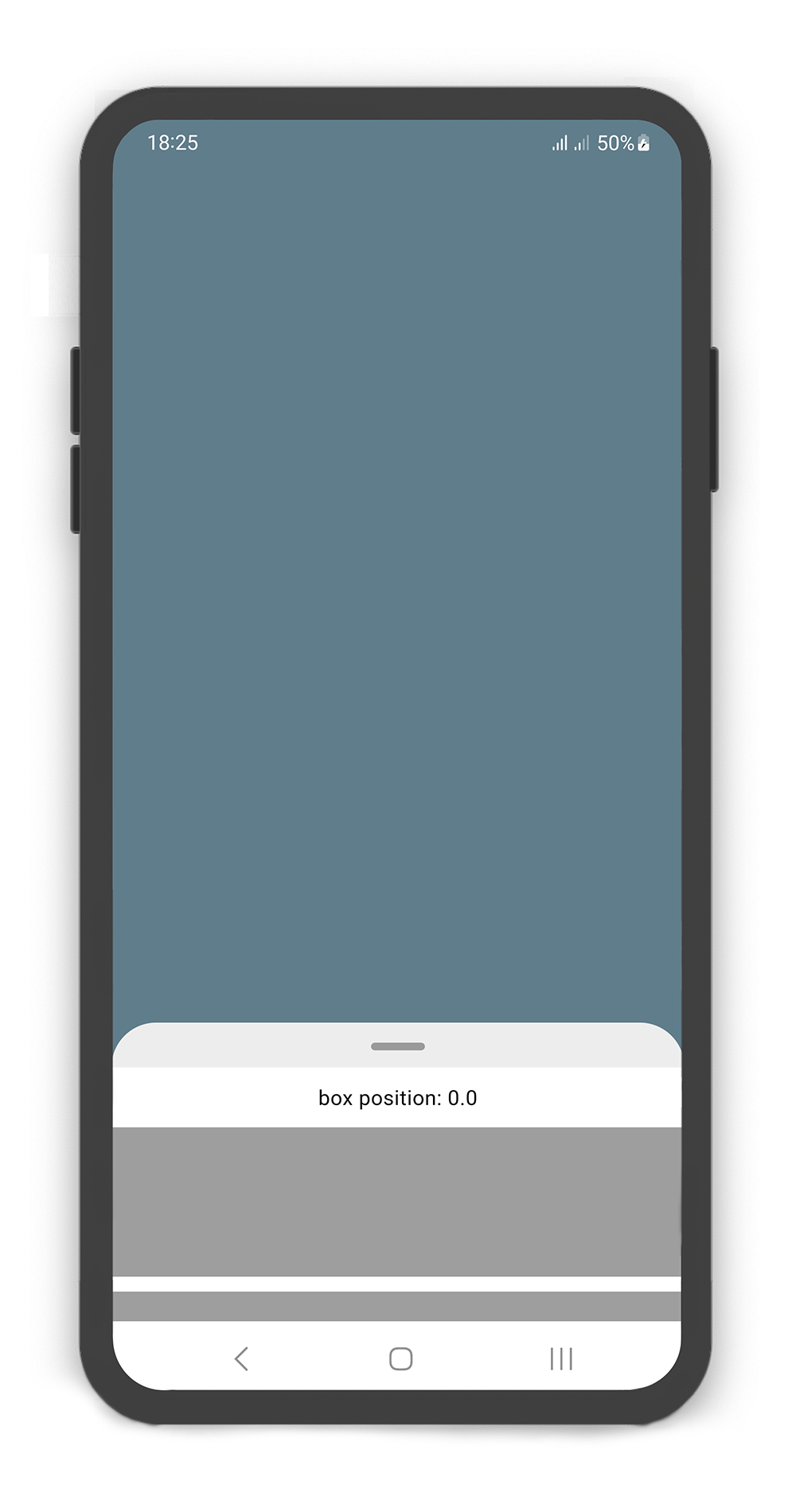
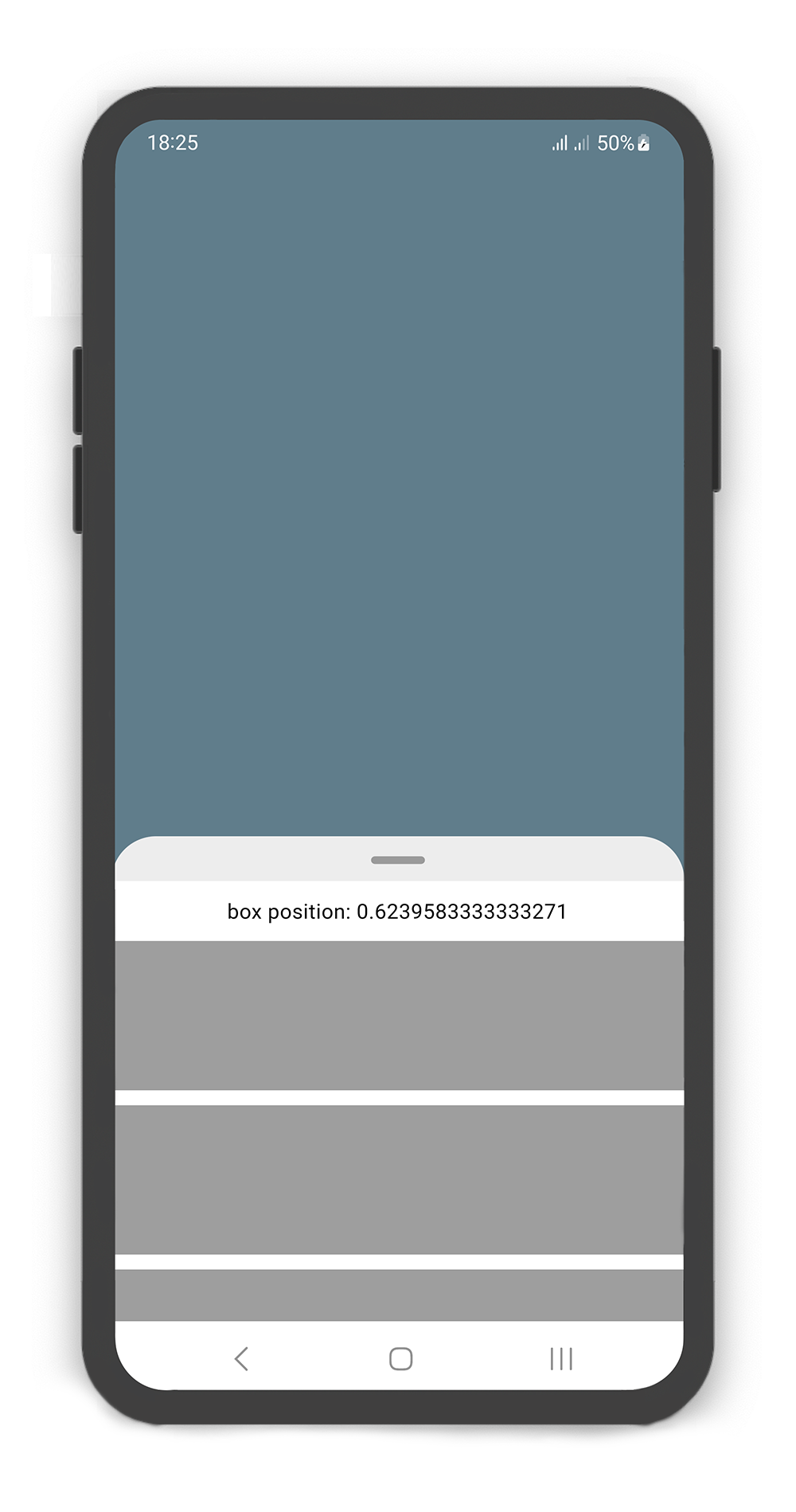
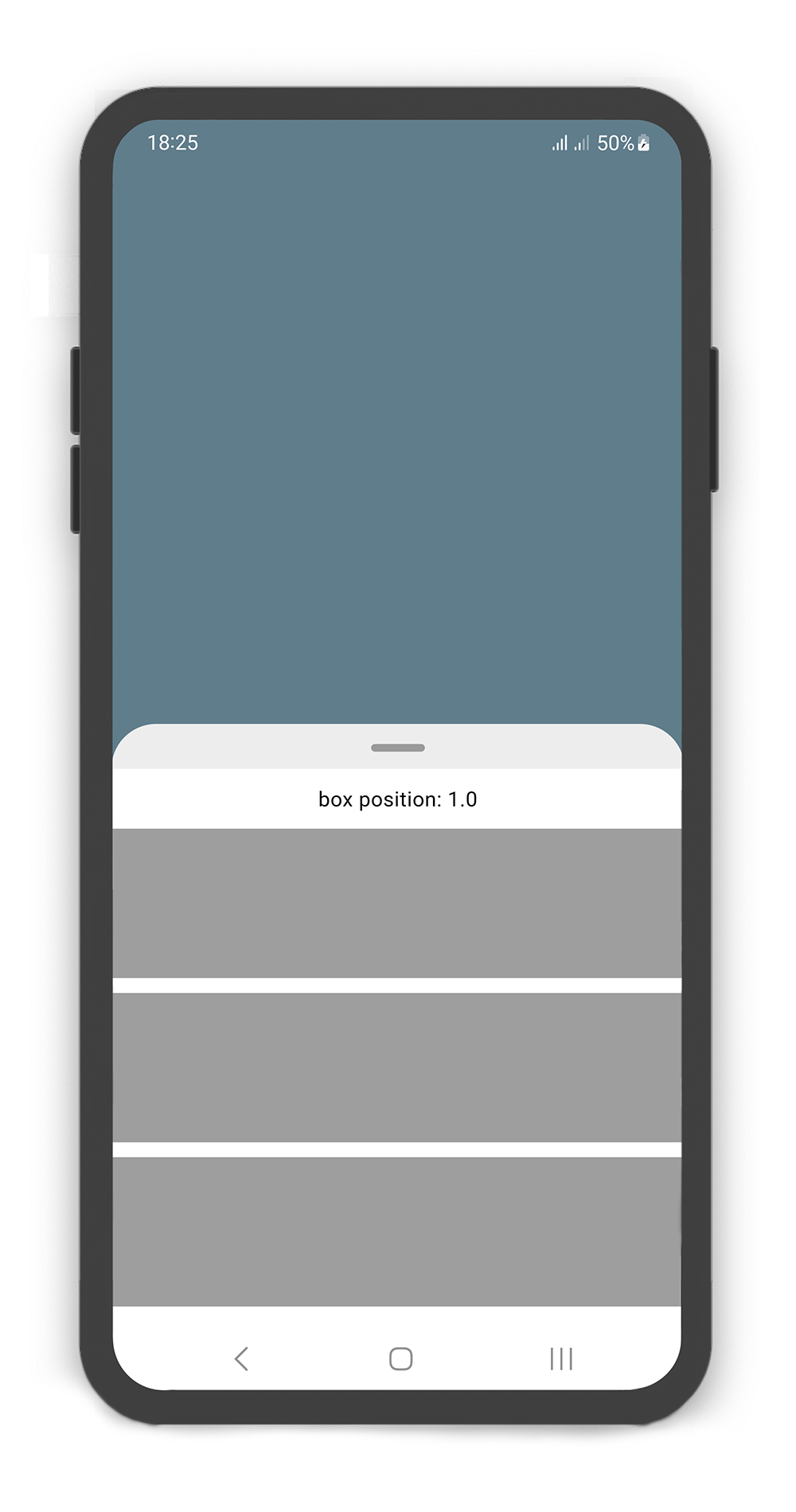
Using the bodyBuilder
When content overflow in body widget, scroll enable automatically, and you can using the body builder to manage and control scroll and box position.
  @override
  Widget build(BuildContext context) {
    return Scaffold(
      body: SlidingBox(
        context: context,
        minHeight: 200,
        maxHeight: 400,
        bodyBuilder: (sc, pos) => _body(sc, pos),
        backdrop: Backdrop(
           color: Colors.blueGrey,
        ),
      ),
    );
  }

  _body(ScrollController sc, double pos) {
     sc.addListener(() {
       print("scrollController position: ${sc.position.pixels}");
     });
     return Column(
       children: [
         SizedBox(height: 10,),
         Center(
           child: Text("box position: $pos",
              style: TextStyle(color: Colors.black),),
         ),
         SizedBox(height: 10,),
         Container(color: Colors.grey, height: 100,),
         SizedBox(height: 10,),
         Container(color: Colors.grey, height: 100,),
         SizedBox(height: 10,),
         Container(color: Colors.grey, height: 100,),
         SizedBox(height: 10,),
         Container(color: Colors.grey, height: 100,),
       ],
     );
  }
showSlidingBox Method #
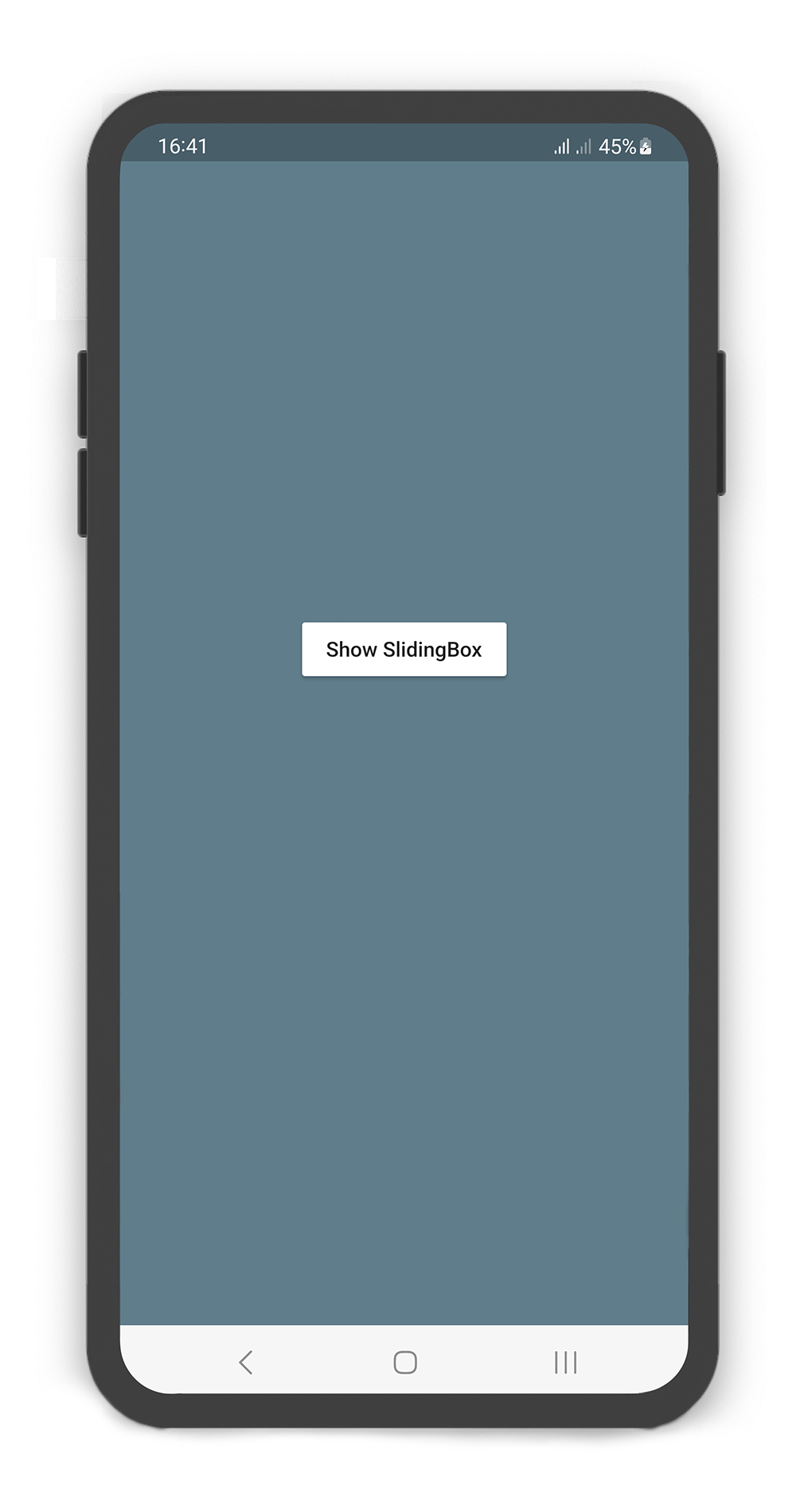
Using the showSlidingBox() method
Display a sliding box easily and simply. Just call showSlidingBox() method.
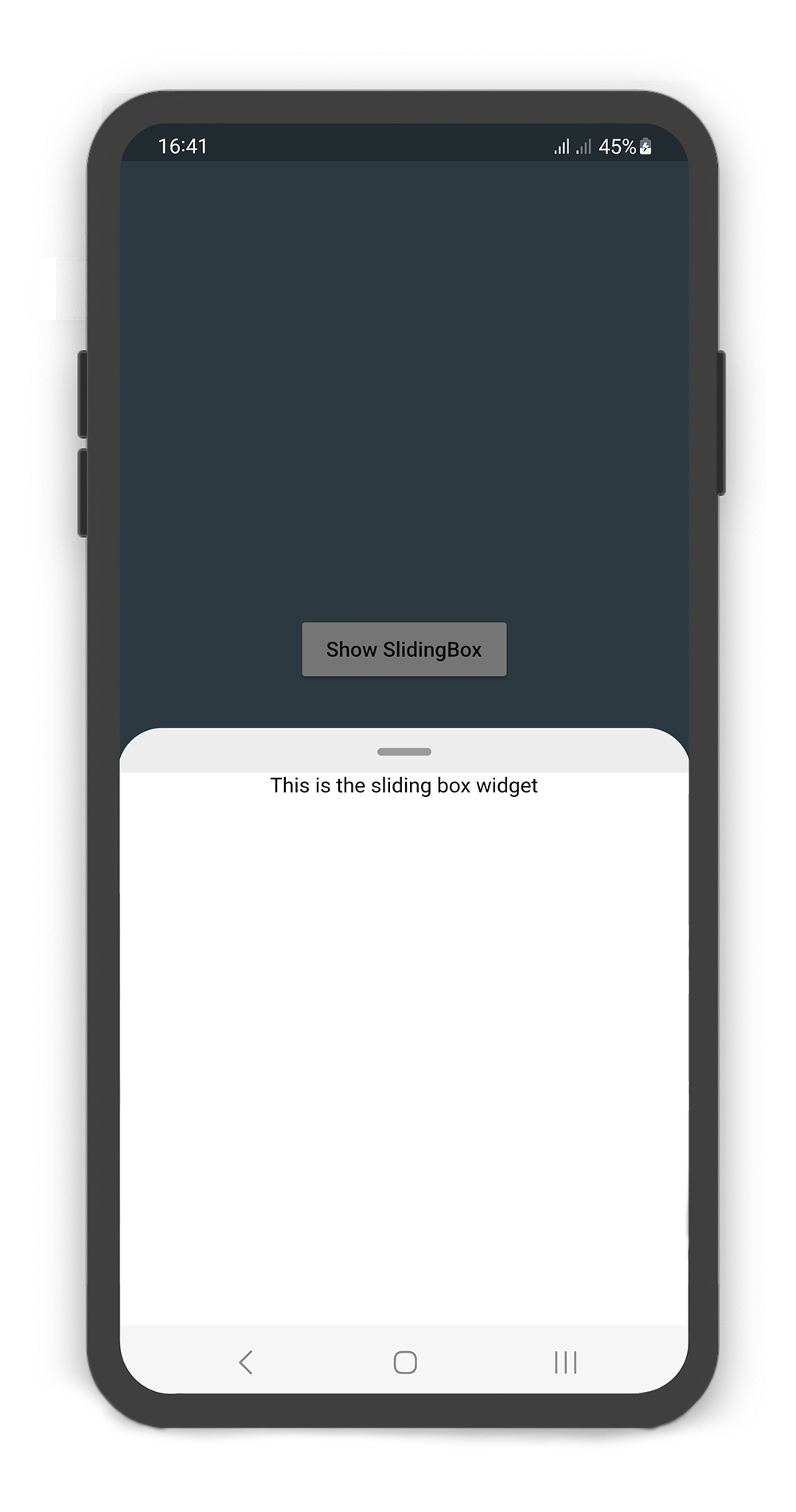
  @override
  Widget build(BuildContext context) {
    return Scaffold(
      backgroundColor: Colors.blueGrey,
      body: Center(
        child: MaterialButton(
          color: Colors.white,
          onPressed: () {
            showSlidingBox(
              context: context,
                box: SlidingBox(
                  body: const Center(
                    child: Text("This is the sliding box widget",
                      style: TextStyle(color: Colors.black),),
                ),
              )
            );
          },
          child: const Text("Show SlidingBox"),
        ),
      ),
    );
  }
Metadata
Publisher
Weekly Downloads
Metadata
A draggable flutter widget that makes it easier to use a SlidingBox panel for all platform. Boxes can be customized with your content and placed in your app.
Homepage
Repository (GitHub)
View/report issues
License
 unknown (license)

