
flutter_earth_globe 2.0.0  flutter_earth_globe: ^2.0.0 copied to clipboard
An interactive and fully customizable 3D Globe widget written in pure Dart.
Flutter Earth Globe #
Overview #
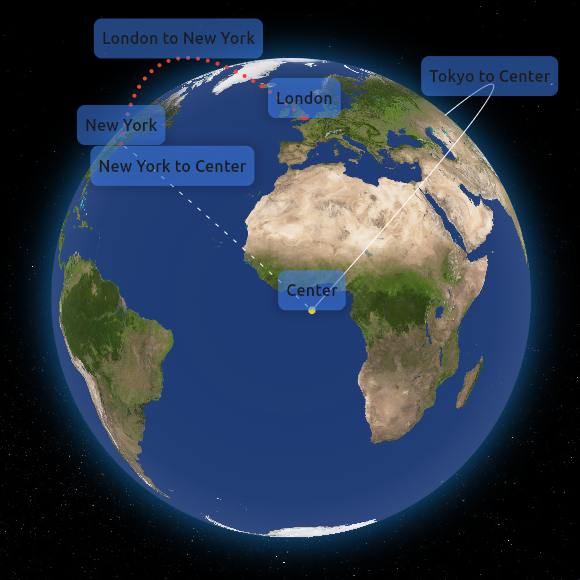
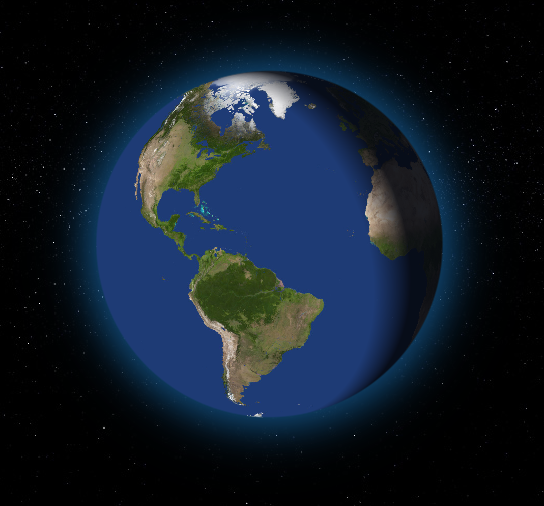
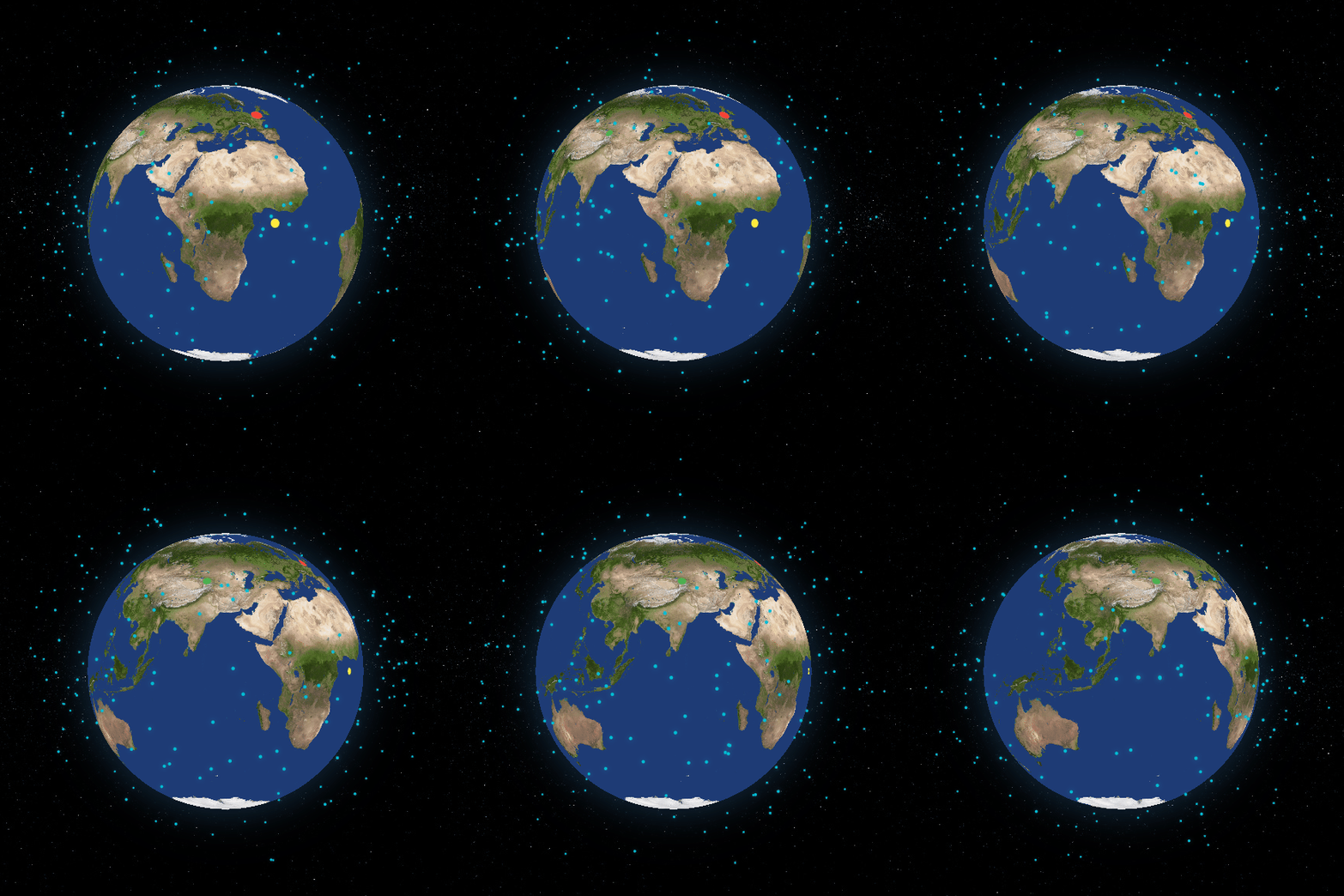
Flutter Earth Globe is an interactive 3D sphere widget for Flutter applications. This widget is designed to be easy to use and highly customizable, making it ideal for any application that requires a visually appealing representation of a planet. This package was inspired by Globe.GL and Sphere.
Live Demo #
Features #
- 3D Interactive Globe: A realistic and interactive 3D model of the Earth.
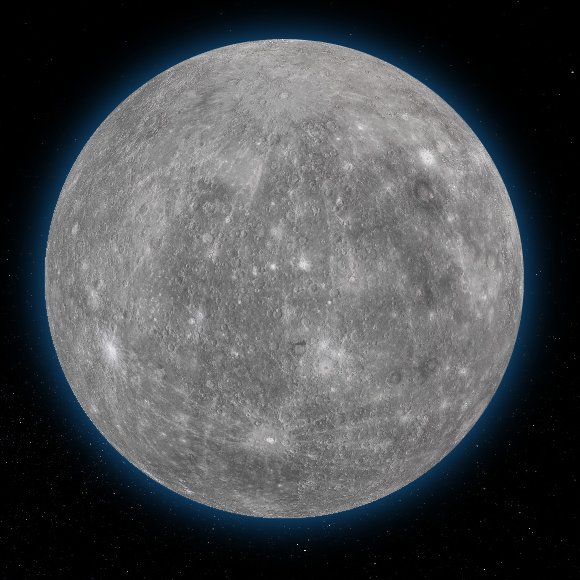
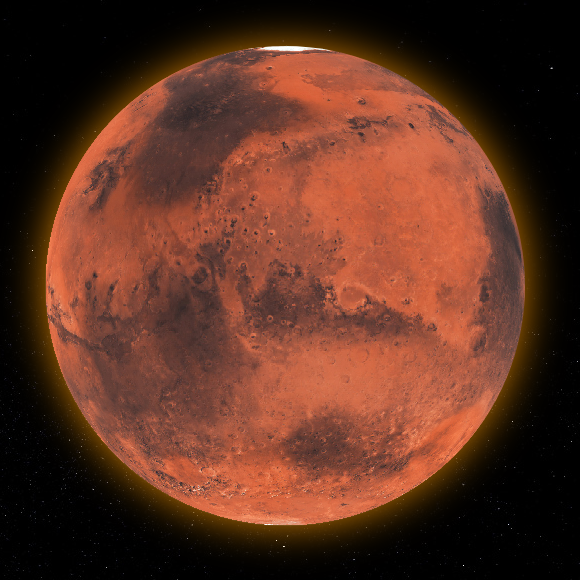
- Customizable Appearance: Options to customize the appearance of the globe including colors, textures, and more.
- Zoom and Rotation: Users can interact with the globe through zoom and rotation gestures.
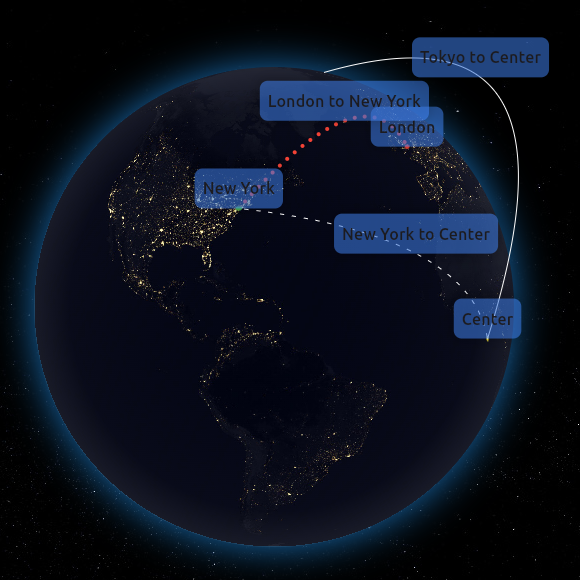
- Point Support: Ability to place customizable points on the globe.
- Connections Support: Ability to create connections between different coordinates.
- Custom Labels Support: Ability to create custom widget labels for a point or connection.
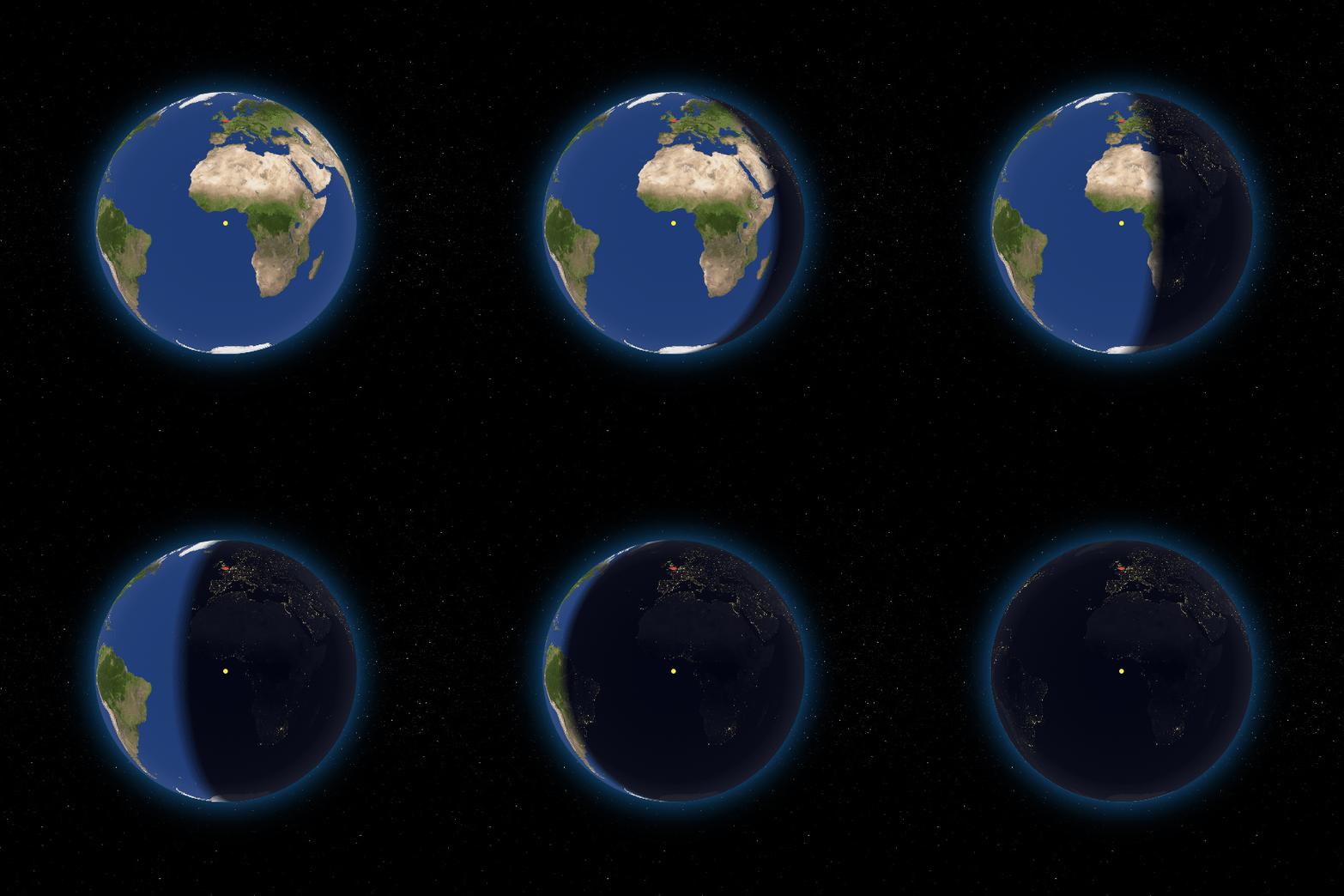
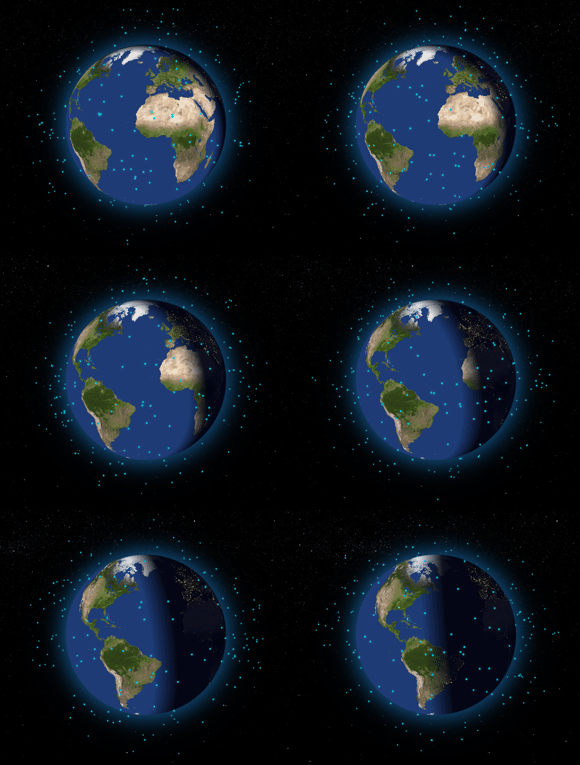
- Day/Night Cycle: Realistic day/night cycle with smooth transitions between day and night textures based on sun position.
- Responsive Design: Ensures compatibility with a wide range of devices and screen sizes.
Installation #
To install Flutter Earth Globe, follow these steps:
-
Add the package to your Flutter project's
pubspec.yamlfile:dependencies: flutter_earth_globe: ^[latest_version]or just run
flutter pub add flutter_earth_globe -
Import the package in your Dart code:
import 'package:flutter_earth_globe/flutter_earth_globe.dart';
Usage #
Here is a basic example of how to integrate the Flutter Earth Globe into your Flutter app:
import 'package:flutter/material.dart';
import 'package:flutter_earth_globe/flutter_earth_globe.dart';
import 'package:flutter_earth_globe/flutter_earth_globe_controller.dart';

void main() {
  runApp(MyApp());
}

class MyApp extends StatelessWidget {
  late FlutterEarthGlobeController _controller;

   @override
  initState() {
    _controller = FlutterEarthGlobeController(
        rotationSpeed: 0.05,
        isBackgroundFollowingSphereRotation: true,
        background: Image.asset('assets/2k_stars.jpg').image,
        surface: Image.asset('assets/2k_earth-day.jpg').image);
  }

  @override
  Widget build(BuildContext context) {
    return MaterialApp(
      home: Scaffold(
        appBar: AppBar(
          title: Text('Flutter Earth Globe Example'),
        ),
        body: SafeArea(
        child: FlutterEarthGlobe(
              controller: _controller,
              radius: 120,
            )
        ),
      ),
    );
  }
}
Customization #
Create a list of Points and add them to the globe
final FlutterEarthGlobeController _controller = FlutterEarthGlobeController();
List<Point> points = [
      Point(
          id: '1',
          coordinates: const GlobeCoordinates(51.5072, 0.1276),
          label: 'London',
          isLabelVisible: true,
          style: const PointStyle(color: Colors.red, size: 6)),
      Point(
          id: '2',
          isLabelVisible: true,
          coordinates: const GlobeCoordinates(40.7128, -74.0060),
          style: const PointStyle(color: Colors.green),
          onHover: () {},
          label: 'New York'),
      Point(
          id: '3',
          isLabelVisible: true,
          coordinates: const GlobeCoordinates(35.6895, 139.6917),
          style: const PointStyle(color: Colors.blue),
          onHover: () {
            print('Tokyo');
          },
          label: 'Tokyo'),
      Point(
          id: '4',
          isLabelVisible: true,
          onTap: () {
            Future.delayed(Duration.zero, () {
              showDialog(
                  context: context,
                  builder: (context) => const AlertDialog(
                        title: Text('Center'),
                        content: Text('This is the center of the globe'),
                      ));
            });
          },
          coordinates: const GlobeCoordinates(0, 0),
          style: const PointStyle(color: Colors.yellow),
          label: 'Center'),
    ];

    for (var point in points) {
      _controller.addPoint(point);
    }
Create connections between points
final FlutterEarthGlobeController _controller = FlutterEarthGlobeController();

// Add a simple solid connection
_controller.addPointConnection(PointConnection(
  id: 'connection-1',
  start: const GlobeCoordinates(51.5072, 0.1276),    // London
  end: const GlobeCoordinates(40.7128, -74.0060),    // New York
  label: 'London - New York',
  isLabelVisible: true,
  style: PointConnectionStyle(
    type: PointConnectionType.solid,
    color: Colors.cyan,
    lineWidth: 2,
  ),
));

// Add an animated dashed connection
_controller.addPointConnection(PointConnection(
  id: 'connection-2',
  start: const GlobeCoordinates(40.7128, -74.0060),  // New York
  end: const GlobeCoordinates(35.6895, 139.6917),    // Tokyo
  label: 'New York - Tokyo',
  isLabelVisible: true,
  style: PointConnectionStyle(
    type: PointConnectionType.dashed,
    color: Colors.orange,
    dashSize: 4,
    spacing: 6,
    dashAnimateTime: 2000,  // Dashes move along the arc over 2 seconds
    animateOnAdd: true,     // Arc grows when first appearing
    growthAnimationDuration: 1500,
  ),
));

// Add a dotted connection
_controller.addPointConnection(PointConnection(
  id: 'connection-3',
  start: const GlobeCoordinates(35.6895, 139.6917), // Tokyo
  end: const GlobeCoordinates(51.5072, 0.1276),     // London
  style: PointConnectionStyle(
    type: PointConnectionType.dotted,
    color: Colors.green,
    dotSize: 2,
    spacing: 4,
  ),
  curveScale: 2.0,  // Higher arc curve
  onTap: () {
    print('Connection tapped!');
  },
));
PointConnectionStyle Properties
| Property | Type | Default | Description |
|---|---|---|---|
type |
PointConnectionType |
solid | Line type: solid, dashed, or dotted |
color |
Color |
white | Color of the connection line |
lineWidth |
double |
1.0 | Width of solid lines |
dashSize |
double |
4.0 | Length of dashes |
dotSize |
double |
1.0 | Size of dots |
spacing |
double |
8.0 | Space between dashes/dots |
dashAnimateTime |
int |
0 | Time (ms) for dash to travel the arc (0 = disabled) |
transitionDuration |
int |
500 | Fade in/out duration (ms) |
animateOnAdd |
bool |
true | Animate arc growth when added |
growthAnimationDuration |
int |
1000 | Arc growth animation duration (ms) |
Load a background image that follows the rotation of the sphere and a sphere surface texture image
final FlutterEarthGlobeController _controller = FlutterEarthGlobeController();
@override
initState(){
    _controller.onLoaded = () {
        _controller.loadBackground(Image.asset('assets/2k_stars.jpg').image,
            followsRotation: true);
        _controller.loadSurface(Image.asset('assets/2k_earth-day.jpg',).image,
        );
    };

    super.initState();
}
Enable Day/Night Cycle
Create a realistic day/night effect by providing both day and night textures:
final FlutterEarthGlobeController _controller = FlutterEarthGlobeController(
    surface: Image.asset('assets/2k_earth-day.jpg').image,
    nightSurface: Image.asset('assets/2k_earth-night.jpg').image,
    isDayNightCycleEnabled: true,
    dayNightBlendFactor: 0.15, // Controls the sharpness of the day/night transition
);

// Start animated day/night cycle
_controller.startDayNightCycle(cycleDuration: Duration(seconds: 30));

// Stop the animation
_controller.stopDayNightCycle();

// Manually set sun position
_controller.setSunPosition(longitude: 45.0, latitude: 10.0);

// Use real-time sun position based on current time
_controller.setUseRealTimeSunPosition(true);
Change the style of the sphere
final FlutterEarthGlobeController _controller = FlutterEarthGlobeController();
_controller.changeSphereStyle(SphereStyle(
      shadowColor: Colors.orange.withAlpha(204),
      shadowBlurSigma: 20));
controller
Add Satellites
Add satellites to the globe with customizable styles and optional orbital animations. Inspired by Globe.GL.
final FlutterEarthGlobeController _controller = FlutterEarthGlobeController();

// Add a stationary (geostationary) satellite
_controller.addSatellite(Satellite(
  id: 'geo-sat-1',
  coordinates: GlobeCoordinates(0, -75.2),
  altitude: 0.35, // Height above the globe surface
  label: 'GOES-16',
  isLabelVisible: true,
  style: SatelliteStyle(
    size: 6,
    color: Colors.yellow,
    shape: SatelliteShape.circle,
    hasGlow: true,
    glowColor: Colors.yellow,
    glowIntensity: 0.5,
  ),
));

// Add an orbiting satellite (ISS-like)
_controller.addSatellite(Satellite(
  id: 'iss',
  coordinates: GlobeCoordinates(0, 0), // Starting position (used if no orbit)
  altitude: 0.06,
  label: 'ISS',
  isLabelVisible: true,
  orbit: SatelliteOrbit(
    inclination: 51.6,        // Orbital inclination in degrees
    period: Duration(seconds: 30), // Orbital period (faster for demo)
    raan: 0.0,                // Right ascension of ascending node
    initialPhase: 0.0,        // Starting phase in degrees
  ),
  style: SatelliteStyle(
    size: 8,
    color: Colors.white,
    shape: SatelliteShape.satelliteIcon,
    showOrbitPath: true,      // Show the orbital path
    orbitPathColor: Colors.white.withAlpha(77),
    orbitPathWidth: 1.0,
  ),
));
Managing Satellites
// Update an existing satellite
_controller.updateSatellite('iss',
  label: 'International Space Station',
  style: SatelliteStyle(size: 10, color: Colors.blue),
);

// Remove a satellite
_controller.removeSatellite('geo-sat-1');

// Clear all satellites
_controller.clearSatellites();
Contributors #
We would like to thank all the contributors who have helped make this project a success. Your contributions, big or small, make a significant impact on the development and improvement of this project.
If you would like to contribute, please feel free to fork the repository, make your changes, and submit a pull request.
How to Contribute #
- Fork the Repository: Click the 'Fork' button at the top right corner of this repository.
- Clone Your Fork: Clone your fork to your local machine.
- Create a Branch: Create a new branch for your modifications (
git checkout -b feature/YourFeature). - Make Your Changes: Make the necessary changes to the project.
- Commit Your Changes: Commit your changes (
git commit -am 'Add some feature'). - Push to the Branch: Push your changes to your branch (
git push origin feature/YourFeature). - Open a Pull Request: Go to the repository on GitHub and open a pull request.
We are excited to see your contributions and are looking forward to growing this project with the community!
Support the Library #
You can also support the library by liking it on pub, staring in on Github and reporting any bugs you encounter.
License #
This project is licensed under the MIT License - see the LICENSE file for details.
Metadata
Publisher
unverified uploader
Weekly Downloads
Metadata
An interactive and fully customizable 3D Globe widget written in pure Dart.
Repository (GitHub)
View/report issues
License
 unknown (license)

