
circular_time_range_picker 0.2.0  circular_time_range_picker: ^0.2.0 copied to clipboard
A customizable circular time range picker widget for Flutter applications.
circular_time_range_picker #
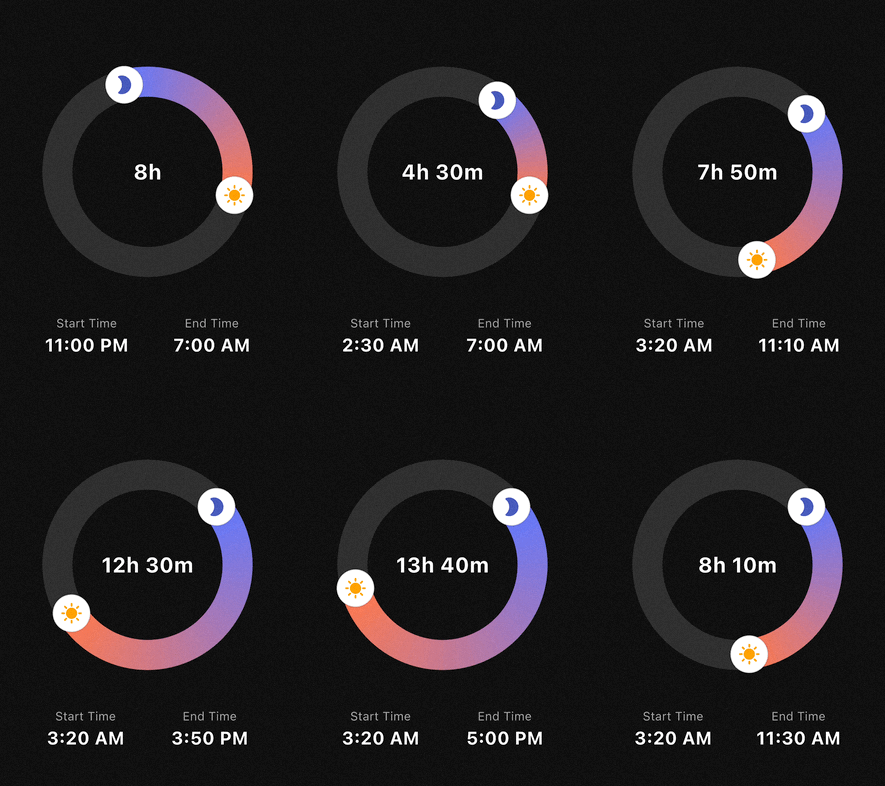
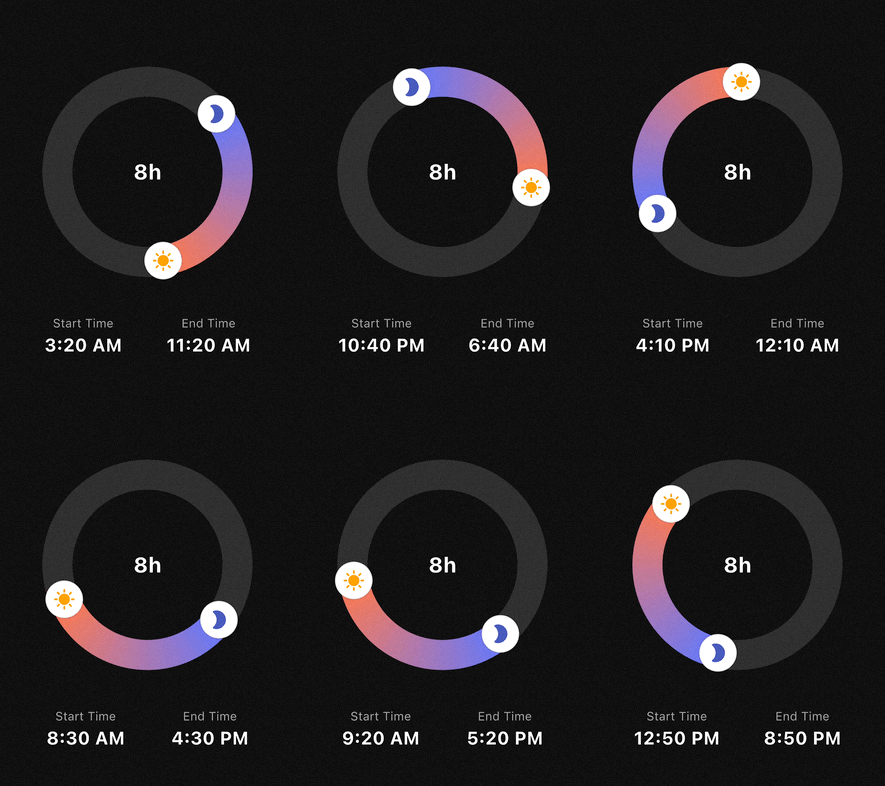
A highly customizable circular time range picker for Flutter. Perfect for use cases like sleep tracking, focus sessions, or scheduling, where users select a start and end time on a 24-hour clock face.
Features #
- 24h Circular Selection: Intuitive 360-degree time range picking.
- Flexible Interaction:
- Drag the start handle to adjust the beginning.
- Drag the end handle to adjust the end.
- Drag the entire arc to shift the whole time range at once.
- Smart Snapping: Fully configurable
minuteInterval(e.g., 5, 10, 15, 30 min) with multiple snapping strategies (round,floor,ceil). - Midnight Logic: Automatically calculates durations that cross the midnight threshold (e.g., 23:00 to 07:00).
- Highly Customizable UI:
- Support for Gradients on the range arc.
- Use Custom Widgets (Icons, Images) as handles.
- Adjustable stroke width, track colors, and handle sizes.
- Tick Marks: Optional hour/minute reference marks.
Getting started #
Add the package to your pubspec.yaml:
dependencies:
  circular_time_range_picker: ^0.1.0
Import it in your Dart code:
import 'package:circular_time_range_picker/circular_time_range_picker.dart';
Usage #
Quick Start (Copy & Run) #
import 'package:flutter/material.dart';
import 'package:circular_time_range_picker/circular_time_range_picker.dart';

void main() {
  runApp(const MyApp());
}

class MyApp extends StatelessWidget {
  const MyApp({super.key});

  @override
  Widget build(BuildContext context) {
    return const MaterialApp(
      home: DemoPage(),
    );
  }
}

class DemoPage extends StatefulWidget {
  const DemoPage({super.key});

  @override
  State<DemoPage> createState() => _DemoPageState();
}

class _DemoPageState extends State<DemoPage> {
  TimeRangeValue range = const TimeRangeValue(
    start: TimeOfDay(hour: 23, minute: 0),
    end: TimeOfDay(hour: 7, minute: 0),
  );

  @override
  Widget build(BuildContext context) {
    return Scaffold(
      backgroundColor: Colors.black,
      body: Center(
        child: Column(
          mainAxisAlignment: MainAxisAlignment.center,
          children: [
            Stack(
              alignment: Alignment.center,
              children: [
                CircularTimeRangePicker(
                  initialValue: range,
                  onChanged: (value) => setState(() => range = value),
                ),
                // Display total duration in the center
                Text(
                  '${range.duration.inHours}h ${range.duration.inMinutes % 60}m',
                  style: const TextStyle(
                    color: Colors.white,
                    fontSize: 28,
                    fontWeight: FontWeight.bold,
                  ),
                ),
              ],
            ),
            const SizedBox(height: 50),
            // Selected time information display
            Row(
              mainAxisAlignment: MainAxisAlignment.spaceEvenly,
              children: [
                _timeInfo('Start Time', range.start),
                _timeInfo('End Time', range.end),
              ],
            ),
          ],
        ),
      ),
    );
  }

  Widget _timeInfo(String label, TimeOfDay time) {
    return Column(
      children: [
        Text(label, style: const TextStyle(color: Colors.grey, fontSize: 16)),
        Text(
          time.format(context),
          style: const TextStyle(color: Colors.white, fontSize: 24, fontWeight: FontWeight.bold),
        ),
      ],
    );
  }
}
Simple Example #
The most basic implementation requires an initialValue and an onChanged callback.
CircularTimeRangePicker(
  initialValue: const TimeRangeValue(
    start: TimeOfDay(hour: 23, minute: 0),
    end: TimeOfDay(hour: 7, minute: 0),
  ),
  onChanged: (newRange) {
    print("New Duration: ${newRange.duration.inHours} hours");
  },
)
Advanced Styling & Snapping #
The picker is designed to stay simple by default, but nearly every visual
and interaction detail can be customized through TimePickerStyle and snapping options.
This example demonstrates:
- custom gradients and track styling
- custom handle widgets
- configurable snapping behavior
- optional tick marks for visual reference
CircularTimeRangePicker(
  initialValue: _myRange,
  size: const Size(280, 280),
  minuteInterval: 10,
  snapStrategy: SnapStrategy.round,
  style: TimePickerStyle(
    trackColor: Colors.white10,
    rangeGradient: [Colors.indigoAccent, Colors.deepOrangeAccent],
    strokeWidth: 40,
    handlerRadius: 25,
    startHandlerWidget: const Icon(Icons.bed, color: Colors.indigo, size: 30),
    endHandlerWidget: const Icon(Icons.sunny, color: Colors.orange, size: 30),
    tickStyle: const TickStyle(
      tickColor: Colors.white24,
      tickCount: 24,
      tickOffsetFromCenter: 32.0,
      tickLength: 5.0,
      tickWidth: 1.0,
      enableMajorTicks: true,
      majorTickColor: Colors.white60,
      majorTickLength: 10.0,
      majorTickWidth: 2.0,
      majorTickInterval: 3,
      tickAlignment: TickAlignment.outer,
    ),
  ),
  onChanged: (range) => setState(() => _myRange = range),
)
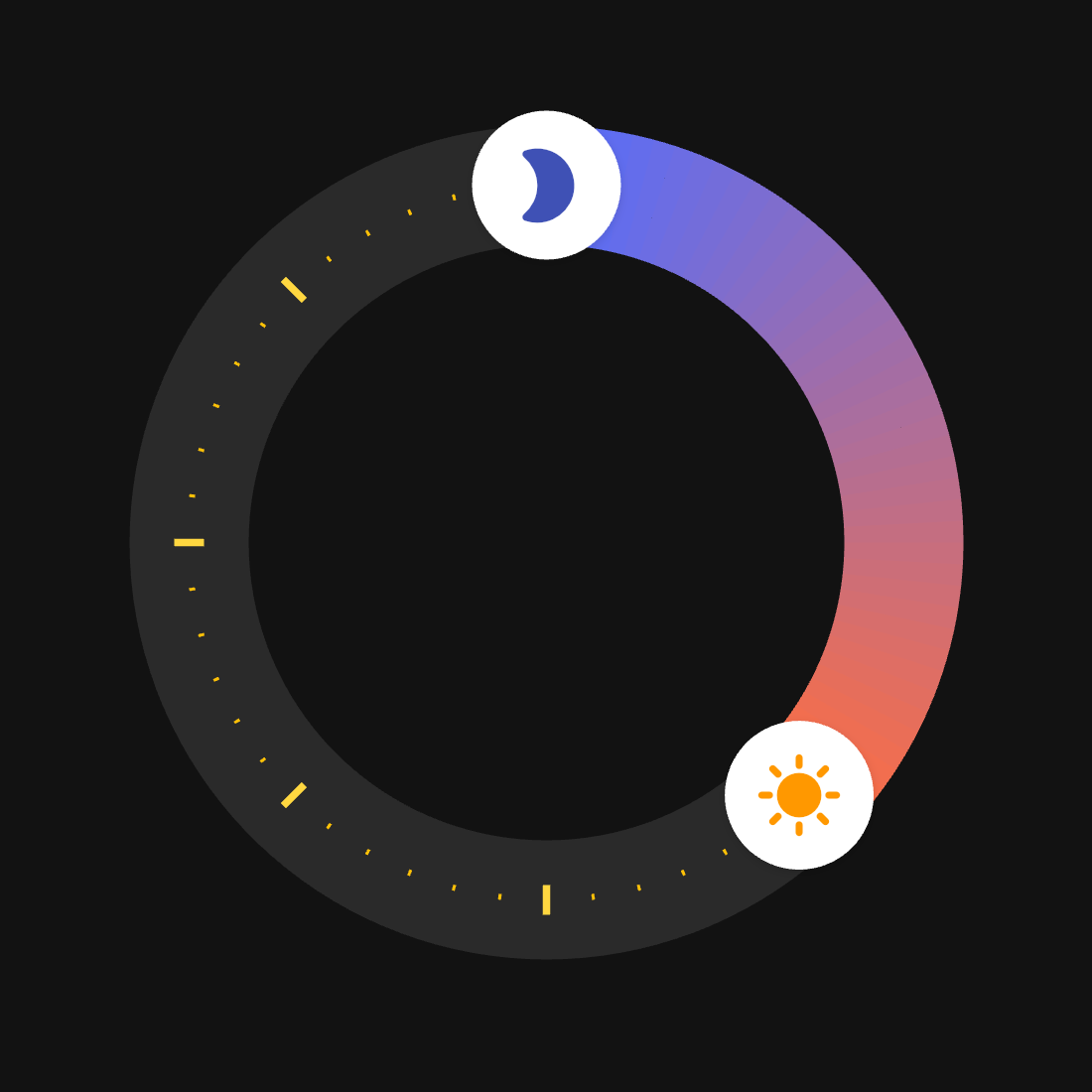
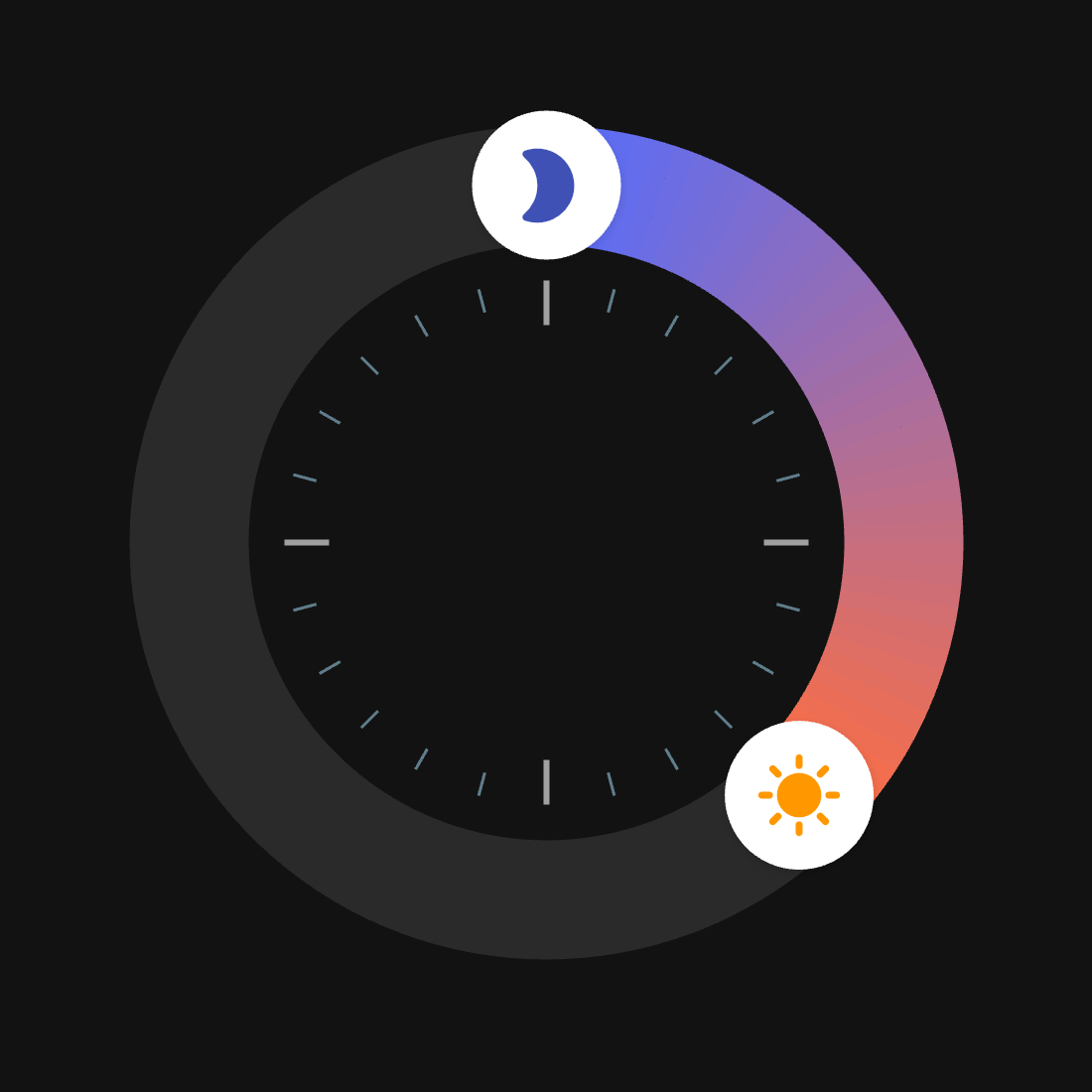
Tick Marks (Optional)
Tick marks can be enabled to provide clearer time references.
They are fully configurable via TickStyle.
API Reference #
CircularTimeRangePicker #
CircularTimeRangePicker({
  Key? key,
  Size size = const Size(250, 250),
  required TimeRangeValue initialValue,
  TimePickerStyle style = const TimePickerStyle(),
  required void Function(TimeRangeValue) onChanged,
  int minuteInterval = 10,
  SnapStrategy snapStrategy = SnapStrategy.round,
})
size: the size of the picker widget.initialValue: initial start/endTimeOfDay.style: the style for the picker UI, such as colors, handlers, and ticks appearance.onChanged: called whenever the user drags a handle or arc.minuteInterval:- “snap step” in minutes (e.g.
1,5,10,15,30,60). - Any
int >= 1is allowed, but divisors of 60 (1, 5, 10, 12, 15, 20, 30, 60) are recommended.
- “snap step” in minutes (e.g.
snapStrategy(SnapStrategy):SnapStrategy.round– snap to the nearest interval (default)SnapStrategy.floor– always snap downSnapStrategy.ceil– always snap upSnapStrategy.none– no snapping (in this caseminuteIntervalis ignored)
Internally, both the displayed times and the handle positions (angles) are snapped according to these settings, so the UI and values stay in sync.
TimeRangeValue #
class TimeRangeValue {
  final TimeOfDay start;
  final TimeOfDay end;

  const TimeRangeValue({required this.start, required this.end});

  Duration get duration;
}
start/end: 24‑hour times.duration:- Computed as the forward difference from
starttoend. - Handles ranges that cross midnight (e.g.
23:00 → 07:00= 8 hours).
- Computed as the forward difference from
TimePickerStyle #
class TimePickerStyle {
  final Color trackColor;
  final List<Color> rangeGradient;
  final double strokeWidth;
  final double handlerRadius;
  final Color handlerColor;
  final Widget? startHandlerWidget;
  final Widget? endHandlerWidget;
  final TickStyle? tickStyle;

  const TimePickerStyle({
    this.trackColor = Colors.white10,
    this.rangeGradient = const [Colors.indigoAccent, Colors.deepOrangeAccent],
    this.strokeWidth = 30.0,
    this.handlerRadius = 18.0,
    this.handlerColor = Colors.white,
    this.startHandlerWidget,
    this.endHandlerWidget,
    this.tickStyle,
  });
}
trackColor: background ring color.rangeGradient: gradient along the active arc (start → end).strokeWidth: thickness of the ring.handlerRadius/handlerColor: base circular handlers drawn by the painter.startHandlerWidget/endHandlerWidget: Optional custom widgets (e.g., Icon, Image) rendered on top of the handles.tickStyle: Optional style for displaying tick marks on the clock face. If null, no ticks are drawn.
💡 Tip: To use a fully custom handler, set handlerRadius to 0 and provide your own widget to startHandlerWidget or endHandlerWidget.
TickStyle #
class TickStyle {
  // Common settings
  final int tickCount;
  final double tickOffsetFromCenter;
  final TickAlignment tickAlignment;

  // Regular tick settings
  final Color tickColor;
  final double tickLength;
  final double tickWidth;

  // Major tick settings
  final bool enableMajorTicks;
  final int majorTickInterval;
  final Color? majorTickColor;
  final double majorTickLength;
  final double majorTickWidth;

  const TickStyle({
    this.tickCount = 24,
    this.tickOffsetFromCenter = 0.0,
    this.tickAlignment = TickAlignment.center,
    this.tickColor = Colors.white24,
    this.tickLength = 5.0,
    this.tickWidth = 2.0,
    this.enableMajorTicks = true,
    this.majorTickInterval = 6,
    this.majorTickColor = Colors.white60,
    this.majorTickLength = 12.0,
    this.majorTickWidth = 2.5,
  });
}
Common Settings:
tickCount: Number of ticks to draw around the circle (default: 24).tickOffsetFromCenter: Offset from the track radius to position the ticks. Positive values move ticks inward toward the center, negative values outward, and 0 positions them at the track center.tickAlignment: Alignment of ticks relative to the track (center,outer,inner).
Regular Tick Settings:
tickColor: Color of the regular tick marks.tickLength: Length of regular ticks.tickWidth: Width (thickness) of regular tick marks.
Major Tick Settings:
enableMajorTicks: Whether to enable major ticks. Set tofalseto show all ticks as regular ticks.majorTickInterval: Interval to distinguish major ticks (e.g., 6 means every 6th tick is major).majorTickColor: Optional distinct color for major ticks. If null, usestickColor.majorTickLength: Length of major ticks.majorTickWidth: Width (thickness) of major tick marks.
💡 Tip: To position ticks exactly on the inner edge of the ring, set tickOffsetFromCenter to strokeWidth / 2 and tickAlignment to TickAlignment.outer. This places the ticks right at the inner boundary of the track.
FAQ #
Q: How do I display the total duration in the center?
A: Wrap the CircularTimeRangePicker in a Stack and place a Text widget in the center. Since the picker's center is transparent, the text will be visible.
Q: Does it support 12-hour or 24-hour formats?
A: The picker always operates on a 24-hour logic (full circle), but you can format the output TimeOfDay to 12h or 24h format in your UI using timeOfDay.format(context).
License #
This package is distributed under the MIT License. See LICENSE for details.
Contributing and Feedback #
Feedback is always welcome! If you encounter any bugs or have feature requests, please open an issue. Pull requests are also highly appreciated!
Metadata
Publisher
unverified uploader
Weekly Downloads
Metadata
A customizable circular time range picker widget for Flutter applications.
Repository (GitHub)
View/report issues
Documentation
License
 MIT (license)

