
yandex_mapkit
A flutter plugin for displaying yandex maps on iOS and Android.
| Android | iOS | |
|---|---|---|
| Support | SDK 21+ | iOS 12+ |
Disclaimer: This project uses Yandex Mapkit which belongs to Yandex
When using Mapkit refer to these terms of use
Getting Started
Generate your API Key
- Go to https://developer.tech.yandex.ru/services/
- Create a
MapKit Mobile SDKkey
Setup for iOS
- Specify your API key and locale in
ios/Runner/AppDelegate.swift. It should be similar to the following
import UIKit
import Flutter
import YandexMapsMobile

@UIApplicationMain
@objc class AppDelegate: FlutterAppDelegate {
  override func application(
    _ application: UIApplication,
    didFinishLaunchingWithOptions launchOptions: [UIApplication.LaunchOptionsKey: Any]?
  ) -> Bool {
    YMKMapKit.setLocale("YOUR_LOCALE") // Your preferred language. Not required, defaults to system language
    YMKMapKit.setApiKey("YOUR_API_KEY") // Your generated API key
    GeneratedPluginRegistrant.register(with: self)
    return super.application(application, didFinishLaunchingWithOptions: launchOptions)
  }
}
- Uncomment
platform :ios, '9.0'inios/Podfileand change toplatform :ios, '12.0'
# Uncomment this line to define a global platform for your project
platform :ios, '12.0'
Setup for Android
- Add dependency
implementation 'com.yandex.android:maps.mobile:4.4.0-full'toandroid/app/build.gradle
dependencies {
    implementation 'com.yandex.android:maps.mobile:4.4.0-full'
}
- Specify your API key and locale in your custom application class.
If you don't have one the you can create it like so
android/app/src/main/.../MainApplication.java
import android.app.Application;

import com.yandex.mapkit.MapKitFactory;

public class MainApplication extends Application {
    @Override
    public void onCreate() {
        super.onCreate();
        MapKitFactory.setLocale("YOUR_LOCALE"); // Your preferred language. Not required, defaults to system language
        MapKitFactory.setApiKey("YOUR_API_KEY"); // Your generated API key
    }
}
android/app/src/main/.../MainApplication.kt
import android.app.Application

import com.yandex.mapkit.MapKitFactory

class MainApplication: Application() {
  override fun onCreate() {
    super.onCreate()
    MapKitFactory.setLocale("YOUR_LOCALE") // Your preferred language. Not required, defaults to system language
    MapKitFactory.setApiKey("YOUR_API_KEY") // Your generated API key
  }
}
- In your
android/app/src/main/AndroidManifest.xml
Add permissions <uses-permission android:name="android.permission.INTERNET"/> and <uses-permission android:name="android.permission.ACCESS_FINE_LOCATION"/>
Find application tag and replace android:name to the name of your custom application class prefixed by a dot ..
In the end it should look like the following
    <uses-permission android:name="android.permission.INTERNET"/>
    <uses-permission android:name="android.permission.ACCESS_FINE_LOCATION" />
    <application
      android:name=".MainApplication" >
Usage
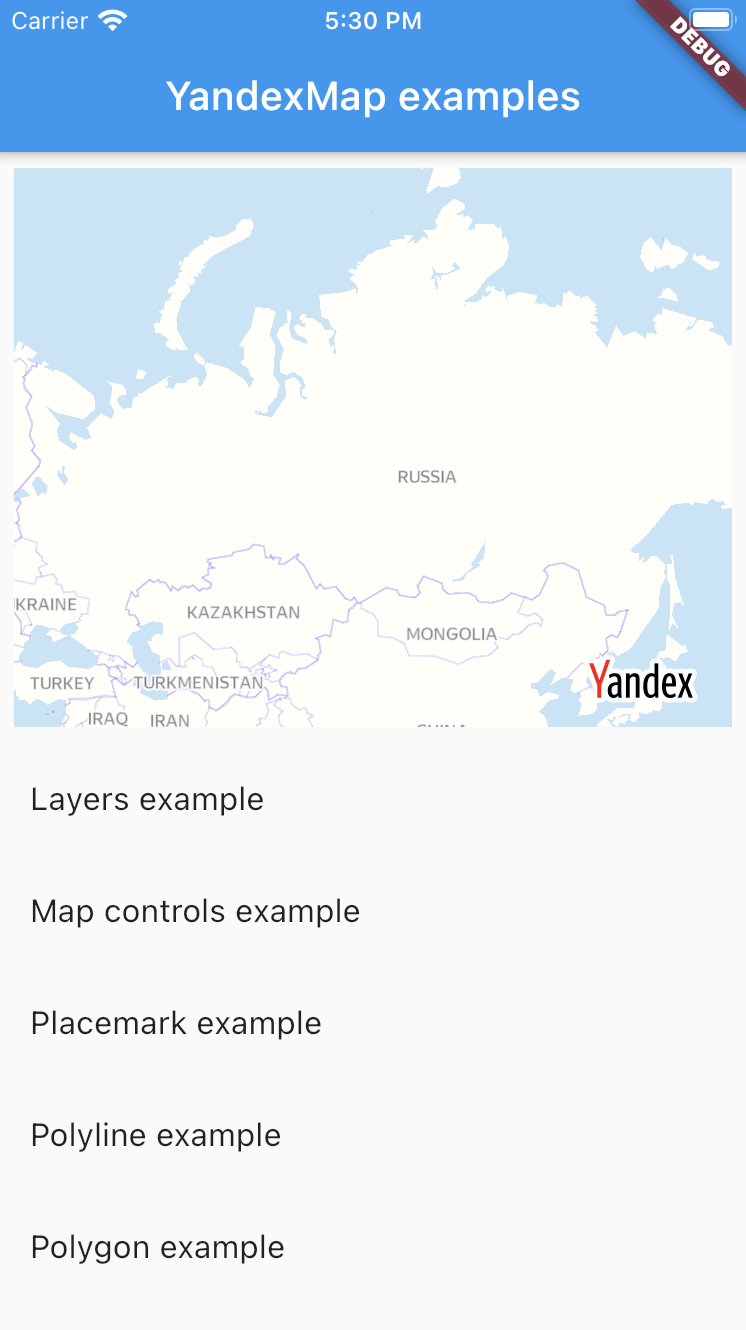
For usage examples refer to example app
Additional remarks
YandexMapkit always works with one language only.
Due to native constraints after the application is launched it can't be changed.
Android
Hybrid Composition
By default android views are rendered using Hybrid Composition.
To render the YandexMap widget on Android using Virtual Display(old composition), set AndroidYandexMap.useAndroidViewSurface to false.
Place this anywhere in your code, before using YandexMap widget.
AndroidYandexMap.useAndroidViewSurface = false;
Features
XWorking with Placemarks/Polylines/Polygons/Circles - adding, updating, removing, tap events, stylingXWorking with collections of map objectsXWorking with clustersXMoving around the mapXSetting map boundsXShowing current user locationXStyling the mapXAddress suggestionsXBasic driving/bicycle routingXBasic address direct/reverse searchXWorkking with geo objectsXShowing current traffic conditions