Note: this is the updated version of this package: https://pub.dev/packages/timeline_tile. The package has been migrated to the latest version of dart. With the new version, you can now animate the lines.
What's new
Animate the lines:
TimelineTile(
    alignment: TimelineAlign.manual,
    lineXY: 0.1,
    enableAfterLineAnimation: true,
    enableBeforeLineAnimation: true,
    tweenBeginColor: Colors.blue,
    tweenEndColor: Colors.red,

    isFirst: index == 0,
    isLast: index == examples.length - 1,
    indicatorStyle: IndicatorStyle(
        width: 40,
        height: 40,
        indicator: _IndicatorExample(number: '${index + 1}'),
        drawGap: true,
    ),
    beforeLineStyle: LineStyle(
        color: Colors.white.withOpacity(0.2),
    ),
    endChild: GestureDetector(
        child: _RowExample(example: example),
        onTap: () {
        Navigator.push(
            context,
            MaterialPageRoute<ShowcaseTimeline>(
            builder: (_) =>
                ShowcaseTimeline(example: example),
            ),
        );
        },
    ),
    );
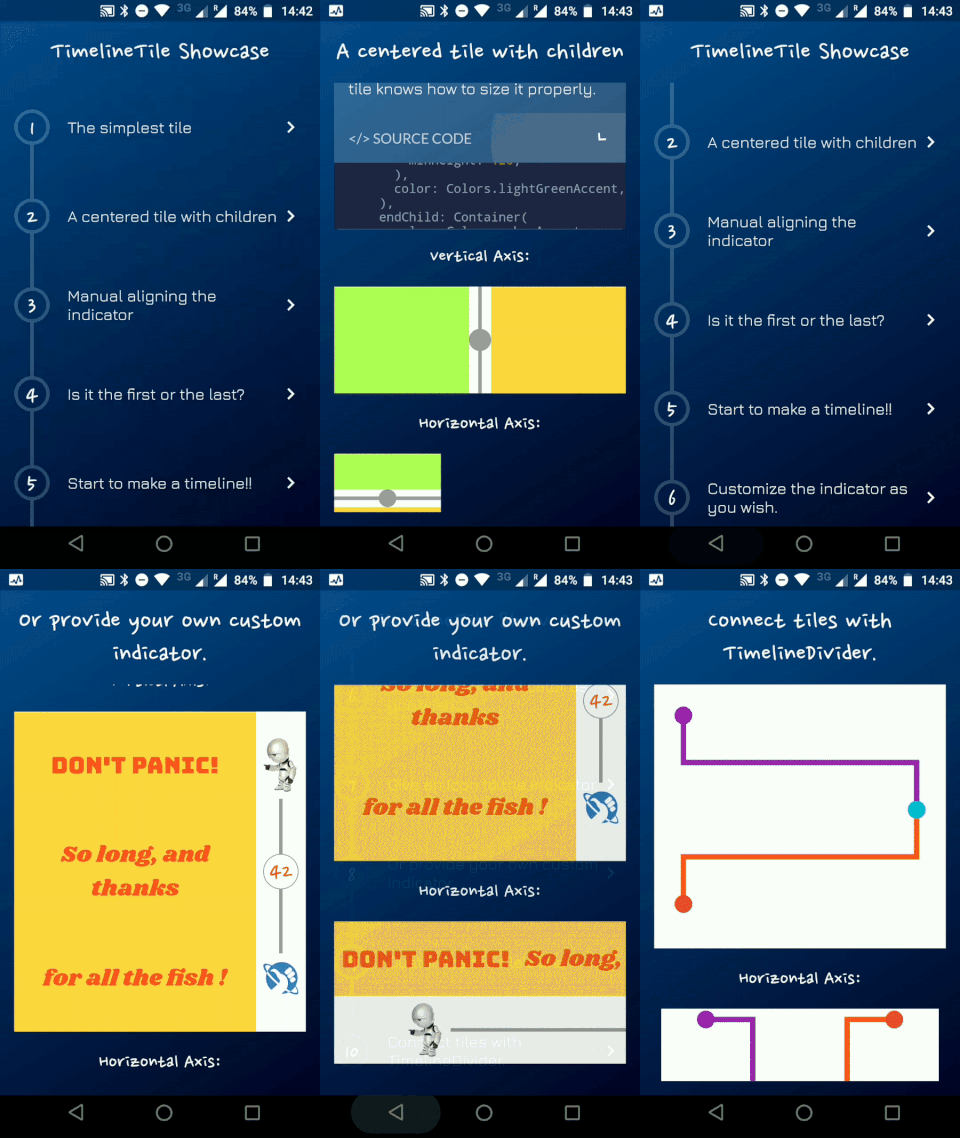
Timeline Showcase |
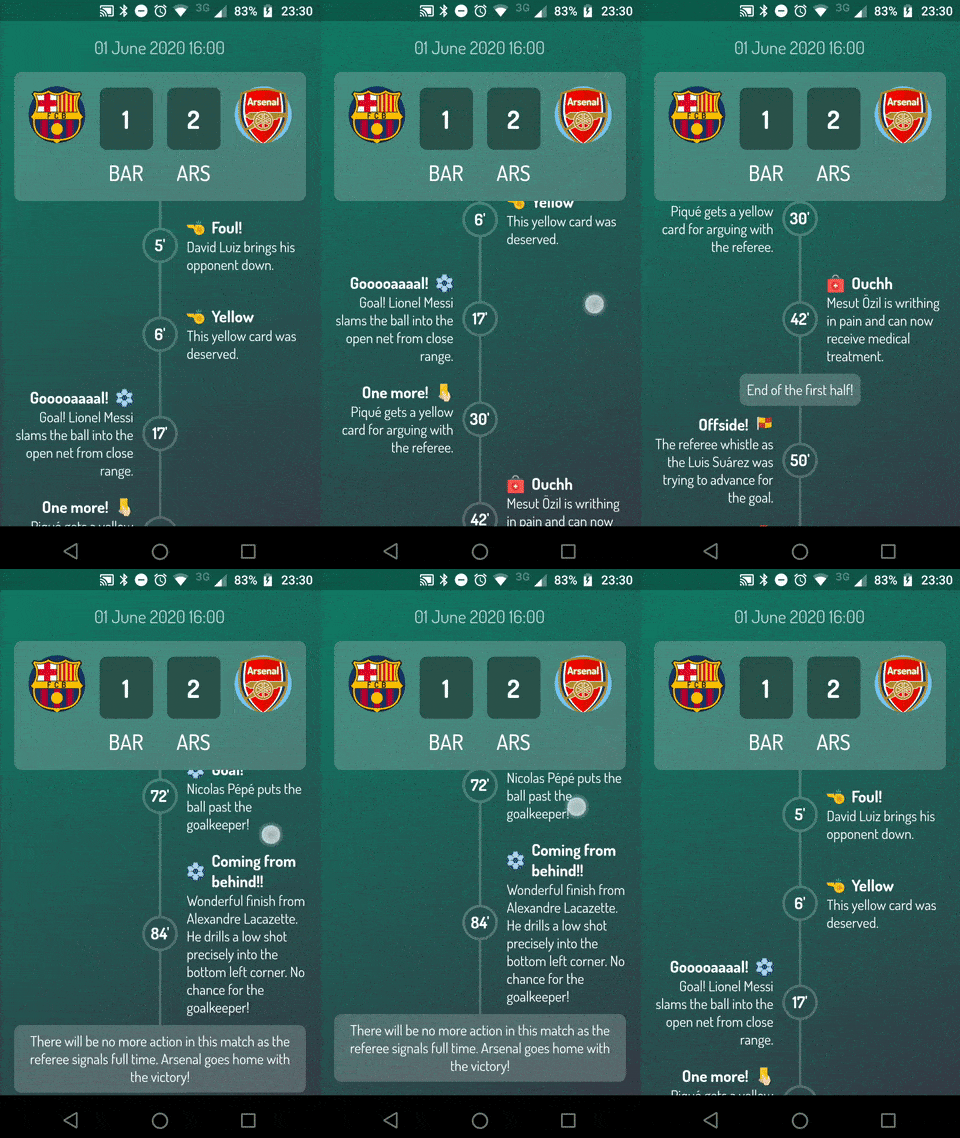
Football Timeline |
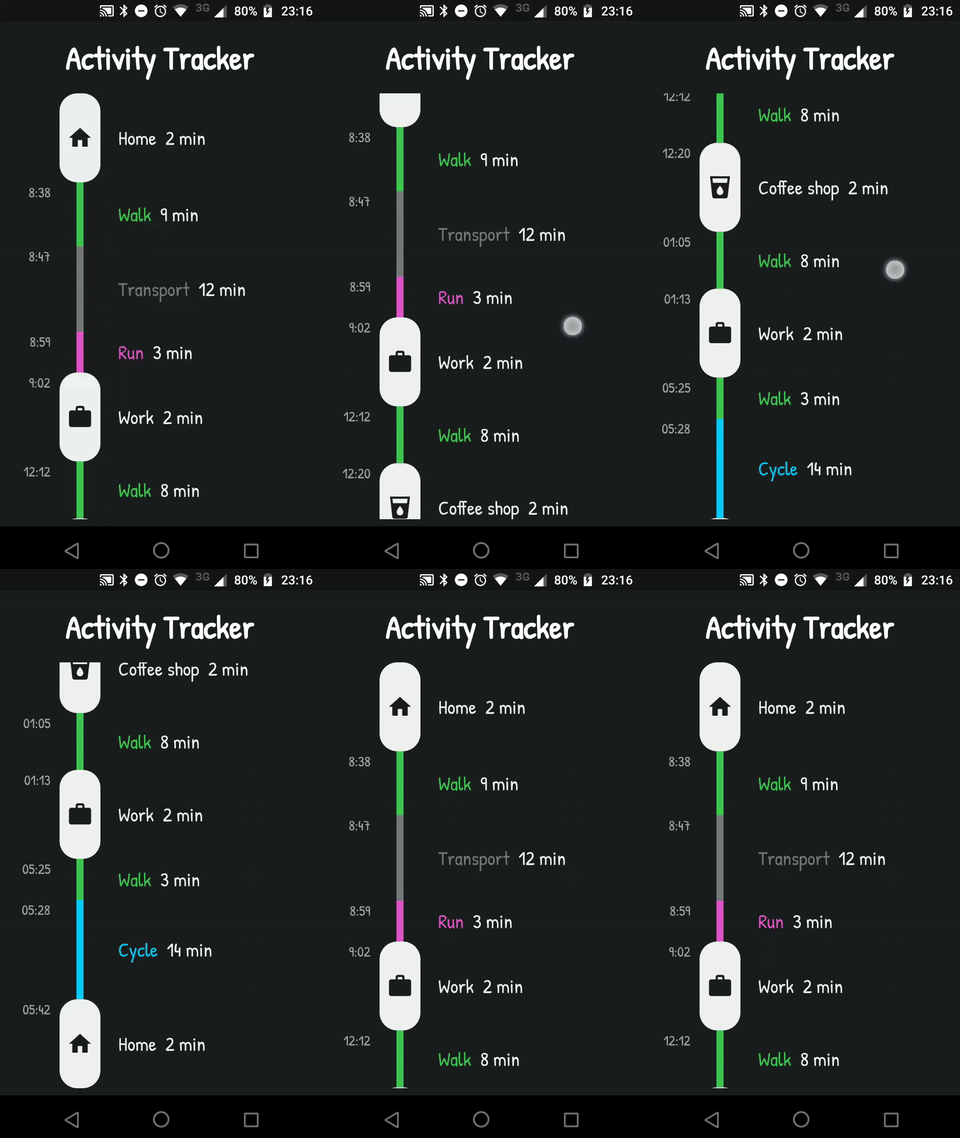
Activity Timeline |
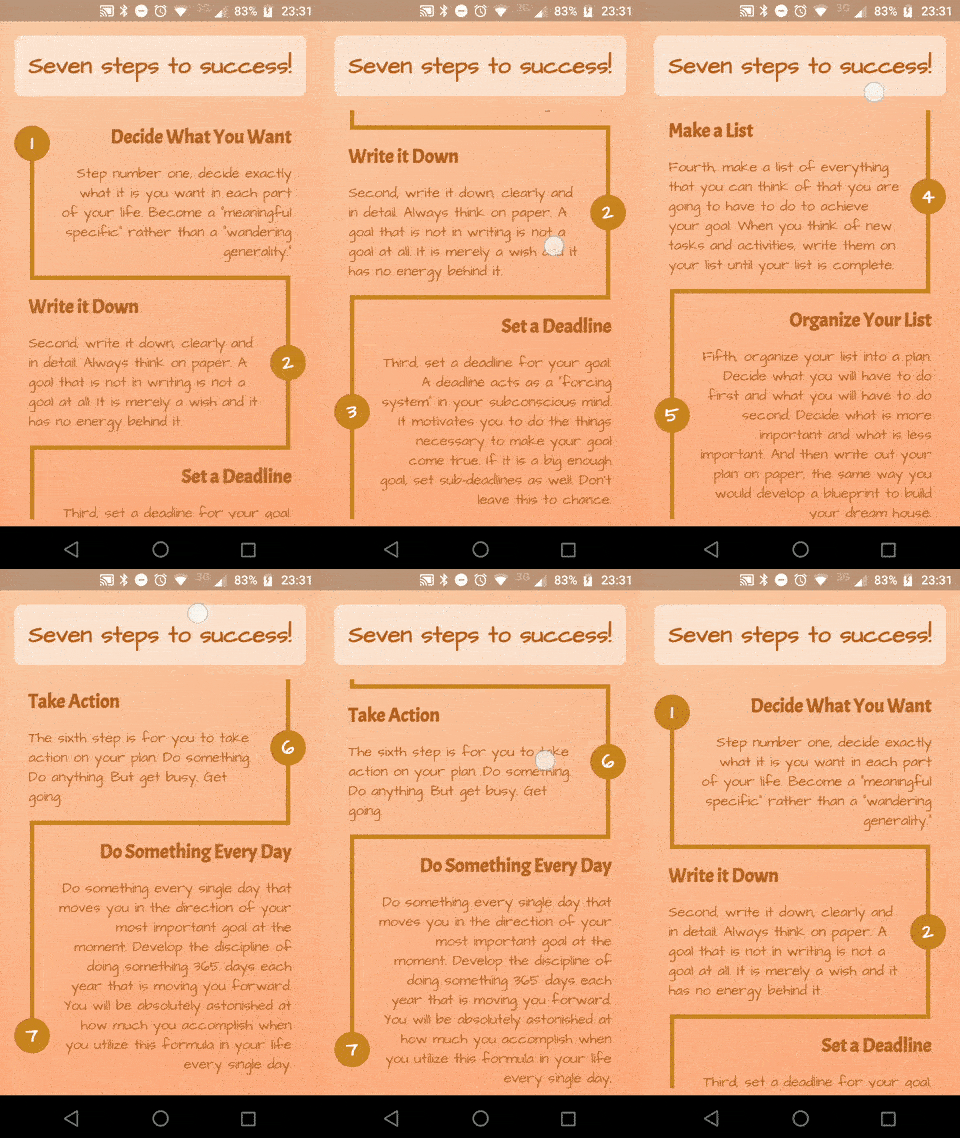
Success Timeline |
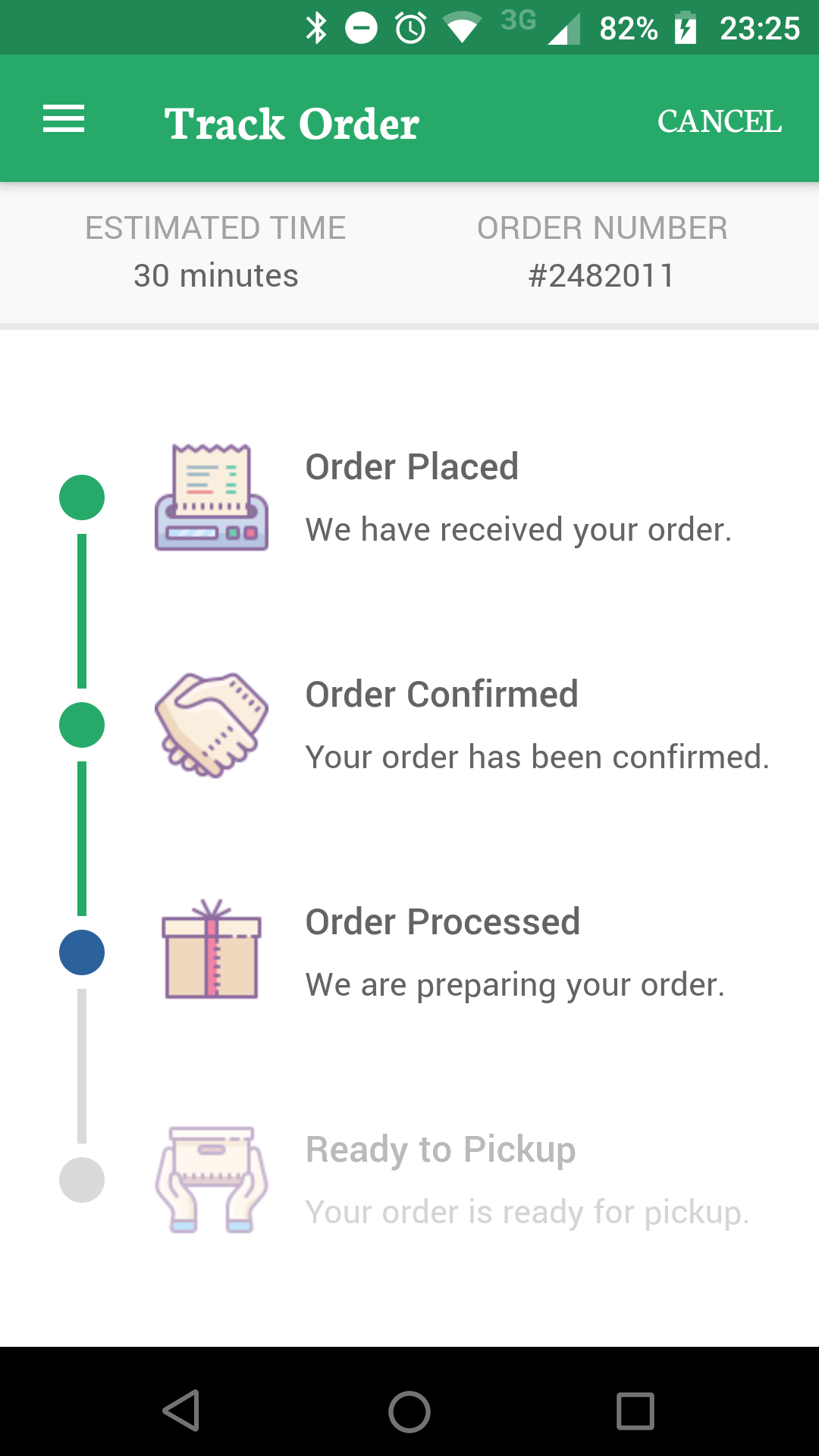
Delivery Timeline |
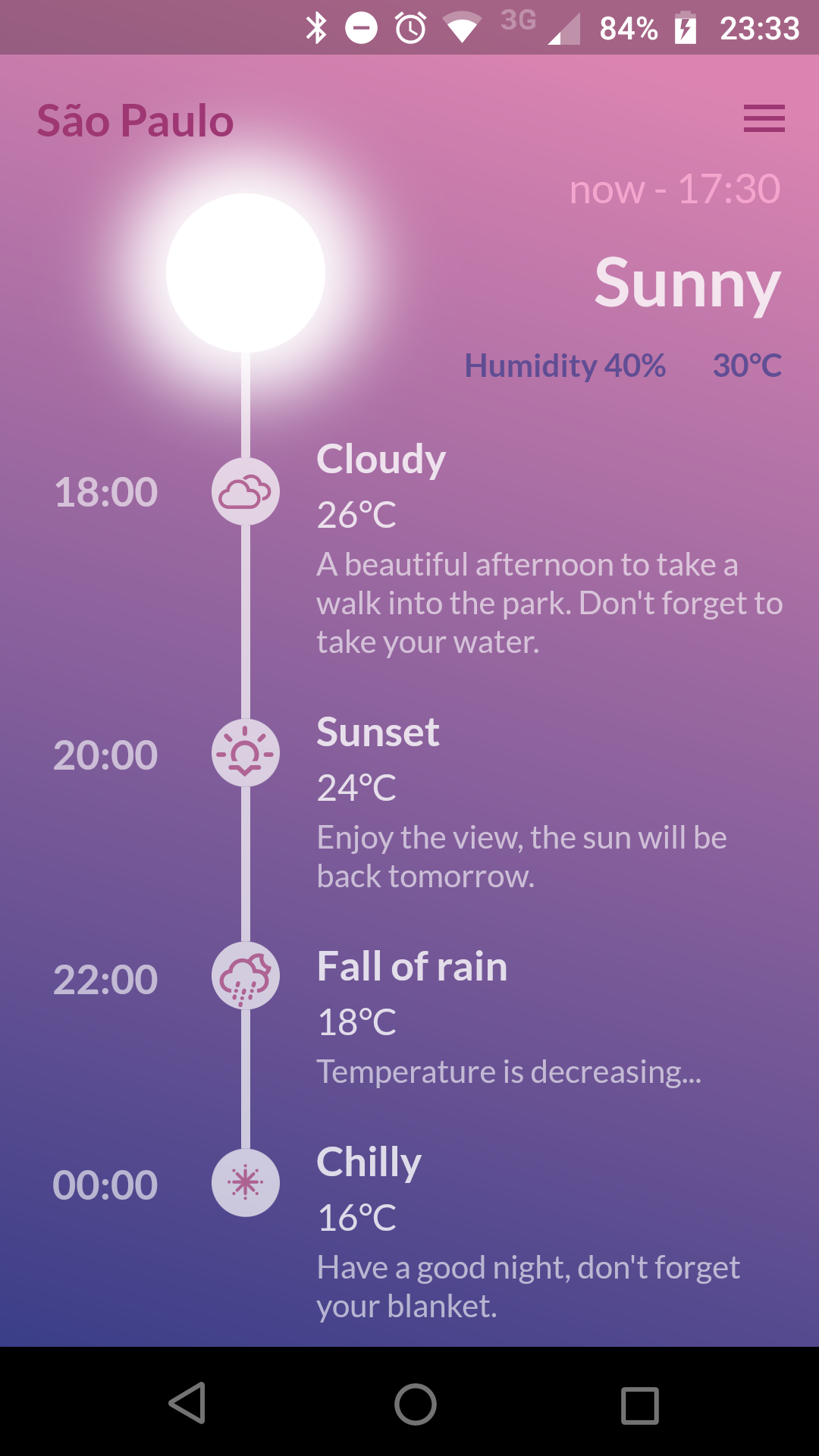
Weather Timeline |
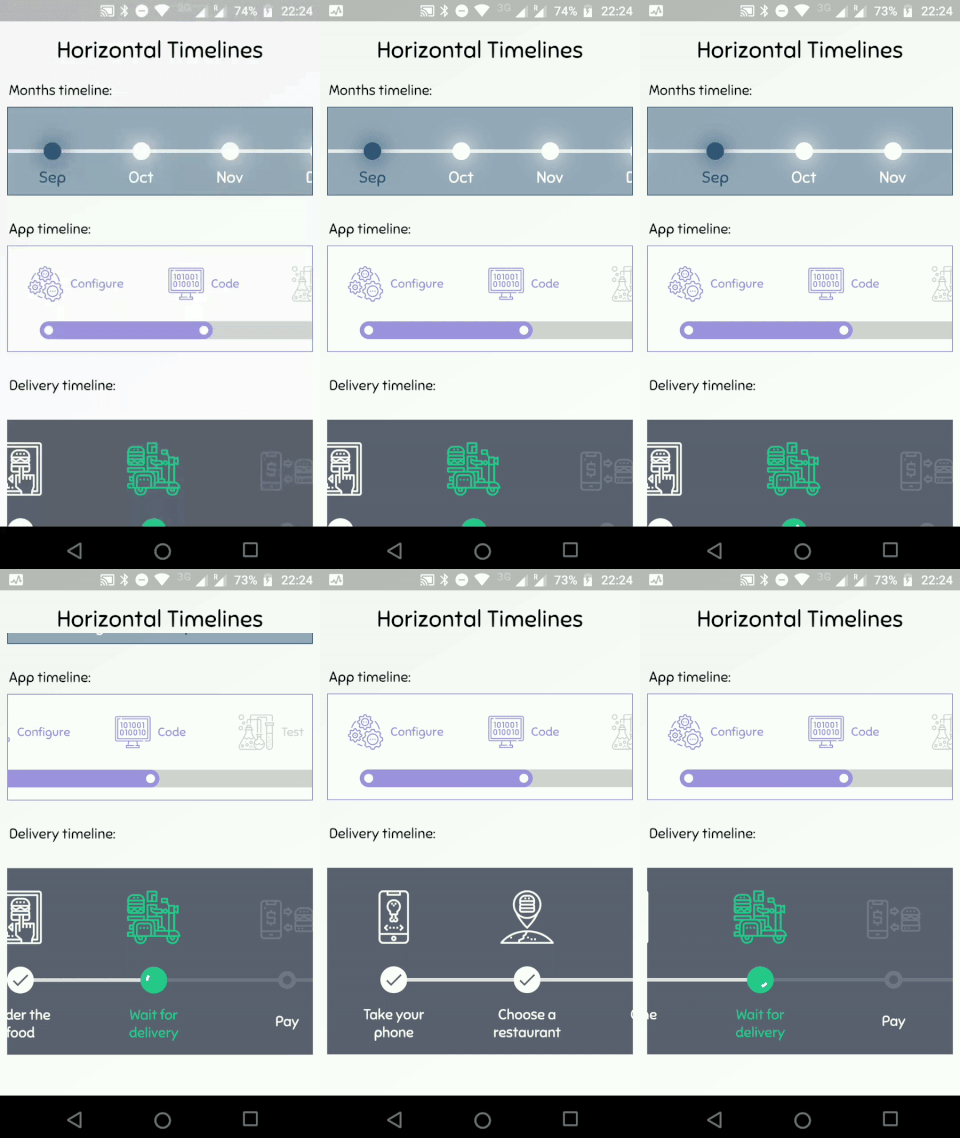
Horizontal Timelines |
Getting Started
A Timeline consists in a group of TimelineTiles. To build a tile you can simply use:
TimelineTile()
Which will build a default tile with a vertical axis, that aligns to the start, with a height of 100:
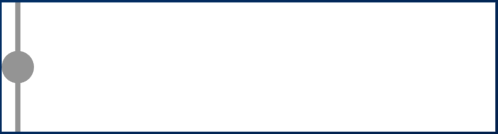
The axis can be switched to render an horizontal tile, aligned to the start, with a default width of 100:
TimelineTile(axis: TimelineAxis.horizontal)

There are 4 types of alignment.
TimelineAlign.startTimelineAlign.endTimelineAlign.centerTimelineAlign.manual
The start and end alignment allows a child in their opposite sides. On the other hand, both center and manual allows children on both sides. For example, one tile with alignment to the center:
TimelineTile(
  alignment: TimelineAlign.center,
  endChild: Container(
    constraints: const BoxConstraints(
      minHeight: 120,
    ),
    color: Colors.lightGreenAccent,
  ),
  startChild: Container(
    color: Colors.amberAccent,
  ),
);
When providing children to the vertical tile, the height will be as minimum as possible, so you can control it with a height constraint (at least minHeight). This way the tile knows how to size it properly.
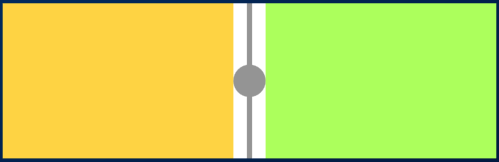
If the axis is horizontal, the things are the opposite. The width will be as minimum as possible, so you can control it with a width constraint (at least minWidth). This way the tile knows how to size it properly.
TimelineTile(
  axis: TimelineAxis.horizontal,
  alignment: TimelineAlign.center,
  endChild: Container(
    constraints: const BoxConstraints(
      minWidth: 120,
    ),
    color: Colors.lightGreenAccent,
  ),
  startChild: Container(
    color: Colors.amberAccent,
  ),
);
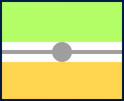
Manual aligning the idicator
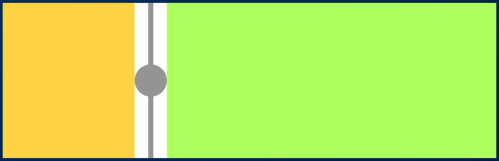
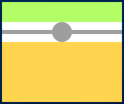
With TimelineAlign.manual you can provide the lineXY, which allows you to specify a value from 0.0 to 1.0, that represents a size percentage. For example, aligning at 30% of the width or height:
TimelineTile(
  alignment: TimelineAlign.manual,
  lineXY: 0.3,
  endChild: Container(
    constraints: const BoxConstraints(
      minHeight: 120,
    ),
    color: Colors.lightGreenAccent,
  ),
  startChild: Container(
    color: Colors.amberAccent,
  ),
);
TimelineTile(
  axis: TimelineAxis.horizontal,
  alignment: TimelineAlign.manual,
  lineXY: 0.3,
  endChild: Container(
    constraints: const BoxConstraints(
      minWidth: 120,
    ),
    color: Colors.lightGreenAccent,
  ),
  startChild: Container(
    color: Colors.amberAccent,
  ),
);
Is it the first or the last?
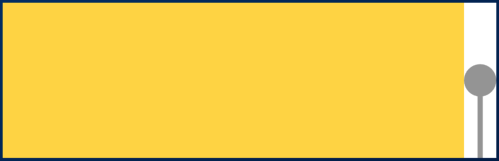
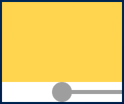
You can decide if a tile is the first os the last in a timeline. This way you control whether a before or after line must be rendered.
Start to make a timeline
You can finally start to combine some tiles to make a Timeline. The flag hasIndicator can control whether an indicator should or shouldn't be rendered.
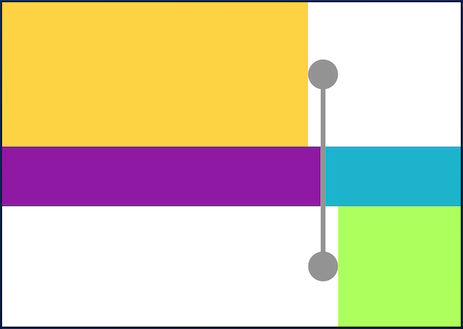
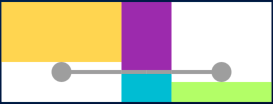
Customize the indicator as you wish
The default indicator is a circle, and you can customize it as you wish. With IndicatorStyle you can change the color, the X/Y position based on values from 0.0 to 1.0 or give it a padding. You must explicitly provide its width (vertical) or height (horizontal) though.
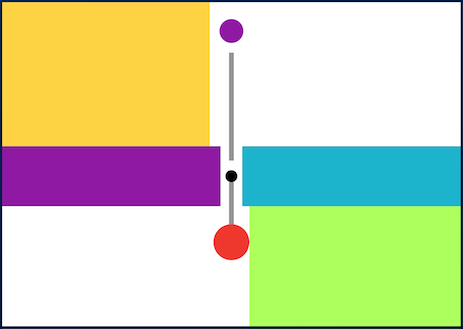
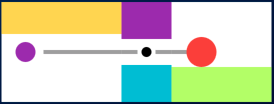
Give an icon to the indicator
With IconStyle you can provide an Icon to be rendered inside the default indicator.
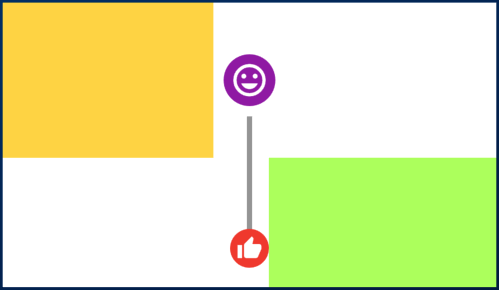
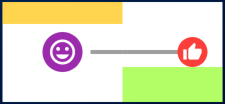
Or provide your custom indicator
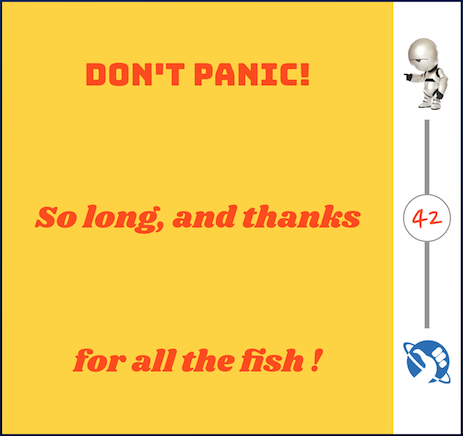
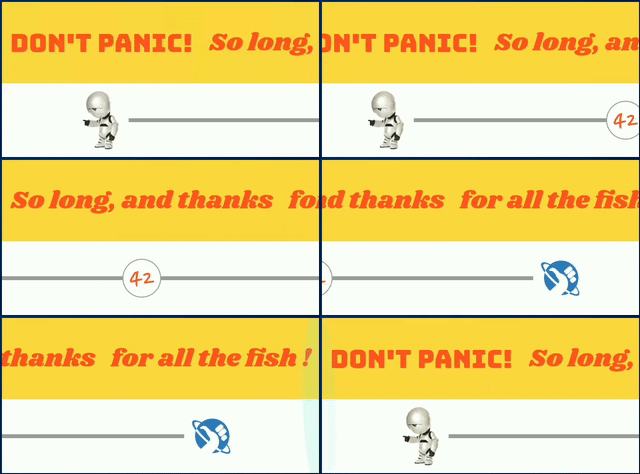
With the indicator parameter you can customize the tile with your own indicator. However, you must control its size through both width and height parameters.
Customize the tile's line
With LineStyle you can customize both beforeLine and afterLine.
Connect tiles with TimelineDivider
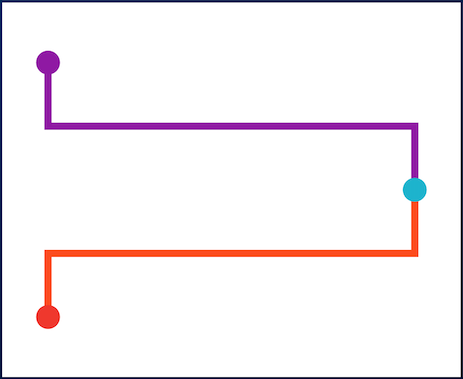
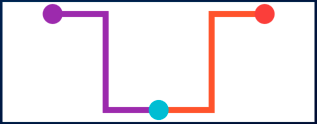
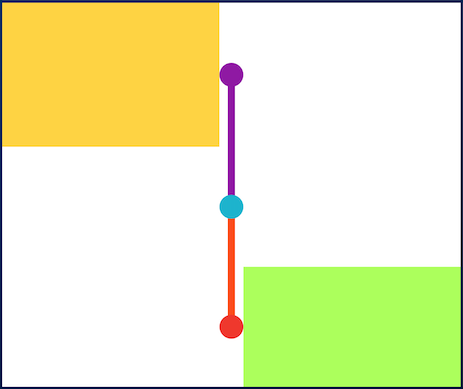
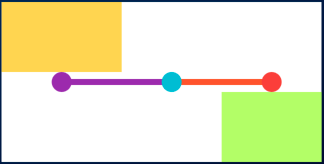
The TimelineDivider widget allows you to connect tiles that are aligned in different X/Y axis, when combined with TimelineAlign.manual.