
prodege_play
ProdegePlay SDK Flutter wrapper
Supported Platforms
| Android | iOS | Web |
|---|---|---|
| ✔️ | ❌ | ❌ |
Minimum requirements
The minimum requirements for the Flutter plugin prodege_play are:
Flutter requirements
- Dart SDK:
3.2.0 - Flutter SDK:
3.3.0
Android requirements
- Android 23+
- Gradle 8.0
- Android Gradle Plugin 8.0.0
- Kotlin 1.8.0
Get started
To get started, you must create an account on the ProdegePlay Dashboard. A ProdegePlay Dashboard Account will allow you to access your app placements, customize them, get technical integration information, see revenue and provide payment information to us.
On sign-up, we do collect your preferred contact method. This will be used to communicate with you and your team in case you have questions about the integration, going live, or other ProdegePlay-related topics.
Once signed up, you will need to complete two steps to start creating your first app placement:
- Create a company workspace: A company workspace will be a shared space where you can invite all your colleagues and other stakeholders to see placements, revenue, and other information on the Dashboard.
- Get your company workspace verified: To start your integration, you must verify your workspace. Please reach out to [email protected] with details about your company and your integration plans. Our team will verify your account and send you relevant information for your integration.The verification process can take up to 2 days. Please be patient - Multiple emails will not speed up the process.
When you have additional questions, feel free to reach out to [email protected]
Create a new app placement
To begin with the ProdegePlay offerwall, a new placement needs to be created. A placement is an entity that contains all the configurations that your integration needs as well as technical credentials, like tokens and keys.
A new placement can be added by going to the Apps page then Add new App. Enter the name of your app placement and press Create App.
Get your SDK Api key and Secret key
Once the app is created, you can retrieve the app Api key and Secret key by navigating to Apps -> View Details -> Integration. API Token and Secret Key are the two required fields.
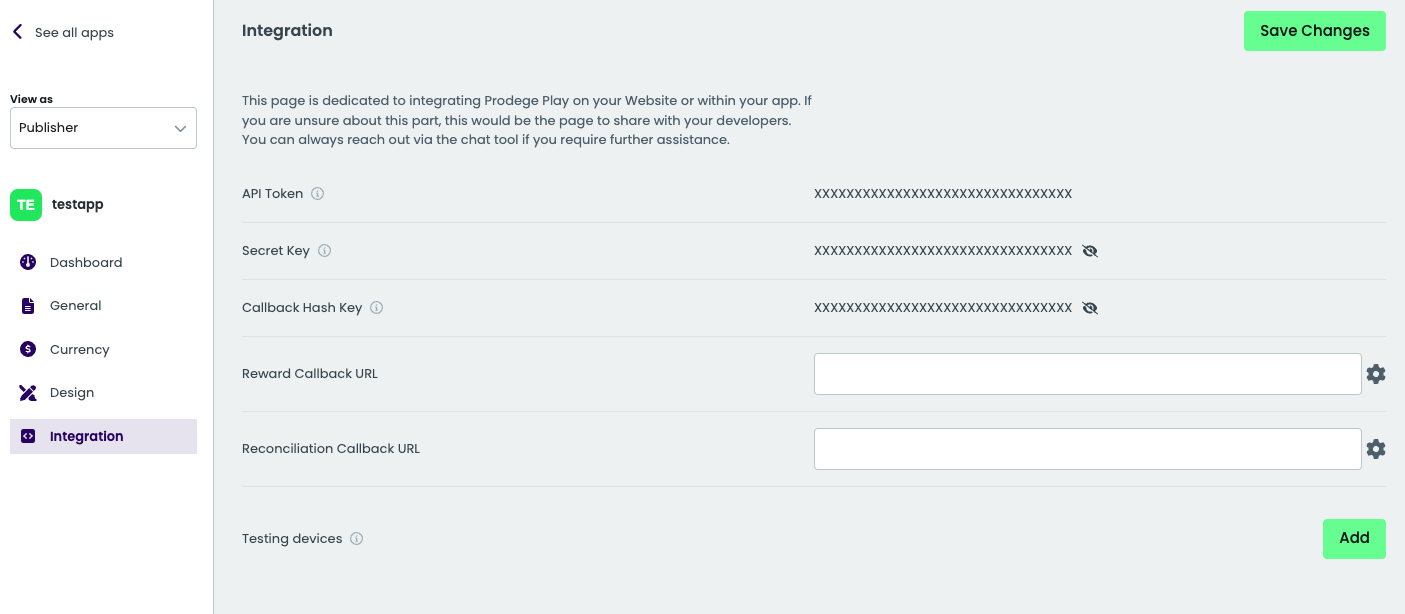
At this point you are ready to start the integration implementation.
Integrate ProdegePlay SDK
Add ProdegePlay SDK dependency
Add the following dependency to your project's pubspec.yaml file:
dependencies:
  # ...

  prodege_play: 1.0.1
Initialize the ProdegePlay SDK
Initialize the ProdegePlay SDK immediately after your app launches to unlock its full functionality. Initialization occurs asynchronously in the background and completes the returned Future successfully or with a failure.
import 'package:prodege_play/prodege_play.dart';

class _MyAppState extends State<MyApp> {
  @override
  void initState() {
    super.initState();
    _initializeProdegePlaySdk();
  }

  void _initializeProdegePlaySdk() async {
    final options = ProdegePlayOptions()
      ..userId = "USER_ID";

    try {
      await ProdegePlay.init(
        apiKey: "API_KEY",
        secretKey: "SECRET_KEY",
        options: options,
      );

      // the SDK was initialized successfully
    } on PlatformException catch (error) {
      // an error occurred while initializing the SDK
    } on UnimplementedError {
      // ProdegePlay is not supported in the current platform
    }
  }
}
Initialization parameters
| Parameter | Type | Required | Description |
|---|---|---|---|
apiKey |
String |
Yes | The API key for your application, found in the ProdegePlay dashboard. |
secretKey |
String |
Yes | The secret key associated with your account, found in the ProdegePlay dashboard. |
options |
ProdegePlayOptions |
No | Configure the behaviour of the ProdegePlay SDK with the use of ProdegePlayOptions builder as described in the following section. |
ProdegePlayOptions
Configure the ProdegePlay SDK during initialization using the following additional options. To do
this, create a ProdegePlayOptions instance and use it to set the desired configurations.
| Field | Type | Description |
|---|---|---|
userId |
String |
Assign a unique identifier for each user. If you don't, the ProdegePlay SDK will try to use your device's advertising ID. If the SDK can't get this ID, initialization will fail. |
tags |
Map<String, String> |
Use this to include any custom key/value pairs. These pairs will be returned in the server-to-server callback URL. |
profile |
ProdegePlayUserProfile |
Use this to set the user's profile as built with the use of the ProdegePlayUserProfile.Builder. |
After creating and configuring the ProdegePlayOptions instance, pass it to the ProdegePlay.init
as shown in the following example.
final options = ProdegePlayOptions()
  ..userId = "USER_ID"
  ..tags = {
    "key1": "value1",
    "key2": "value2"
  };

ProdegePlay.init(
  apiKey: "API_KEY",
  secretKey: "SECRET_KEY",
  options: options,
);
Note: While custom tags provide flexibility, it's crucial to use them responsibly. Avoid storing sensitive or personally identifiable information (PII) in tags. Excessive or improper use of tags can negatively impact performance and data analysis.
Recommendations:
- Keep tags concise and relevant: Only include information that is essential for your server-side processing and analysis.
- Use URL-safe characters for keys and values: This ensures compatibility with various systems and prevents unexpected behavior. Stick to alphanumeric characters, underscores (_),
hyphens (-), and periods (.).
- Limit the number of tags: Avoid creating an excessive number of tags, as this can cause initialization failures.
- Prioritize data privacy: Never store sensitive or personally identifiable information in tags.
Example of URL-safe key-value pairs:
"user_segment": "premium_users"
"click_id": "a_unique_id"
Example of potentially problematic key-value pairs:
"user_email": "[email protected]"  // Avoid PII
"user_address": "123 Main St"     // Avoid PII
"long_and_complex_key_name_that_exceeds_reasonable_length": "some_value" // Keep keys concise
ProdegePlayUserProfile
To streamline the offerwall experience for your users, you may share their gender and/or birthday
with us. This will allow them to bypass the profile page. To do this, create a
ProdegePlayUserProfile instance and use it to set the desired information.
| Field | Type | Description |
|---|---|---|
gender |
ProdegePlayGender |
Use this to set the user's gender. Must be one of the values in ProdegePlayGender.[male | female | other] |
dateOfBirth |
(int, int, int) |
Use this to set the user's date of birth. The order of the fields matches the Year, Month, Day format. |
After creating and configuring the ProdegePlayUserProfile instance, pass it to the appropriate
field of the ProdegePlayOptions as shown in the following example.
final profile = ProdegePlayUserProfile()
  ..gender = ProdegePlayGender.male
  ..dateOfBirth = (1990, 12, 31);

final options = ProdegePlayOptions()
  ..profile = profile;
Initialization error cases
If the ProdegePlay SDK fails to initialize, it will throw a PlatformException containing an error
message. This message usually provides enough information to diagnose the issue. For internal errors
the message will include a trace ID; please share this with our support team for faster
troubleshooting.
Initialization can also fail with an UnimplementedError if the ProdegePlay SDK is not supported on
the current platform.
Access to notifications
The ProdegePlay SDK can display notifications for various purposes, such as reward alerts and inactivity reminders.
Android 13+ (API level 33 and higher)
On Android 13 and higher, displaying notifications requires the user's explicit permission ( POST_NOTIFICATIONS). This is an opt-in model introduced in Android 13, whereas apps targeting Android 10 (API level 29) or lower could display notifications without explicit user consent.
The ProdegePlay SDK does not automatically request notification permission. It relies on the permission status granted to your app.
If your app doesn't utilize notifications, you should request this permission to enable the ProdegePlay SDK's notification functionality.
Android 10 and lower (API level 29 and lower)
For apps targeting Android 10 and lower, the notifications functionality is enabled by default. The required permission (POST_NOTIFICATIONS) is declared in the SDK's manifest files.
Disable Notifications
If you intend to keep notifications disabled for your app, you should remove the manifest-level notification permission by adding the following line in your application's AndroidManifest.xml file:
<manifest xmlns:android="http://schemas.android.com/apk/res/android"
    xmlns:tools="http://schemas.android.com/tools">
    ...
    <uses-permission android:name="android.permission.POST_NOTIFICATIONS" tools:node="remove"/>
    ...
</manifest>
Launch ProdegePlay Offerwall
Present the ProdegePlay offerwall to the users. It is recommended to launch the offerwall via a button or a UI element.
Access to usage stats
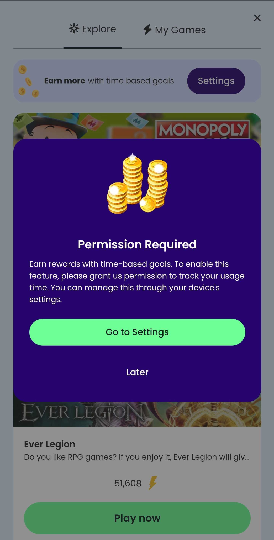
The ProdegePlay SDK requires App Usage Permissions to track the time users spend in different apps and games. Granting this permission enables participation in Time-based campaigns, which offer rewards based on usage duration. If users decline this permission, they can still participate in Event-based campaigns, which reward specific actions or events within apps.
Launch ProdegePlay Offerwall
Present the ProdegePlay offerwall to the users. It is recommended to launch the offerwall via a button or a UI element.
Access to usage stats
The ProdegePlay SDK requires App Usage Permissions to track the time users spend in different apps and games. Granting this permission enables participation in Time-based campaigns, which offer rewards based on usage duration. If users decline this permission, they can still participate in Event-based campaigns, which reward specific actions or events within apps.
Present the offerwall to the user (Fullscreen)
To present the ProdegePlay offerwall, use ProdegePlay.showOfferwall(). Optionally, you can provide
a listener to receive callbacks when the offerwall is closed.
void _showOfferwall() async {
  try {
    await ProdegePlay.showOfferwall(
      onOfferwallClosed: () => _showMessage("Offerwall closed"),
    );

    logMessage("Offerwall opened");
  } on PlatformException catch (error) {
    _showMessage("Offerwall show error: ${error.message}");
  }
}
Presentation error cases (Fullscreen)
If the ProdegePlay SDK fails to display, it will throw a PlatformException containing an error
message. This message usually provides enough information to diagnose the issue. For internal errors
the message will include a trace ID; please share this with our support team for faster
troubleshooting.
Presentation can also fail with an UnimplementedError if the ProdegePlay SDK is not supported on
the current platform.
Embedded offerwall presentation
There is also the option to present the offerwall embedded withing your layout. To render the
offerwall inside a Widget, use ProdegePlayOfferwall widget. Be aware that the widget will render the offerwall only when the offerwall is ready to be shown and the current platform supports it.
Listen to offerwall widget events
To listen to offerwall widget events, use the onOfferwallViewCreated callback. This callback will return the ProdegePlayOfferwallController instance, which can be used to listen to offerwall events. Simply call the listen method on the controller and provide the desired event listeners.
Presentation error cases (Fullscreen)
If the ProdegePlayOfferwall widget fails to render, it will invoke the onOfferwallShowError containing an error
message. This message usually provides enough information to diagnose the issue. For internal errors
the message will include a trace ID; please share this with our support team for faster
troubleshooting.
@override
Widget build(BuildContext context) {
  return ProdegePlayOfferwall(
    onOfferwallViewCreated: (controller) {
      offerwallController = controller;
      controller.listen(
        onOfferwallOpened: () {
          // the offerwall has been presented to the user
        },
        onOfferwallClosed: () {
          // the offerwall has been hidden
        },
        onOfferwallShowError: (String reason) {
          // an error occurred while presenting the offerwall
        },
      );
    },
  );
}
Additional methods (optional)
The ProdegePlay SDK provides optional methods for enhanced control and includes helper functions for streamlined integration.
| Method name | Description |
|---|---|
| hideOfferwall() | Manually hides offerwall |
| isInitialized() | Checks whether the ProdegePlay SDK is initialized. Returns true if the SDK has been initialized and false otherwise. |
| isOfferwallVisible() | Checks whether the ProdegePlay offerwall is being presented to the user. Returns true if the Offerwall is visible and false otherwise. |
| hasAcceptedUsagePermission() | Checks whether the user has granted the usage stats access permission. Returns true if the user has granted the permission and false otherwise. |
| requestUsagePermission() | Opens the Usage Access Permission settings screen. |
Testing
Testing Devices
Before you go live with the offerwall, we suggest checking that everything works as expected on Test Devices. In the Test Device you will get the offerwall including test offers. These offers convert instantly when you click on them to simulate the flow and fire a callback to your server, if this is set (advise Callbacks documentation).
To register a test device navigate to ProdegePlay Dashboard under Apps -> View details -> Integration -> Testing devices. On Add you will see the following menu. You can give a name of your preference and the Google Advertising ID of your device.

Copy your GAID
- Obtain your GAID from Device Settings.
- Open the Settings app or Google settings
- Go to "Google" > "Ads" in the Services section
- Copy the GAID as displayed at the bottom
Example
For a comprehensive demonstration of how to integrate and utilize the ProdegePlay SDK in your Android application, please refer to our example project on this repo:
This sample project showcases various features and functionalities of the SDK, including:
- Initialization and configuration
- Presenting the offerwall fullscreen
- Presenting the offerwall embedded
By exploring the sample project's code and documentation, you can gain a deeper understanding of how to effectively leverage the ProdegePlay SDK in your own app.
Note: The sample project is intended as a starting point and may require modifications to fit your specific needs and integration requirements.
Integration and Rollout Checklist
This checklist ensures a smooth integration and launch of the ProdegePlay SDK. Carefully verify each step before proceeding to the next.
Integration
- Received Api Key from the ProdegePlay dashboard.
- Set up test devices in ProdegePlay Dashboard with their GAIDs.
- Integrated ProdegePlay SDK dependency into the app.
- Enabled logs.
- Initialized SDK without errors.
- Created Playtime.Options() and included userId and tags.
- Verified SDK initialization using ProdegePlay.isInitialized().
- Enabled notifications and requested for the user's permission.