
Paymob Flutter Plugin
A Flutter plugin for integrating Paymob payment SDK into your Flutter applications. This plugin provides a bridge that connects your Flutter app to the native iOS and Android Paymob SDKs.
Documentation
For detailed Paymob API documentation and integration guides, visit the Paymob Developer Documentation.
Requirements
- Android: Minimum SDK 23, Compile SDK 33+
- iOS: Minimum iOS 13.0, Swift 5.0+
Installation
Run flutter pub add paymob.
Required Native SDK Versions
Before using this plugin, you must download and configure the native Paymob SDKs:
- Android SDK: Version 1.6.12 (required)
- iOS SDK: Version 1.2.0 (required)
Android Setup
Important: The Paymob Android SDK is not included in this plugin. You must download and configure version 1.6.12 in your app.
-
Download Paymob Android SDK 1.6.12 from here. Look for
PaymobAndroidSDK1.6.12in the package. -
Add SDK to your app:
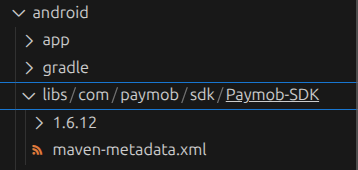
- Create
android/app/libs/directory - Place the AAR file there:
android/app/libs/com/paymob/sdk/Paymob-SDK/1.6.12/Paymob-SDK-1.6.12.aar
- Create
-
Configure repositories in
android/build.gradle.kts(project-level):allprojects { repositories { google() mavenCentral() maven { url = uri("https://jitpack.io") } maven { url = rootProject.projectDir.toURI().resolve("libs") } } } -
Configure repositories in
android/settings.gradle.kts:pluginManagement { repositories { google() mavenCentral() gradlePluginPortal() maven { url = uri("https://jitpack.io") } maven { url = rootProject.projectDir.toURI().resolve("libs") } } } -
Add dependency and enable data binding in
android/app/build.gradle.kts:android { buildFeatures { dataBinding = true } }
iOS Setup
Important: The Paymob iOS SDK is not included in this plugin. You must download and configure version 1.2.0 in your project.
-
Download Paymob iOS SDK 1.2.0 from here. Look for
PaymobSDK 1.2.0(xcframework) in the package. -
Add SDK to your project:
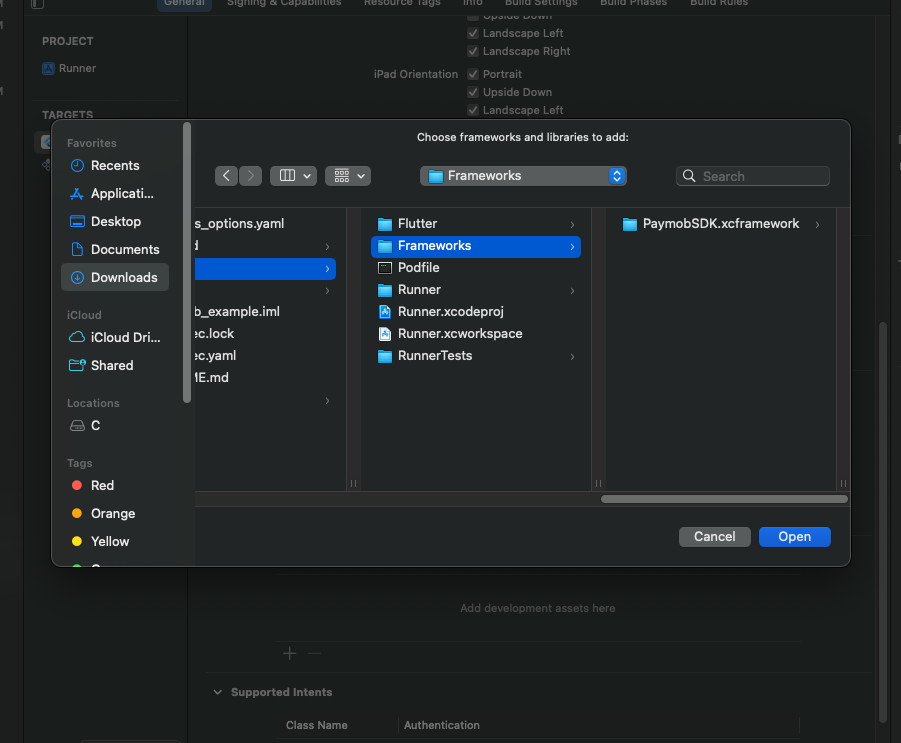
- Copy the
PaymobSDK.xcframeworkfolder to yourios/Frameworks/directory - Create the
ios/Frameworks/directory if it doesn't exist
- Copy the
-
Add SDK to Xcode:
- Open
ios/Runner.xcworkspacein Xcode - Select Runner target → General tab
- Scroll to Frameworks, Libraries, and Embedded Content
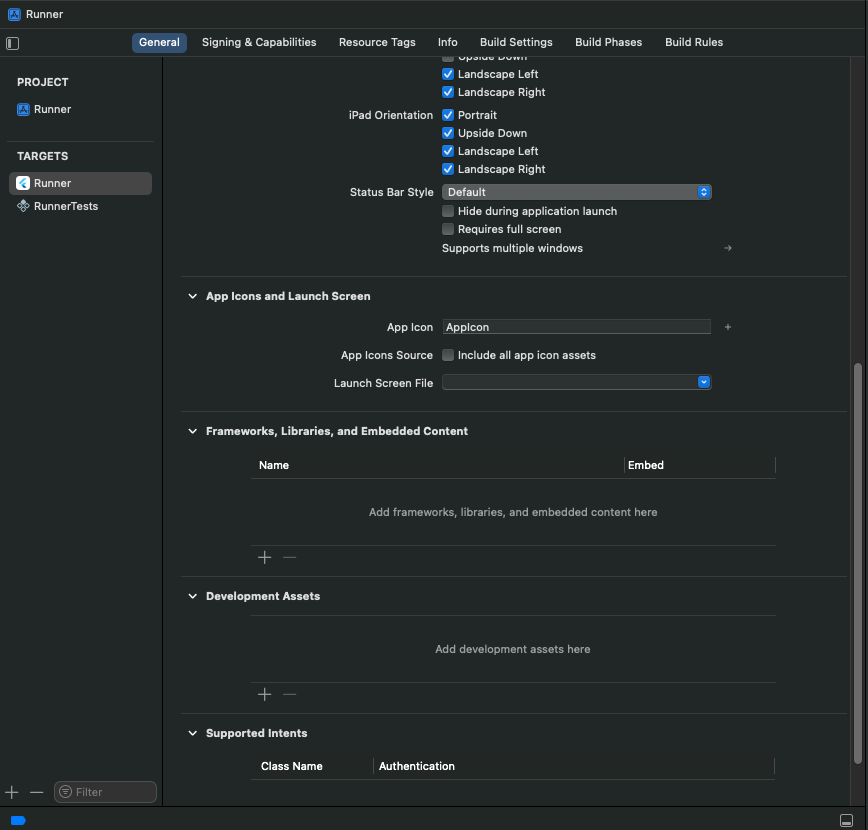
- Click + → Add Other... → Add Files...
- Navigate to
ios/Frameworks/and selectPaymobSDK.xcframework
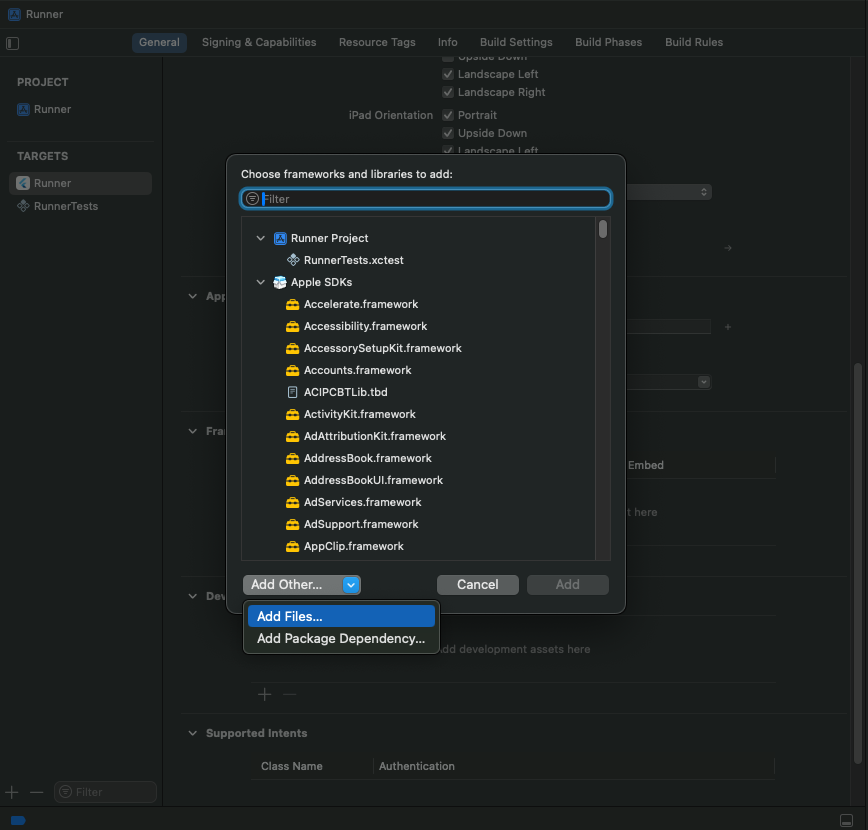
- Click Add
- Change embedding option to "Embed & Sign"
- Open
Configuration
Important: Configure the response callback for your integration ID to:
https://accept.paymob.com/api/acceptance/post_pay
This ensures after-payment actions are executed based on the actual payment status.
Usage
Basic Payment Flow
import 'package:paymob/paymob.dart';

final result = await Paymob.pay(
  publicKey: 'YOUR_PUBLIC_KEY',
  clientSecret: 'YOUR_CLIENT_SECRET',
);

if (result.isSuccessful) {
  print('Payment successful!');
} else if (result.status == PaymobTransactionStatus.rejected) {
  print('Payment rejected');
} else if (result.status == PaymobTransactionStatus.pending) {
  print('Payment pending');
}
With UI Customization
final result = await Paymob.pay(
  publicKey: 'YOUR_PUBLIC_KEY',
  clientSecret: 'YOUR_CLIENT_SECRET',
  appName: 'My App Name',
  buttonBackgroundColor: Colors.blue,
  buttonTextColor: Colors.white,
  saveCardDefault: false,
  showSaveCard: true,
);
Testing
When testing your integration, you can use the following test card information:
Card Information for Testing:
- Card Number:
4987654321098769 - Cardholder Name:
Test Account - Expiry Month: Any valid month (e.g., 12)
- Expiry Year: Any valid year (e.g., 2050)
- CVV:
123
API Reference
Paymob.pay()
Required Parameters
publicKey(String): Your Paymob public key from the dashboardclientSecret(String): Client secret from the intention creation API
Optional Parameters
appName(String?): Custom header name displayed in the SDKbuttonBackgroundColor(Color?): Color of buttons (default: black)buttonTextColor(Color?): Color of button text (default: white)saveCardDefault(bool?): Initial value for save card checkbox (default: false)showSaveCard(bool?): Whether to show save card checkbox (default: true)
Returns
PaymobPaymentResult with:
status: Transaction status (PaymobTransactionStatusenum)transactionDetails: Map containing transaction details (iOS only)errorMessage: Error message if something went wrongisSuccessful: Convenience getter
Transaction Status
enum PaymobTransactionStatus {
  successful,  // Payment completed successfully
  rejected,    // Payment was rejected
  pending,     // Payment is pending
  unknown      // Unknown or error status
}
Getting Your Credentials
Public Key
- Log in to your Paymob Dashboard
- Go to Settings → Integration Credentials
- Find your Public Key (remains constant)
Client Secret
The Client Secret is obtained from the Create Intention API request. It changes with each payment transaction.
License
This project is licensed under the MIT License - see the LICENSE file for details.
Changelog
See CHANGELOG.md for a list of changes.