
flutter_apple_pay_plus
A Flutter plugin for accepting payments with Apple Pay.
Features
- Easy Integration: Quickly add Apple Pay to your Flutter apps.
- Multiple Payment Networks: Supports Visa, Mastercard, Amex, and Mada.
- Customizable Payment Items: Define products and shipping charges.
Getting Started
Add the dependency to your pubspec.yaml:
dependencies:
  flutter_apple_pay_plus: ^latest_version
Then run:
flutter pub get
Usage
Import the package in your Dart code:
import 'package:flutter_apple_pay_plus/flutter_apple_pay_plus.dart';
Here’s an example of how to initiate a payment using the plugin:
Future<void> makePayment() async {
  // To store the Apple Pay response data
  dynamic applePaymentData;

  // Define a list of payment items (each includes a label, amount, and optional shipping charge)
  List<PaymentItem> paymentItems = [
    PaymentItem(
      label: 'Product Label',
      amount: 1.00,
      shippingcharge: 2.00,
    ),
  ];

  try {
    // Initiate the payment
    applePaymentData = await ApplePayFlutter.makePayment(
      countryCode: "OM",
      currencyCode: "OMR",
      paymentNetworks: [
        PaymentNetwork.visa,
        PaymentNetwork.mastercard,
        PaymentNetwork.amex,
        PaymentNetwork.mada,
      ],
      merchantIdentifier: "merchant.demo.tech.demoApplePayId",
      paymentItems: paymentItems,
      customerEmail: "[email protected]",
      customerName: "Demo User",
      companyName: "Demo Company",
    );

    // Log the Apple Pay response data
    print(applePaymentData.toString());
  } on PlatformException catch (e) {
    // Handle errors from the payment process
    print('Payment failed: \${e.message}');
  }
}
Setting up Apple Pay
Fulfill the requirements to provide Apple Pay as a payment option on your website or in your app.
Overview
To set up your Apple developer account and Xcode to implement Apple Pay in your apps, complete the following steps:
- Create a merchant identifier.
- Create a Payment Processing certificate.
- Enable Apple Pay in Xcode.
Create a merchant identifier
To enable your app to use Apple Pay, register an identifier with Apple that uniquely identifies your business as a merchant able to accept payments. This ID never expires, and you can use it in multiple websites and apps. See Create a merchant identifier for the setup steps.
Create a payment processing certificate
Using your registered merchant identifier, create a certificate to secure transaction data. Apple Pay servers use the certificate’s public key to encrypt payment data. You (or your payment service provider) use the private key to decrypt the data to process payments. See Create a payment processing certificate for the setup steps.
Note: If you use an e-commerce provider or a payment platform, contact them for information about how to use their service with Apple Pay. See Payment Platforms for a list of service providers.
Enable Apple Pay capability in Xcode
After creating a merchant identifier, enable the Apple Pay capability in your Xcode project:
- Open your project with Xcode. In the Project navigator, select the project.
- Choose the target for the app from either the Project/Targets pop-up menu or in the Targets section of the outline view.
- Click the Signing & Capabilities tab in the project editor.
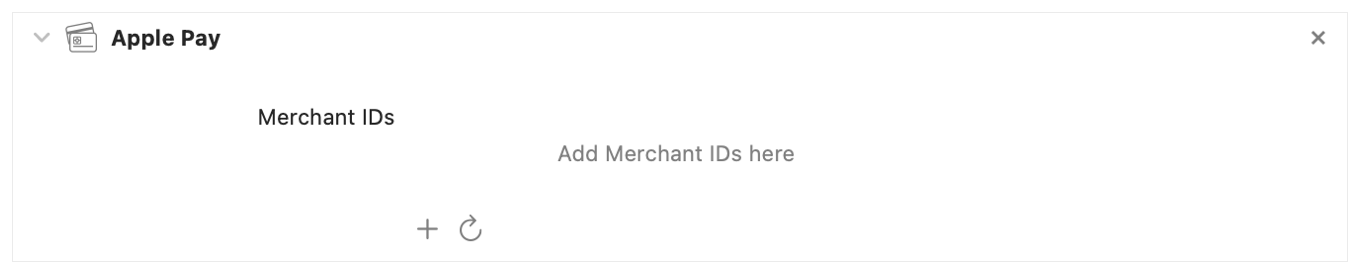
- In the toolbar, click the Library button (+) to open the Capabilities library and select the Apple Pay capability.
- Within the Apple Pay capability, click the refresh button to synchronize your merchant identifiers from the Apple Developer site.
- Select the merchant identifier to use with this app.
Resolved Issues
- Compilation Error: Execution failed for task ':apple_pay_flutter:compileDebugKotlin' – Unresolved 'Registrar' Reference in ApplePayFlutterPlugin (Android Embedding v2)
What went wrong:
Resolution: This issue was resolved by removing the deprecatedExecution failed for task ':apple_pay_flutter:compileDebugKotlin'. > A failure occurred while executing org.jetbrains.kotlin.compilerRunner.GradleKotlinCompilerRunnerWithWorkers$GradleKotlinCompilerWorkAction > Compilation error. See log for more detailsRegistrarimport. The plugin now fully utilizes the Android embedding v2 API, ensuring compatibility with recent versions of Flutter.
Additional Notes
- Apple Developer Setup: Ensure your Apple Developer account has Apple Pay enabled and that your merchant identifier is correctly configured.
- Configuration: Set the
currencyCodeandcountryCodeaccording to your target market. - Documentation: For more details, refer to the Apple Pay Documentation.
License
This project is licensed under the MIT License.